WSL (Windows 10)
This chapter mainly introduces the method of running a Linux environment on Windows systems using Windows Subsystem for Linux.
Introduction1
Currently, most school competition practice environments are built on Windows-based operating systems. However, in the NOI series competitions, NOI Linux, a modified version of the Ubuntu operating system, is already in use.
The environment requirements for NOI competitions (since September 1, 2021) are as follows.2
| Category | Software or Module | Version | Remarks |
|---|---|---|---|
| System | Linux Kernel | 5.4.0-42-generic |
64-bit x86 (AMD64) |
| Language Environment | GCC (gcc and g++) |
9.3.0 |
C and C++ compilers |
| FPC | 3.0.4 |
Pascal compiler (Note: Since 2022, Pascal is no longer supported in NOI series competitions) | |
| Python 2 | 2.7 |
Non-competition language | |
| Python 3 | 3.8 |
Non-competition language | |
| Debugging Tools | GDB | 9.1 |
|
| DDD | 3.3.12 |
GUI front-end for GDB | |
| Integrated Development Environment (IDE) | Code::Blocks | 20.03 |
C/C++ IDE |
| Lazarus | 2.0.6 |
Pascal IDE | |
| Geany | 1.36 |
C/C++/Pascal (lightweight) IDE | |
| Text Editing Tools | Visual Studio Code | 1.54.3 |
|
| GNU Emacs | 26.3 |
||
| gedit | 3.36.2 |
||
| Vim | 8.1 |
||
| Joe | 4.6 |
||
| nano | 4.8 |
||
| Sublime Text | 3.2.2 |
||
| Other Software | Firefox | 79.0 |
Browser |
Midnight Commander (mc) |
4.8.24 |
File manager | |
| xterm (uxterm) | 3.5.3 |
Terminal | |
| Arbiter-local | 1.02 |
Standalone program judging tool |
The competition environment differs from the general environment in several ways:
- Differences between command-line operations and graphical interface operations.
- Differences between Linux and Windows, such as case sensitivity.
- Differences in compiler behavior (MSVC vs. GCC) and different compiler versions (GCC on Windows vs. Linux, 32-bit vs. 64-bit Linux GCC, GCC 7 vs. GCC 8, etc.), such as handling of variable initialization and array index out-of-bounds.
- Differences in timeout and memory limit checks between different judging systems (Luogu and Arbiter).
This may lead to a series of awkward situations:
- Trying to copy with Ctrl+C but exiting the program instead.
- A program template that usually gets AC (Accepted) gets WA (Wrong Answer) on Linux.
To prevent such awkward situations during competitions, we must familiarize ourselves with Linux system operations in advance.
Although the NOI official website has released the ISO image of NOI Linux, configuring a virtual machine is relatively cumbersome. Moreover, since NOI Linux comes with a graphical interface by default, smooth operation on low-spec systems cannot be guaranteed.
Windows 10 introduced the Linux Subsystem (WSL) during its first anniversary update and upgraded to WSL 2 in the May 2020 update. As of June 1, 2020, WSL supports installing mainstream Linux distributions such as Ubuntu, openSUSE Leap, Kali, and Debian. However, WSL does not support Arbiter, the judging system used by NOI.
What is the Linux Subsystem (WSL)
Windows Subsystem for Linux (WSL) is a compatibility layer for running native Linux binary executables (in ELF format) on Windows 10, Windows 11, and Windows Server 2019.
WSL allows developers to run a GNU/Linux environment—including most command-line tools, utilities, and applications—directly on Windows, without the overhead of a virtual machine.
WSL is only available on 64-bit versions of Windows 10 version 1607 and above, Windows 11, and Windows Server 2019/2022.
Enabling WSL3
Automatic Installation
Warning
This section applies to Windows 10 version 2004 and higher (build 19041 and higher) or Windows 11.
If you are using a version below 2004 or your computer does not support virtualization, please read the manual installation section below.
If you are using Windows 10 version 1607 or lower, your system does not support WSL.
-
Open Windows PowerShell as an administrator (right-click the Start button and select Windows PowerShell (Admin) or Windows Terminal (Admin)).
-
Enter
wsl --installand wait for all components to be installed automatically. You may need to restart your computer during this process to enable necessary Windows features. -
After installation is complete, you can find your installed distribution in the Start menu or in the tabs of Windows Terminal.
-
Next, proceed to the "Configuring the Distribution" section below to complete other settings.
Manual Installation4
Warning
The following describes the steps for manually installing WSL. If you have already completed the automatic installation, skip this section.
Enable Windows Subsystem for Linux
Before installing any Linux distribution for WSL, you must choose one of the following two methods to ensure the "Windows Subsystem for Linux" optional feature is enabled:
Using the command line:
-
Open PowerShell as an administrator and run:
1
2
3
Enable-WindowsOptionalFeature -Online -FeatureName Microsoft-Windows-Subsystem-Linux # Skip this step if you only want to use WSL 1 Enable-WindowsOptionalFeature -Online -FeatureName VirtualMachinePlatform -
Restart your computer when prompted.
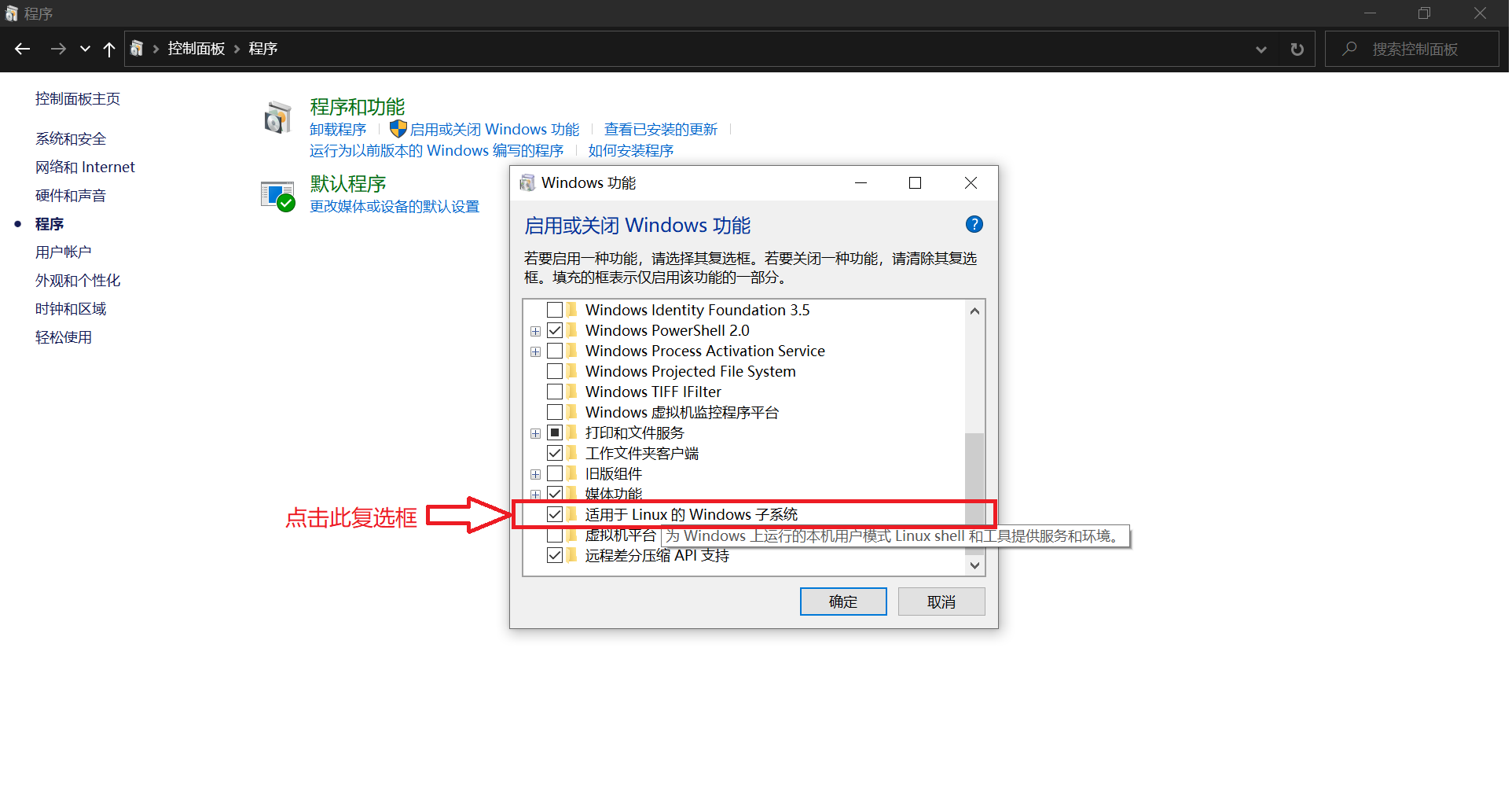
Using the graphical interface:
-
Open "Control Panel"
-
Go to "Programs and Features" submenu "Turn Windows features on or off"
-
Select "Windows Subsystem for Linux" and "Virtual Machine Platform"
-
Click OK
-
Restart
Install Kernel Update Package
If you want to use WSL 1, skip this step.
Download and install the WSL2 Linux kernel update package for x64 machines.
Set WSL Default Version
In most cases, it is recommended to use WSL 2. For the differences between WSL 1 and WSL 2, see Compare WSL 2 and WSL 1.
About systemd
WSL 1 does not support systemd at all (meaning some features requiring systemd cannot be implemented or require alternative solutions). WSL 2 has built-in support for systemd. If you need to use systemd and the currently running distribution is not configured to enable it, refer to Advanced settings configuration in WSL.
1 2 | |
Install WSL Distribution
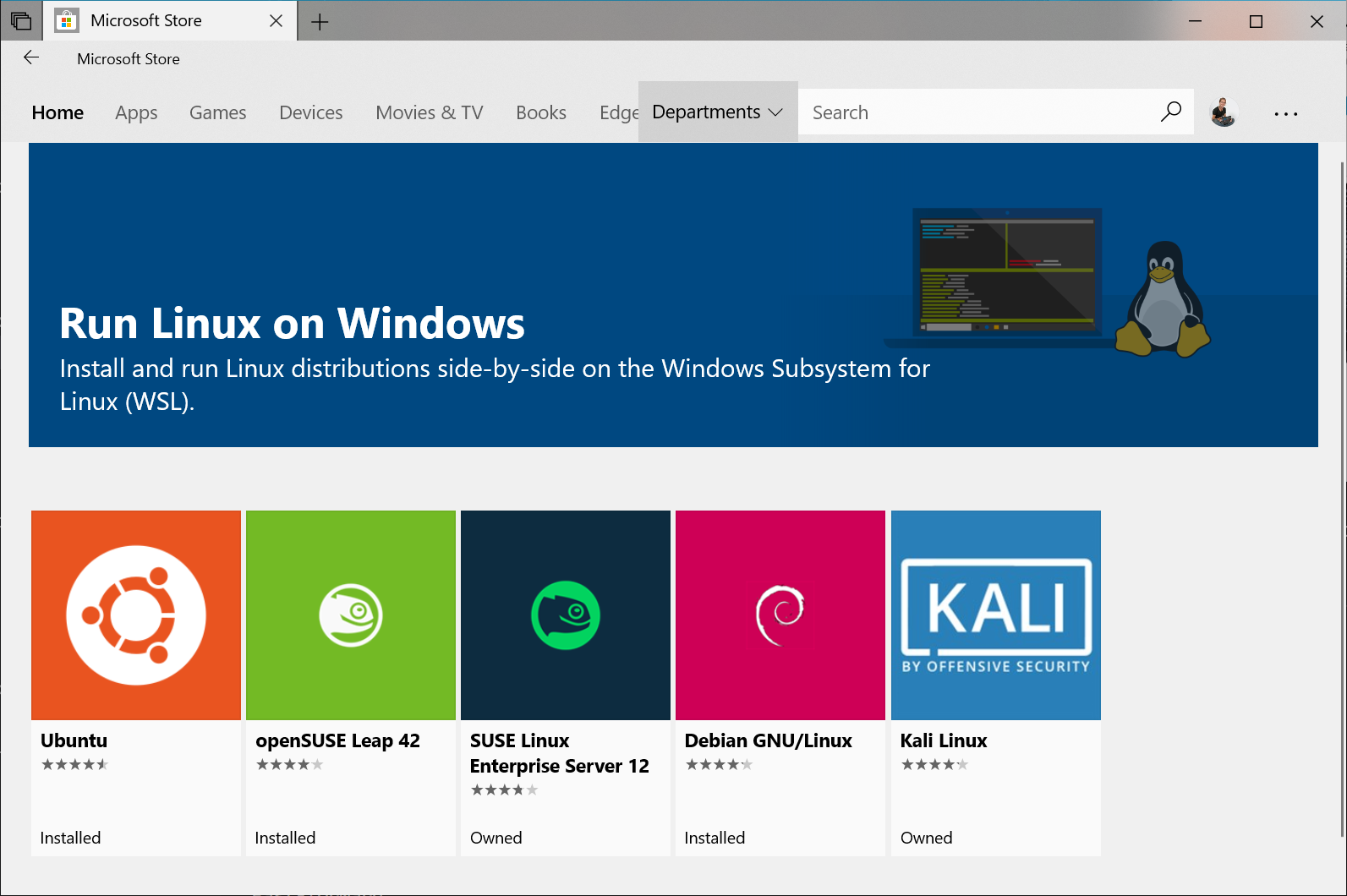
Go to the Microsoft Store, search for "Ubuntu", then select "Ubuntu", and click "Install" to install it. You can also open the Ubuntu store page.
Warning
The Ubuntu version in the Microsoft Store is updated along with Ubuntu updates, so the content may change. If you want a stable Ubuntu Long-Term Support (LTS) version, you can install the LTS version of Ubuntu from the Microsoft Store.
Configuring the Distribution5
This chapter uses Ubuntu installed automatically by Windows as an example.
Running Ubuntu
Open the Start menu, find Ubuntu, and launch it, or use the wsl command to start it from the Windows command line.
You can create an application tile for Ubuntu or pin it to the taskbar for easy access next time.
Initialization
The first time you run Ubuntu, you need to complete initialization.
1 | |
Wait for a minute or two, and the system will prompt you to create a new user account.
1 2 3 | |
After entering the username, you will be prompted to enter a password. In Linux, it is normal for the password not to be displayed on the screen while typing.
1 | |
After setting up the account name and password, WSL installation is complete.
1 2 3 4 5 | |
Basic Configuration
The freshly installed system does not come with any C/C++ compilers; the environment needs to be configured manually.
1 2 3 4 5 6 | |
Switching to a Domestic Software Source
Ubuntu's default software sources are located abroad. You can switch to domestic software sources to speed up downloads, such as Tsinghua TUNA's software source.
Use software sources matching your system version
Please find the source matching your system version on the page (you can use sudo lsb_release -a to check the Ubuntu version).
Unless you know what you are doing, do not use sources that do not match your system version!
Use the following commands to update software and software sources:
1 2 3 4 5 6 7 8 9 10 | |
Installing Chinese Environment
1 2 3 4 | |
You will enter a setup menu; just press Enter directly.
In the next menu, select zh_CN.UTF-8 and press Enter.
1 2 3 4 5 6 7 8 | |
After that, close WSL and restart, and the system will become Chinese.
Then enter the following commands in sequence to replace the man help pages with Chinese.6
1 2 | |
You can test with man help.
Installing Compilation Environment7
1 | |
For GUIDE installation, refer to Installing GUIDE on Debian or Ubuntu.
This installs the basic + NOI official required environment. If needed, you can install other software packages using sudo apt install <package-name>.
To install other versions, refer to the official Debian Package Management Handbook.
Here is an example program:
1 2 3 4 5 | |
Note
In Linux environments, executable files do not need extensions. The running method is shown in the command above.
Advanced Operations
Running GUI Applications with WSLg
If you are using Windows 10 version 19044 or higher, or Windows 11, you can use the integrated desktop experience provided by WSL 2. This feature allows you to directly install and launch Linux desktop applications without additional configuration.
See Run Linux GUI apps on the Windows Subsystem for Linux
Installing a Graphical Environment and Using Remote Desktop Connection
If your version does not yet support WSLg, you can try using the following guide to enable the graphical interface.
The following uses Xfce as an example.
If you only want to install Xfce, you can execute the following command:
1 | |
If you want more software besides Xfce, you can execute the following command:
1 | |
The graphical environment files are large, and downloading and unpacking may take some time.
Configure xrdp:
1 2 3 | |
To prevent conflicts with the computer's existing remote desktop, you need to change the default port.
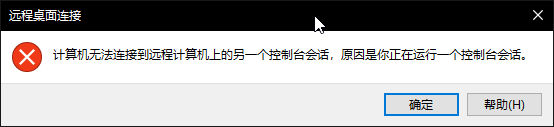
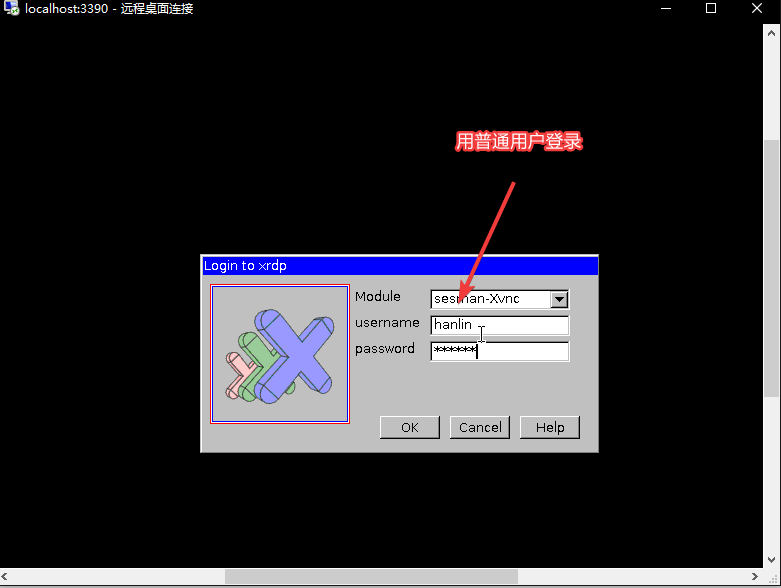
Run the command sudo sed -i 's/port=[0-9]\{1,5\}/port=otherport/' /etc/xrdp/xrdp.ini, where otherport is another port (e.g., 3390).
1 2 3 | |
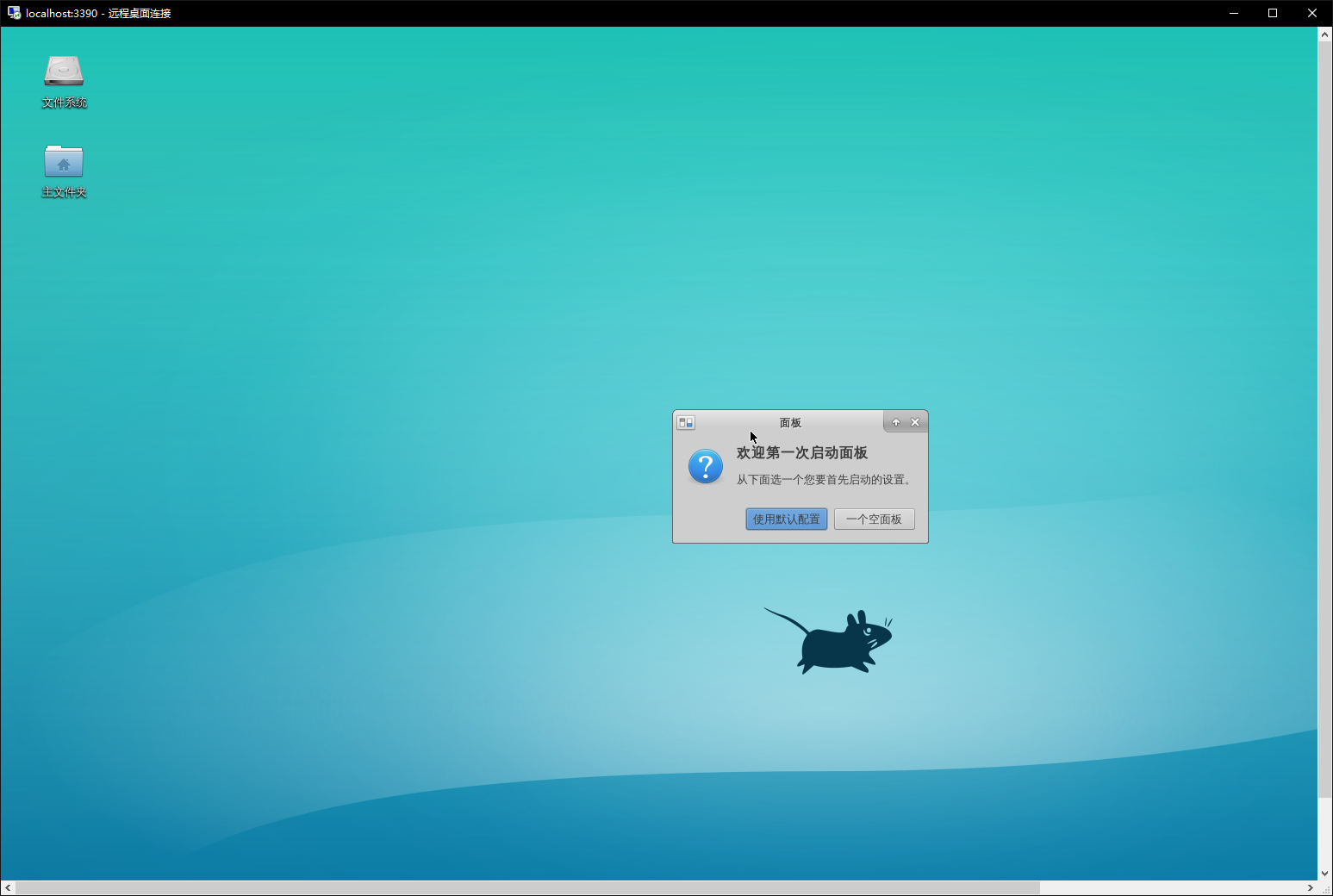
Run sudo service xrdp restart, then go to the Start menu and access it using localhost:otherport.
Connecting Using Xming
Enter the Ubuntu environment and install xterm:
1 | |
Exit Ubuntu.
Download the latest Xming Server from Xming X Server Download Address and install it:
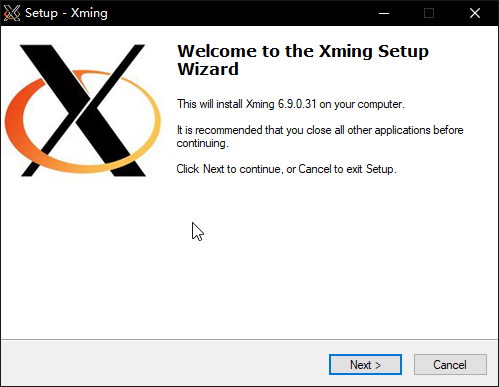
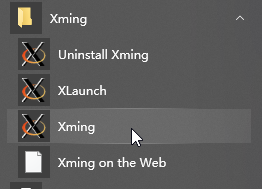
If you forgot to check Launch Xming after installation, open Xming from the Start menu:
Then go back to Ubuntu and type the following command:
1 | |
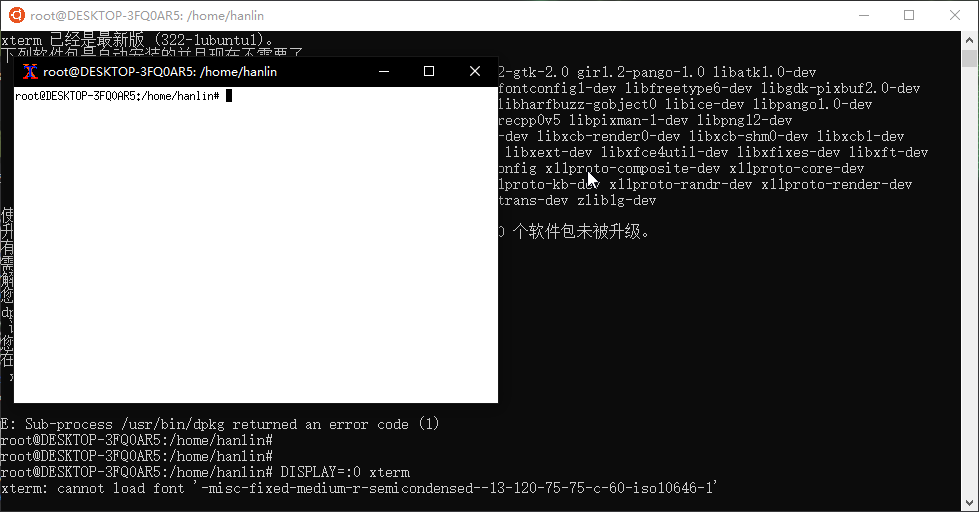
If you are using xfce4, you can activate xfce4 in the popped-up window with the following command:
1 | |
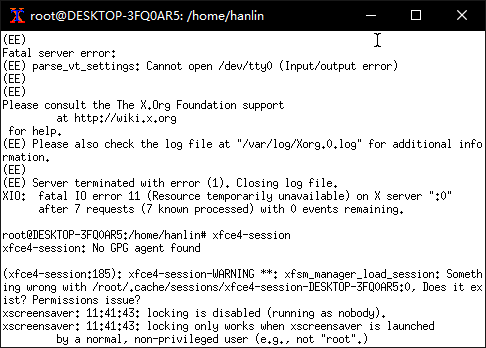
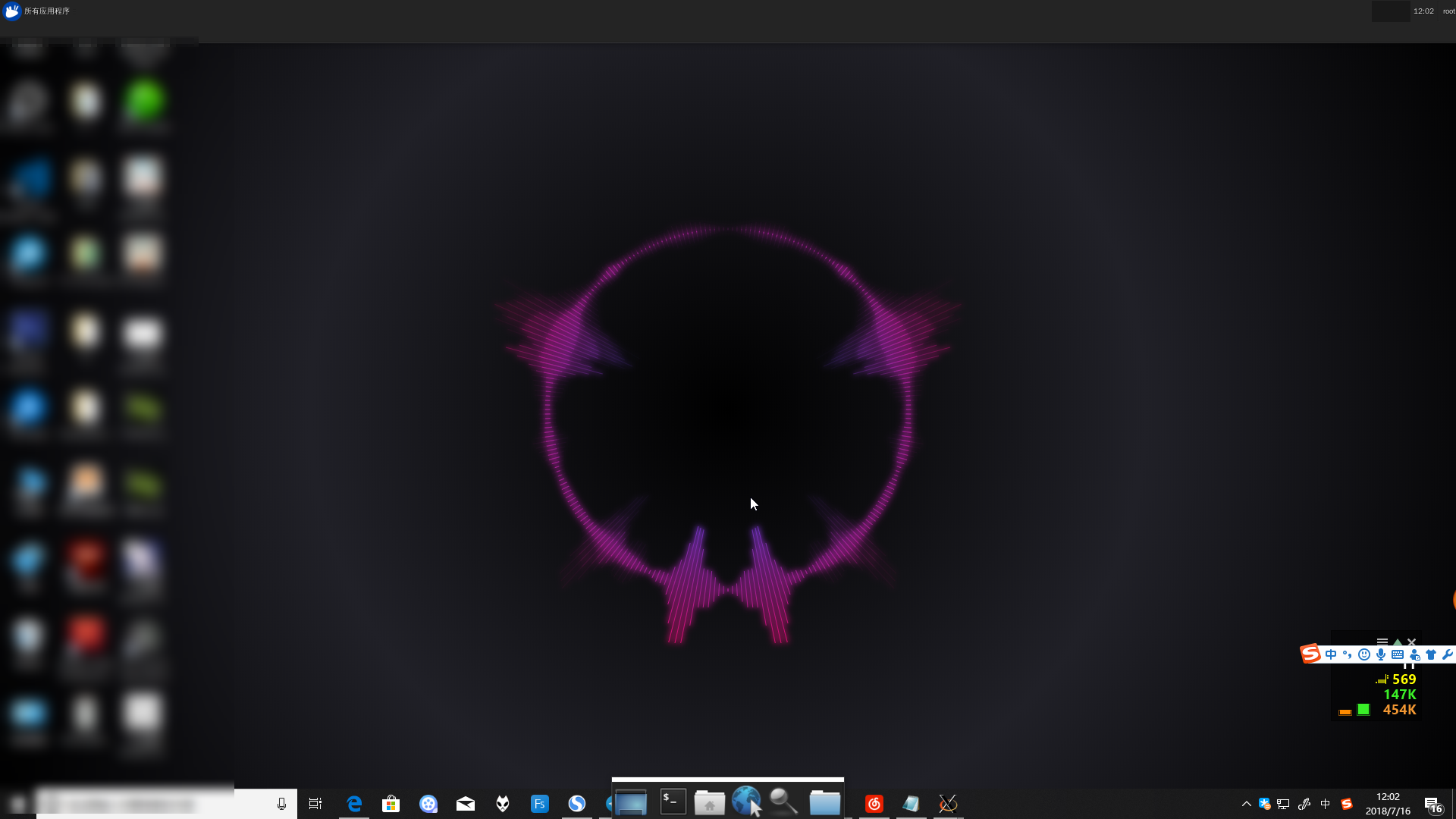
The running result is as shown. (Press Ctrl+C in Xming to exit this interface.)
File Access Between WSL and Windows
Hard drives under Windows are automatically mounted to the /mnt folder in the Linux environment.
For example, the C drive path in WSL is /mnt/c.
1 2 3 4 5 6 7 8 9 | |
Additionally, you can also access WSL directories from File Explorer. After installing WSL, you can find the Linux item in the sidebar of File Explorer, where you can access files in all installed distributions.
Similarly, you can directly enter \\wsl$ in the File Explorer path or Run dialog (Win+R) to go to the WSL directory.
You can also directly use paths like \\wsl$\Ubuntu\home\ to access its subfolders.
Editing with Visual Studio Code
If you are accustomed to using Visual Studio Code for code editing in the Windows environment, you can install the Remote - WSL plugin in VS Code to edit files in the WSL system more conveniently.
Through Remote - WSL, you can directly operate the WSL subsystem within the Windows VS Code interface, making it easier to edit files in the subsystem directory and use the terminal for debugging.
By typing code . directly in WSL, you can directly launch Visual Studio Code in that directory to edit files in that directory.
At the same time, you can use commands like code filename to edit specified files.
The Getting Started page of the Remote - WSL plugin contains a detailed introduction to editing operations.
Also, you can refer to the official Visual Studio Code documentation about WSL (Remote development in WSL), which contains a more detailed introduction to the entire process from WSL installation to using it with the plugin.
Upgrading from WSL1 to WSL2
Warning
Please confirm that you have completed the previous WSL1 installation steps.
Executing the command wsl -l -v shows that the WSL version is 1. An upgrade is required to reach version 2.
-
Enable the "Virtual Machine Platform" feature
Run PowerShell as an administrator:
1dism.exe /online /enable-feature /featurename:VirtualMachinePlatform /all /norestartThen restart the computer.
-
Download the Linux kernel update package
- Kernel update package for x64.
- Kernel update package for ARM64/AArch64.
-
Set the distribution version
Execute the command:
wsl --set-version <distribution name> <version number>For example: The command to set Ubuntu 18.04 to WSL 2 is
wsl --set-version Ubuntu-18.04 2This step is time-consuming. After execution, check if the upgrade was successful using the command
wsl -l -v.
FAQ
See: Frequently Asked Questions, WSL 2 Frequently Asked Questions
-
How to do xxx under the subsystem?
You can use the built-in command line or the graphical interface. For example, for vim, typing
man vimin the command line will give a detailed usage method. You can also usevim --help.For the command line, you can read Command Line
-
What about system resource usage?
This system shares the Host with Windows 10, so theoretically it consumes less than a virtual machine.
External Links
- About Windows Subsystem for Linux
- Ubuntu Mirror Usage Help, Tsinghua TUNA
- Dev on Windows with WSL (Elegant Development on Windows with WSL)
- Awesome-WSL on GitHub
- Troubleshooting Windows Subsystem for Linux
- Upgrading from WSL1 to WSL2
References and Notes
本页面最近更新:,更新历史
发现错误?想一起完善? 在 GitHub 上编辑此页!
本页面贡献者:OI-wiki
本页面的全部内容在 CC BY-SA 4.0 和 SATA 协议之条款下提供,附加条款亦可能应用