LaTeX Primer
Introduction
What is LaTeX
LaTeX (pronounced /ˈlɑːtɛx/ or /ˈleɪtɛx/) is a typesetting system that makes your documents look professional, not a word processor. It is particularly suitable for handling long, well-structured documents and excels at formula expression. It is free software and works on most operating systems.
LaTeX is based on TeX (a typesetting system designed by Donald Knuth in 1978 for digital typesetting). TeX is a low-level language that computers can process, but most people find it difficult to use. LaTeX was designed to make it easier to use. The current version of LaTeX is LaTeX 2e.
If you are used to using Microsoft Office Word to process documents, you will find LaTeX's working style quite unfamiliar. Word is a typical "What You See Is What You Get" (WYSIWYG) editor, where you can see the final typesetting effect while editing the document. However, with LaTeX, you cannot conveniently preview the final effect, which makes you focus on content rather than appearance adjustments.
A LaTeX document is a text file ending with .tex, which can be edited with any text editor, such as Notepad. However, for most people, using a suitable LaTeX editor makes the editing process much easier. During editing, you can mark the structure of the document. After completion, you can compile it—meaning converting it into a document of another format. It supports multiple formats, but the most commonly used is the PDF document format.
Before You Begin
The following notations are used in this article:
- Actions you are expected to perform are marked with an arrow \(\rightarrow\);
- Characters you input are enclosed in code blocks;
- Menu commands and button names are marked as bold.
Some Concepts
To write LaTeX documents, you need to install a "distribution". Common distributions include TeX Live, MikTeX, and MacTeX for macOS users (which is essentially the macOS version of TeX Live). As for CTeX, it is not recommended now. TeX Live and MacTeX come with almost all LaTeX packages; while MikTeX only includes a few essential packages, and other packages will be installed when needed.
Both TeX Live and MikTeX come with the TeXworks editor. You can also install the more feature-rich TeXstudio editor, or configure editors like Visual Studio Code or Notepad++ yourself. The editor used below is TeXworks running on Windows 7.
Most distributions come with multiple engines, such as pdfTeX and XeTeX. For Chinese users, it is recommended to use XeTeX for Unicode support.
TeX has multiple formats, such as Plain TeX and LaTeX. Nowadays, the LaTeX format is generally used. Therefore, you need to use the engine bundled with the format you are using. For example, for pdfTeX, you need to use pdfLaTeX; for XeTeX, it is XeLaTeX.
Further reading: Introduction to TeX Engine, Format, and Distribution.
Environment Setup
For Windows users, you need to download TeX Live or MikTeX. Users in China can use the Tsinghua University TUNA Mirror. Click the "Get Download Link" button on the right side of the page and select "TeX Typesetting System" under the "Application Software" tab to download the TeX Live or MikTeX installation package. The TeX Live installation package is an ISO file, which needs to be mounted and then run install-tl-advanced.bat with administrator privileges.
For macOS users, the Tsinghua University TUNA Mirror also provides downloads for MacTeX and the macOS version of MikTeX.
For Linux users, if using TeX Live, also download the ISO file and run the install-tl script; if using MikTeX, follow the official documentation for installation.
Document Structure
Basic Elements
\(\rightarrow\) Open TeXworks.
A new document will open automatically.
\(\rightarrow\) Go to the Format menu, select Line Numbers.
Line numbers are not essential, but they can help you compare code with screen messages and find errors.
\(\rightarrow\) Go to the Format menu, select Syntax Coloring, then select LaTeX.
Syntax highlighting will make the code more readable.
\(\rightarrow\) Enter the following text:
1 2 3 4 5 | |
The \documentclass command must appear at the beginning of every LaTeX document. The text inside the curly braces specifies the document type. The article document type is suitable for shorter articles, such as journal articles and short reports. Other document types include report (suitable for longer multi-chapter documents, such as PhD theses), proc (conference proceedings), book, and beamer. The text inside the square brackets specifies some options—in the example, it sets the paper size to A4 and the main text size to 12pt.
The \begin{document} and \end{document} commands wrap your text content. Any text before \begin{document} is considered preamble commands and affects the entire document. Any text after \end{document} is ignored.
Blank lines are not necessary, but they make long documents more readable.
\(\rightarrow\) Press the Save button; \(\rightarrow\) Create a new folder named LaTeX course in Libraries>Documents; \(\rightarrow\) Name your document Doc1 and save it as a TeX document in this folder.
It is a good idea to place different LaTeX documents in different directories and combine multiple files when compiling.
\(\rightarrow\) Make sure the typeset menu is set to xeLaTeX. \(\rightarrow\) Click the Typeset button.
At this point, your source file will be converted to a PDF document, which takes some time. After compilation, TeXworks' PDF viewer will open and preview the generated file. The PDF file is automatically saved in the same directory as the TeX document.
Handling Problems
If there is an error in your document and TeXworks cannot create a PDF, the Typeset button will turn into a red cross, and the terminal output at the bottom will remain expanded. In this case:
\(\rightarrow\) Click the Abort typesetting button. \(\rightarrow\) Read the terminal output; the last line may indicate the line number where the error occurred. \(\rightarrow\) Find the corresponding line in the document and fix the error. \(\rightarrow\) Click the Typeset button again to try compiling the source file.
Adding a Document Title
The \maketitle command can create a title for the document. You need to specify the document's title. If no date is specified, the current time is used; the author is optional.
\(\rightarrow\) Immediately after the \begin{document} command, enter the following text:
1 2 3 4 | |
Your document should now look like this:
1 2 3 4 5 6 7 8 9 10 | |
\(\rightarrow\) Click the Typeset button and check the generated PDF document.
Key notes:
\todayis a command to insert the current date. You can also enter a different date, such as\date{November 2013}.- The body of an article document is typeset immediately after the title on the same page. report places the title on a separate page.
Sections
If needed, you may want to divide your document into chapters, sections, and subsections. The following sectioning commands are suitable for article type documents:
\section{...}\subsection{...}\subsubsection{...}\paragraph{...}\subparagraph{...}
The text inside the curly braces represents the section title. For report and book type documents, we also support the \chapter{...} command.
\(\rightarrow\) Replace "A sentence of text." with the following text:
1 2 3 4 5 6 7 8 9 10 11 12 13 | |
Your document will become:
1 2 3 4 5 6 7 8 9 10 11 12 13 14 15 16 17 18 19 20 21 22 | |
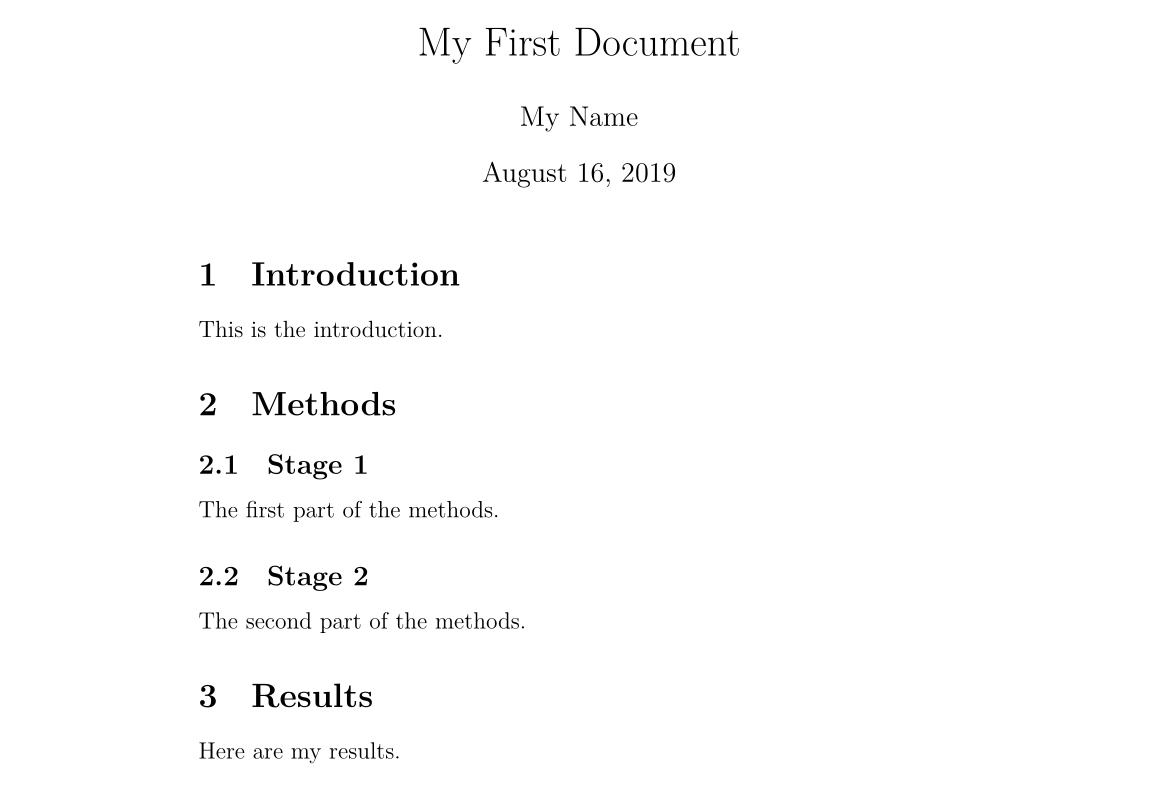
\(\rightarrow\) Click the Typeset button and check the PDF document. It should look like this:
Creating Labels
You can create labels for any sectioning command so they can be referenced elsewhere in the document. Use \label{labelname} to create a label for a section. Then use \ref{labelname} or \pageref{labelname} to refer to the corresponding section.
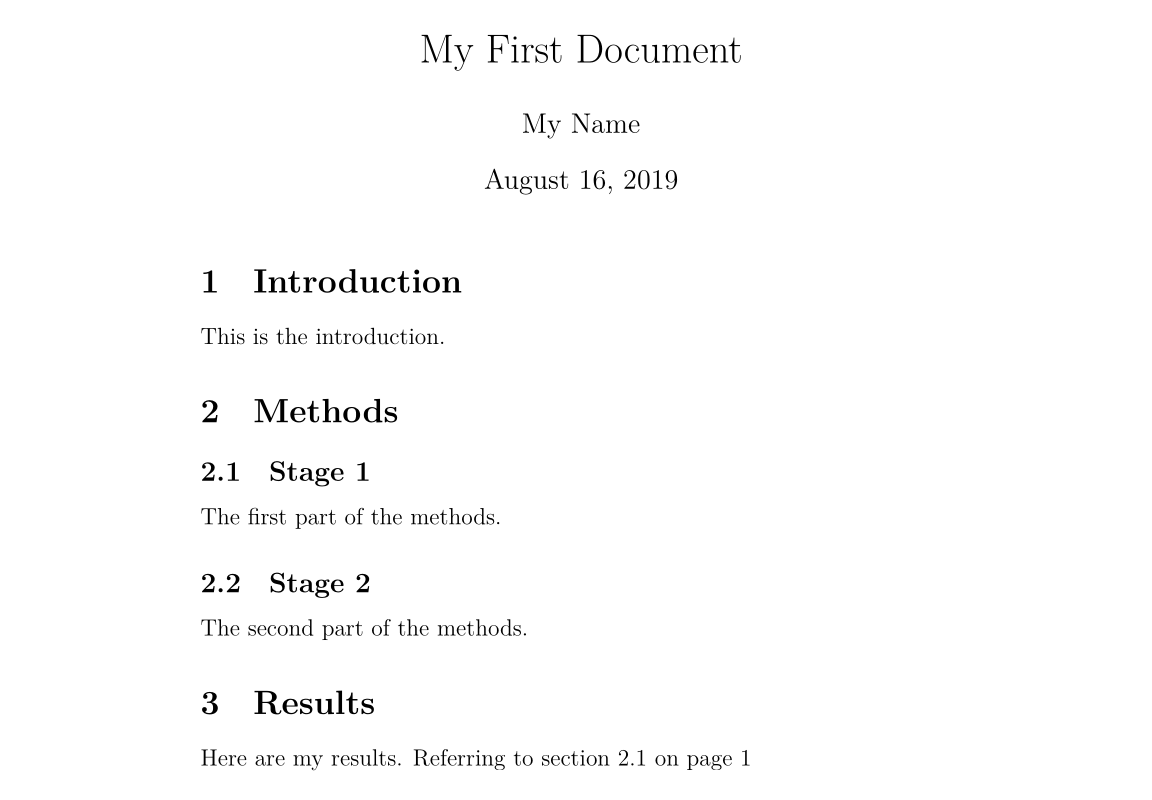
\(\rightarrow\) On a new line after \subsection{Stage 1}, enter \label{sec1}. \(\rightarrow\) In the Results section, enter Referring to section \ref{sec1} on page \pageref{sec1}.
Your document will become:
1 2 3 4 5 6 7 8 9 10 11 12 13 14 15 16 17 18 19 20 21 22 | |
\(\rightarrow\) Compile and check the PDF document (you may need to compile twice consecutively):
Generating a Table of Contents (TOC)
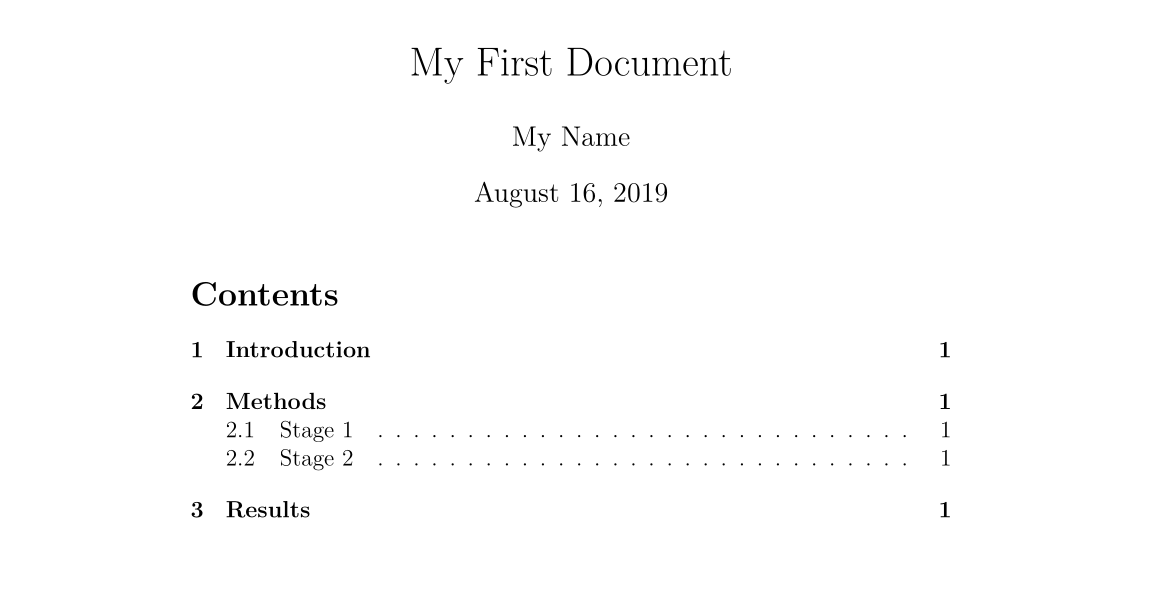
If you use sectioning commands, you can easily generate a table of contents. Use \tableofcontents to create a table of contents in the document. Usually, we place the table of contents after the title.
You may also want to change the page numbering to Roman numerals (i, ii, iii). This ensures that the main body of the document starts on page 1. Page numbering can be switched between Arabic and Roman numerals using \pagenumbering{...}.
\(\rightarrow\) After \maketitle, enter the following:
1 2 3 4 | |
The \newpage command starts a new page, allowing us to see the effect of the \pagenumbering command. The first 14 lines of your document will look like this:
1 2 3 4 5 6 7 8 9 10 11 12 13 | |
\(\rightarrow\) Compile and check the document (multiple compilations may be needed, not repeated below).
The first page of the document looks like this:
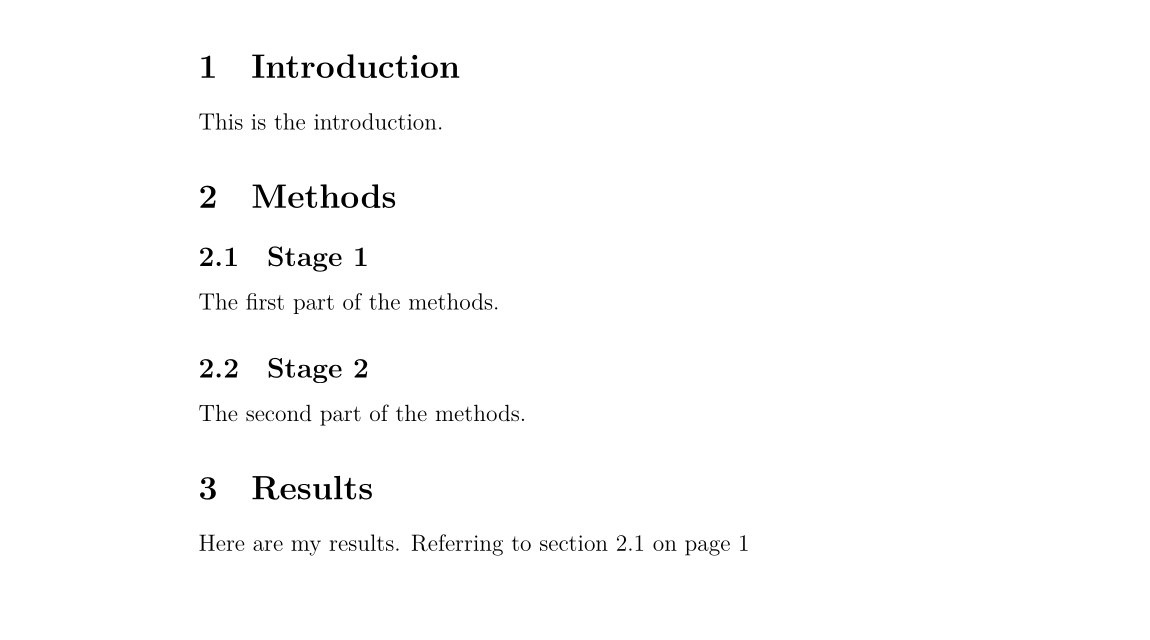
The second page:
Text Processing
Chinese Font Support
For those learning LaTeX by reading this article, the first thing to learn is naturally LaTeX's Chinese font support. In fact, there are many ways to enable Chinese font support in LaTeX. Here we only give the most concise solution: use the CTeX package. Simply add the following to the preamble of your document:
1 | |
That's it. Use the xelatex command when compiling the document because it supports Chinese fonts.
Font Effects
LaTeX has various font effects; here are some examples:
1 2 3 | |
The effects are as follows:
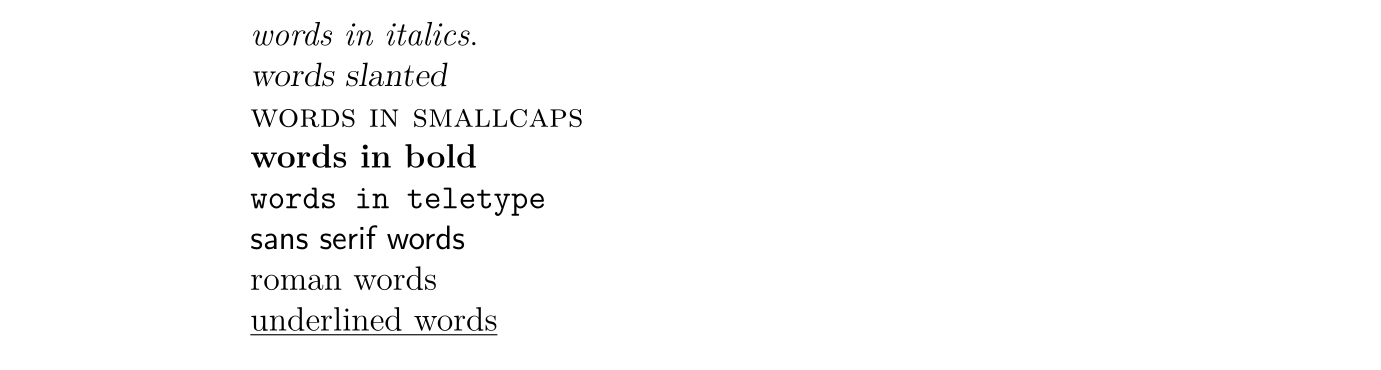
\(\rightarrow\) Add more text to your document and try various font effects.
Colored Text
To enable colored text in your document, you need to use a package. You can reference many packages to enhance LaTeX's typesetting effects. Package references are placed in the preamble of the document (i.e., before the \begin{document} command). Use \usepackage[options]{package} to reference a package, where package is the name of the package, and options are parameters specifying the package's features.
After using \usepackage{color}, we can call common colors:

The code for using colored text is:
1 | |
Where colorname is the name of the color you want, and text is your colored text content. Note that the yellow and white in the example have a text background color, which we can also achieve using the \colorbox command from the Color package. Usage is as follows:
1 | |
\(\rightarrow\) Enter \usepackage{color} before \begin{document}. \(\rightarrow\) In the document content, enter {\color{red}fire}. \(\rightarrow\) Compile and check the PDF document content.
The word "fire" should be red.
You can also add parameters to call more colors or even define custom colors. But this is beyond the scope of this book. For more information on colored text, please read the Colors chapter of the LaTeX Wikibook.
Font Sizes
Next, we list some LaTeX font size setting commands:
1 2 3 | |
The effects are as follows:
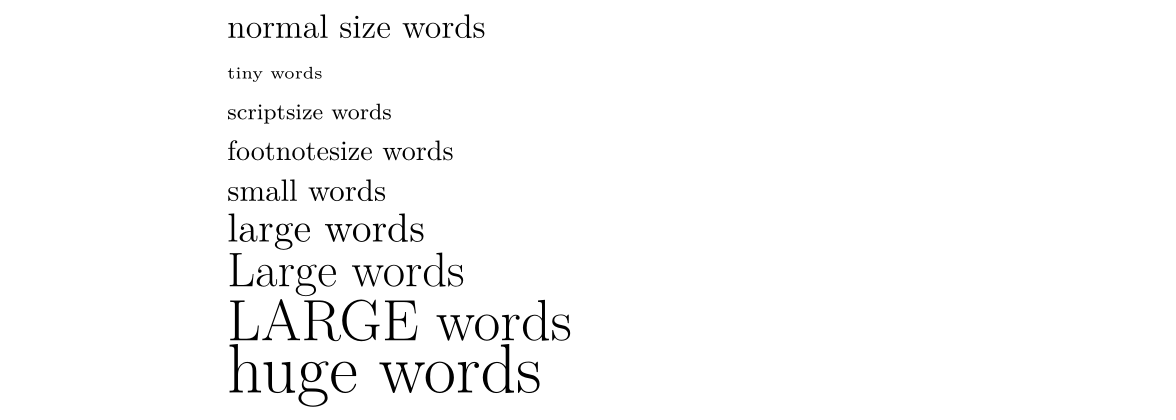
\(\rightarrow\) Try adjusting the font size of your text.
Paragraph Indentation
LaTeX defaults to having the first line of each section flush left, with subsequent paragraphs indented. If you want a paragraph to be flush left, add the \noindent command before that paragraph. If you want all paragraphs globally to be flush left, use the \setlength{\parindent}{0pt} command somewhere in the document; all subsequent paragraphs will be flush left.
Lists
LaTeX supports two types of lists: ordered lists (enumerate) and unordered lists (itemize). List items are defined with \item. Lists can have sublists.
\(\rightarrow\) Enter the following to generate an ordered list containing an unordered list:
1 2 3 4 5 6 7 8 9 10 11 12 | |
\(\rightarrow\) Compile and check the PDF document.
The list looks like this:
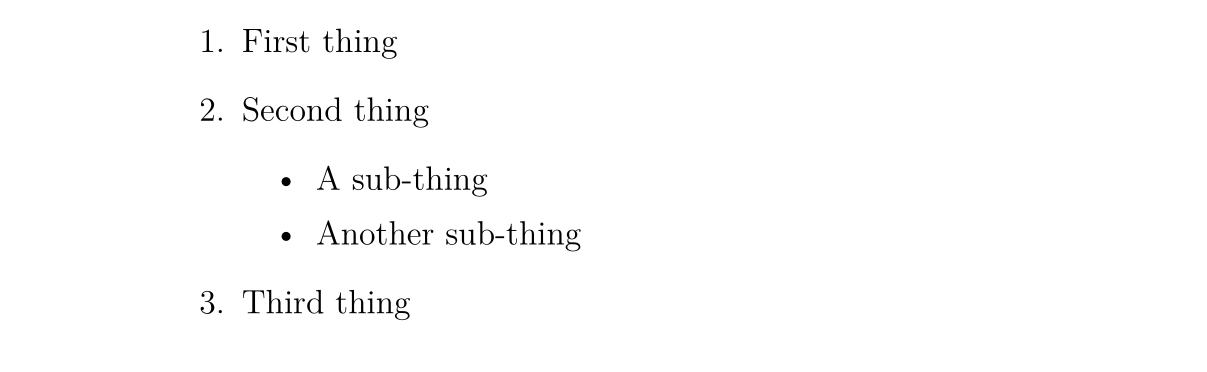
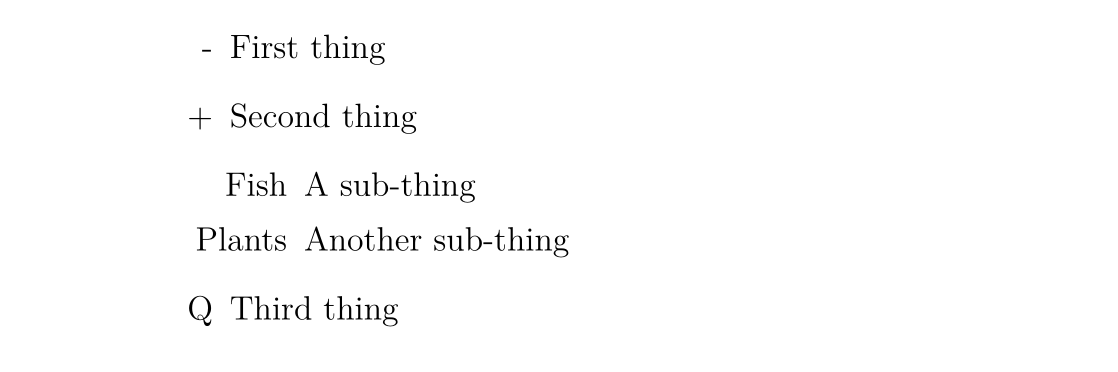
You can modify the marker for unordered list items using square bracket parameters. For example, \item[-] will use a dash as the marker; you can even use a word, such as \item[One].
The following code:
1 2 3 4 5 6 7 8 9 10 11 12 | |
Produces:
Comments and Spaces
We use % to create a single-line comment; everything after this character on the same line is ignored until the next line.
The following code:
1 2 3 | |
Produces:

Multiple consecutive spaces in LaTeX are treated as a single space. Multiple consecutive blank lines are treated as a single blank line. The main function of blank lines is to start a new paragraph. Generally, LaTeX ignores blank lines and other whitespace characters; two backslashes (\\) can be used for line breaks.
\(\rightarrow\) Try adding comments and blank lines to your document.
If you want to add vertical space in your document, you can use the \vspace{...} command. This adds vertical space with a specified height. For example, \vspace{12pt} creates a space with a height equal to that of 12pt text.
Special Characters
The following characters are special in LaTeX:
1 | |
To use these characters, we need to escape them with a backslash:
1 | |
Note that when using the ^ and ~ characters, they must be followed immediately by a pair of closing curly braces; otherwise, they will be interpreted as superscripts for letters, like \^ e becomes \(\mathrm {\hat{e}}\). The code above produces:

Note that the backslash itself cannot be escaped with a backslash (that would become a line break); use the \textbackslash command instead.
\(\rightarrow\) Enter code to generate the following content in your document:

Ask an expert or check the source code of this page for help.
Tables
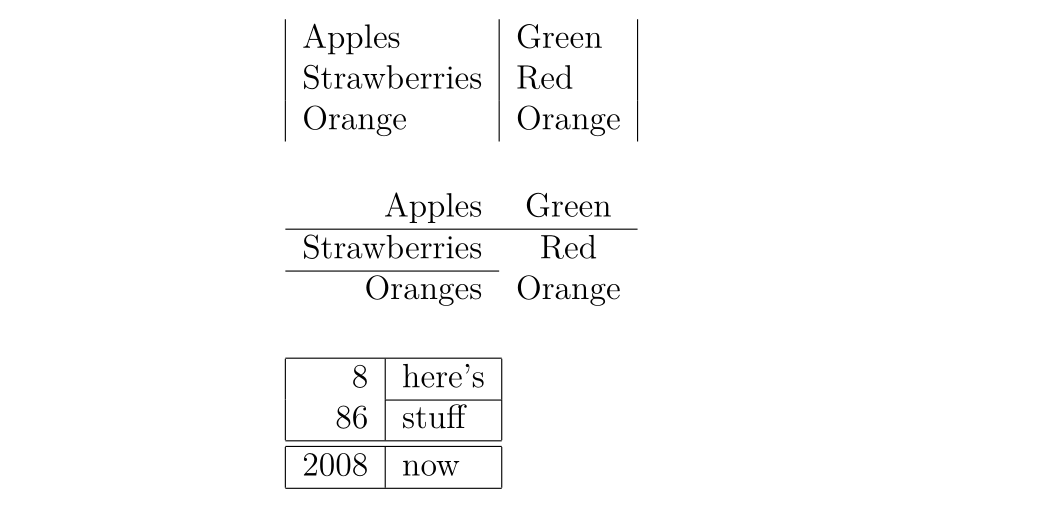
The tabular command is used to typeset tables. By default, LaTeX tables have no horizontal or vertical dividing lines—if you need them, you must set them manually. LaTeX automatically sets the table width based on content. The following code creates a table:
1 | |
The ellipsis is replaced by code defining the table columns:
lindicates a left-aligned column;rindicates a right-aligned column;cindicates a center-aligned column;|indicates a vertical line for a column;
For example, {lll} generates a three-column table with left alignment and no explicit vertical lines; {|l|l|r|} generates a three-column table with the first two columns left-aligned, the last column right-aligned, and explicit vertical lines between adjacent columns.
Table data is entered after \begin{tabular}:
&separates columns;\\starts a new row;\hlineinserts a horizontal line spanning all columns;\cline{1-2}inserts a horizontal line spanning columns 1 and 2.
Finally, end the table with \end{tabular}. Some examples:
1 2 3 4 5 6 7 8 9 10 11 12 13 14 15 16 17 18 19 20 21 22 | |
Effects:
Practice
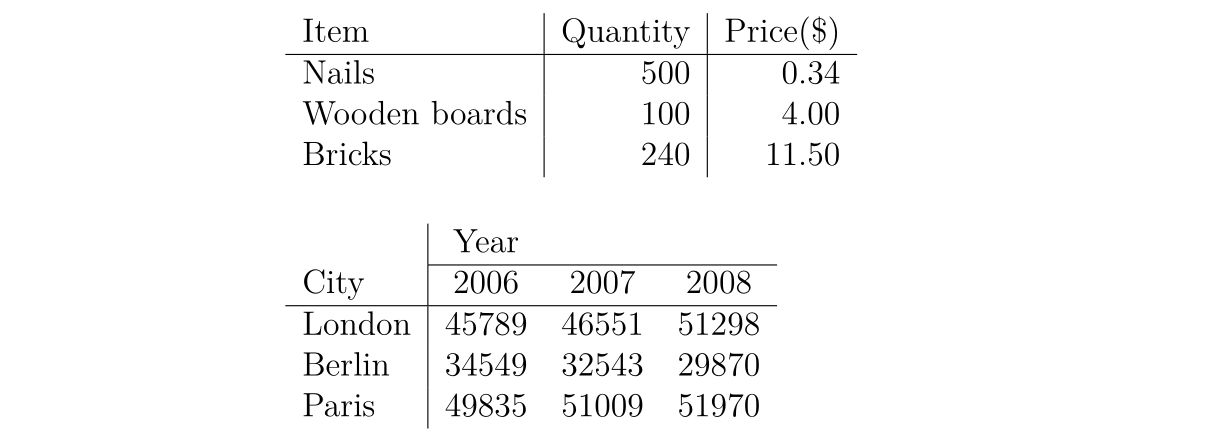
Try drawing the following table:
Figures and Tables
This chapter introduces how to insert figures and tables into LaTeX documents. Here we need to import the graphicx package. Images should be PDF, PNG, JPEG, or GIF files. The following code inserts an image named myimage:
1 2 3 4 5 6 | |
[h] is a placement parameter; h means place the figure approximately here (if it fits). Other options: t for top of page; b for bottom of page; p for a separate page for the figure. You can also add a ! parameter to force placement at the specified location (though the typesetting effect may not be ideal).
\centering centers the image on the page. Without this command, it defaults to left alignment. Using it is good because the figure caption is also centered.
The \includegraphics{...} command automatically places the image in your document; the image file should be in the same directory as the TeX file.
[width=1\textwidth] is an optional parameter specifying the image width—equal to the text width. Width can also be in centimeters. You can also use [scale=0.5] to scale the image down (e.g., by half).
\caption{...} defines the figure caption. If used, LaTeX will add a "Figure" number to your figure. You can use \listoffigures to generate a list of figures.
\label{...} creates a label that you can reference.
Practice
\(\rightarrow\) Add \usepackage{graphicx} to your document's preamble. \(\rightarrow\) Find an image and place it in your LaTeX course folder. \(\rightarrow\) Enter the following where you want to add the image:
1 2 3 4 5 | |
Replace ImageFilename with your file's name (without the extension). If your filename has spaces, enclose it in double quotes, e.g., "screen 20".
\(\rightarrow\) Compile and check the file.
Formulas
One of the main reasons for using LaTeX is its convenience in typesetting formulas. We use math mode to typeset formulas.
Inserting Formulas
You can use a pair of $ to enter math mode, which is used for inline mathematical formulas. For example, $1+2=3$ produces \(1+2=3\).
If you want displayed formulas, you can use $$...$$ (now we recommend using \[...\] because the former may produce undesirable spacing). For example, $$1+2=3$$ produces:
To generate numbered equations, use \begin{equation}...\end{equation}. For example:
1 2 3 | |
Produces:

The number 6 represents the chapter number and only appears if your document has chapters, such as in report type documents.
Use \begin{eqnarray}...\end{eqnarray} to write a set of numbered equations. For example:
1 2 3 4 | |
Produces:

To write unnumbered equations, add a * character after the environment name, such as {equation*}, {eqnarray*}.
Warning
It can be seen that when using eqnarray, problems such as excessive spacing around equal signs may occur.
You can use the align environment from the amsmath package:
1 2 3 4 5 6 | |
Or use the aligned environment within displayed equations. Adding an asterisk after their names removes the equation numbers.
See "4.4 Multi-line Equations" in the first reference under Further Reading for details.
Mathematical Symbols
Although some basic symbols can be typed directly, most special symbols require commands to display.
This book is only an introductory tutorial on mathematical symbol usage; the LaTeX Wikibook's mathematical symbols chapter is another better and more complete tutorial. For more information on mathematical symbols, please refer there. If you want to find a specific symbol, you can use Detexfiy, which recognizes handwritten characters.
Superscripts and Subscripts
Superscripts (Powers) are represented using ^, e.g., $n^2$ produces \(n^2\).
Subscripts (Indices) are represented using _, e.g., $2_a$ produces \(2_a\).
If the superscript or subscript content contains multiple characters, enclose it in curly braces. For example, $b_{a-2}$ produces \(b_{a-2}\).
Fractions
Fractions are inserted using the \frac{numerator}{denominator} command. For example, $$\frac{a}{3}$$ produces:
Fractions can be nested. For example, $$\frac{y}{\frac{3}{x}+b}$$ produces:
Roots
We use the \sqrt{...} command to insert roots. The ellipsis is replaced by the content under the root. To add the root degree, enclose it in square brackets.
For example, $$\sqrt{y^2}$$ produces:
And $$\sqrt[x]{y^2}$$ produces:
Summation and Integration
Use \sum and \int to insert summation and integral symbols. For both symbols, the upper limit is indicated with ^, and the lower limit with _.
$$\sum_{x=1}^5 y^z$$ produces:
And $$\int_a^b f(x)$$ produces:
Greek Letters
We can use a backslash followed by the Greek letter's name to represent a Greek letter. The case of the first letter determines the form of the Greek letter. For example:
$\alpha$=\(\alpha\)$\beta$=\(\beta\)$\delta, \Delta$=\(\delta, \Delta\)$\pi, \Pi$=\(\pi, \Pi\)$\sigma, \Sigma$=\(\sigma, \Sigma\)$\phi, \Phi, \varphi$=\(\phi, \Phi, \varphi\)$\psi, \Psi$=\(\psi, \Psi\)$\omega, \Omega$=\(\omega, \Omega\)
Practice
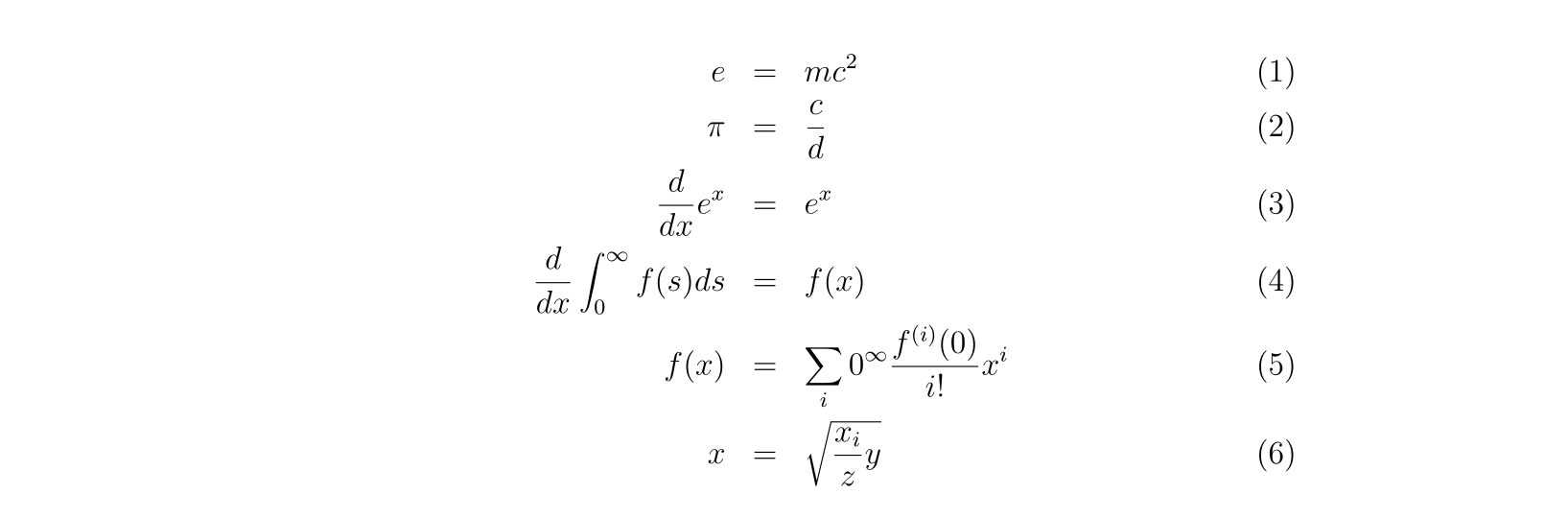
\(\rightarrow\) Write code to generate the following formulas:
If you need help, check the source code of this page.
Bibliography
Introduction
LaTeX can easily insert bibliographies and tables of contents. This article will introduce how to use another BibTeX file to store references.
BibTeX File Type
A BibTeX file contains all the references you want to cite in your document. Its file extension is .bib. Its name should be set to the name of your TeX document. .bib files are text files. You need to enter your references in the following format:
1 2 3 4 5 6 7 8 9 | |
Each reference first declares its reference type. The example uses @article; other types include @book, @incollection for citing a chapter in a book, and @inproceedings for conference papers. See here for more supported types.
Next, inside the curly braces, first list a citation key. You must ensure that the citation keys of your references are distinct. You can customize the key string, but using the first author's name plus the year is a clear choice.
The following lines include various pieces of information about the reference, formatted as:
1 | |
You can use LaTeX commands to generate special text effects. For example, italic can be achieved with \emph{Rattus norvegicus}.
For letters that need to be capitalized, enclose them in curly braces. BibTeX automatically converts all uppercase letters in titles to lowercase except the first letter. For example, Dispersal in the contemporary United States produces \(\text{Dispersal in the contemporary united states}\), while Dispersal in the contemporary {U}nited {S}tates produces \(\text{Dispersal in the contemporary United States}\).
You can write BibTeX files manually or use software to generate them.
Inserting a Bibliography
Use the following commands to insert a bibliography at the current location in the document:
1 2 | |
References are written in references.bib.
Citation Marking
Use \cite{citationkey} to insert a citation marker where you want to cite a reference. If you do not want to insert a citation marker in the text but still want the reference to appear in the bibliography, use the \nocite{citationkey} command.
To include page numbers in a citation, use square brackets: \cite[p. 215]{citationkay}.
To cite multiple references, separate them with commas: \cite{citation01,citation02,citation03}.
Citation Styles
Numeric Citation
LaTeX includes several styles for inline numeric citations:
Plain Numbers enclosed in square brackets, e.g., \([1]\). The bibliography is sorted alphabetically by the first author's name. Each author's name is given in full.
Abbrv Same as plain, but author names are abbreviated.
Unsrt Same as plain, but the bibliography is sorted in the order of citation in the text.
Alpha Same as plain, but the citation marker is the author's name combined with the year, not a number, e.g., \([Kop10]\).
Author-Date Citation
If you want to use author-date citations, use the natbib package. It uses the \citep{...} command to generate a citation in square brackets, e.g., \([Koppe,2010]\), and \citet{...} to generate a citation with only the year in square brackets, e.g., \(Koppe [2010]\). See here for more usage.
The Natbib package also has three styles: plainnat, abbrvnat, and unsrtnat, which have the same effects as plain, abbrv, and unsrt, respectively.
Other Citation Styles
If you need to use a different style, you need to create a style file (.bst file) in the same folder and reference it by its filename using the \bibliographystyle{...} command.
Practice
\(\rightarrow\) Create a BibTeX file with the same name in the same folder and enter the reference information in the correct format. \(\rightarrow\) Switch to the TeX document and use the \cite, \bibliographystyle, and \bibliography commands to cite references. \(\rightarrow\) Compile the TeX file. \(\rightarrow\) Switch to the BibTeX file and compile (click the Typeset button). \(\rightarrow\) Switch back to the TeX file and compile it twice, then check the PDF document.
Further Reading
-
A (Not So) Short Introduction to LaTeX 2ε https://github.com/CTeX-org/lshort-zh-cn/releases/download/v6.02/lshort-zh-cn.pdf or Learn LaTeX 2ε in 112 Minutes.
-
LaTeX Project http://www.latex-project.org/ Official website - has links to documentation, information about installing LaTeX on your own computer, and information about where to look for help.
-
LaTeX Wikibook http://en.wikibooks.org/wiki/LaTeX/ Comprehensive and clearly written, although still a work in progress. A downloadable PDF is also available.
-
Comparison of TeX Editors on Wikipedia http://en.wikipedia.org/wiki/Comparison_of_TeX_editors Information to help you choose which LaTeX editor to install on your own computer.
-
TeX Live http://www.tug.org/texlive/ "An easy way to get up and running with the TeX document production system". Available for Unix and Windows (links to MacTeX for macOS users). Includes the TeXworks editor.
-
Workbook Source Files http://edin.ac/17EQPM1 Download the .tex file and other files needed to compile this workbook.
This article is translated from http://www.docs.is.ed.ac.uk/skills/documents/3722/3722-2014.pdf, with slight modifications based on other references.
本页面最近更新:,更新历史
发现错误?想一起完善? 在 GitHub 上编辑此页!
本页面贡献者:OI-wiki
本页面的全部内容在 CC BY-SA 4.0 和 SATA 协议之条款下提供,附加条款亦可能应用