VS Code
Introduction
Visual Studio Code (hereinafter referred to as VS Code) is a free, open-source code editor developed by Microsoft, supporting Windows, Linux, and macOS. It is written in TypeScript and built on the Electron framework. It has built-in support for JavaScript, TypeScript, and Node.js, and provides a rich ecosystem of extensions for other languages (such as C, C++, Java, Python, PHP, Go).
Official website: Visual Studio Code - Code Editing. Redefined
Running Code with the C/C++ Compile Run Extension
C/C++ Compile Run is an extension focused on compiling and running single C/C++ files. It eliminates the cumbersome configuration steps of traditional C/C++ extensions, making it very suitable for competitive programming needs. It is quick to get started with and simple to operate.
Open VS Code, click the "Extensions" icon on the left sidebar (or press Ctrl+Shift+X), type C++ in the search box, find C/C++ Compile Run, and click "Install".
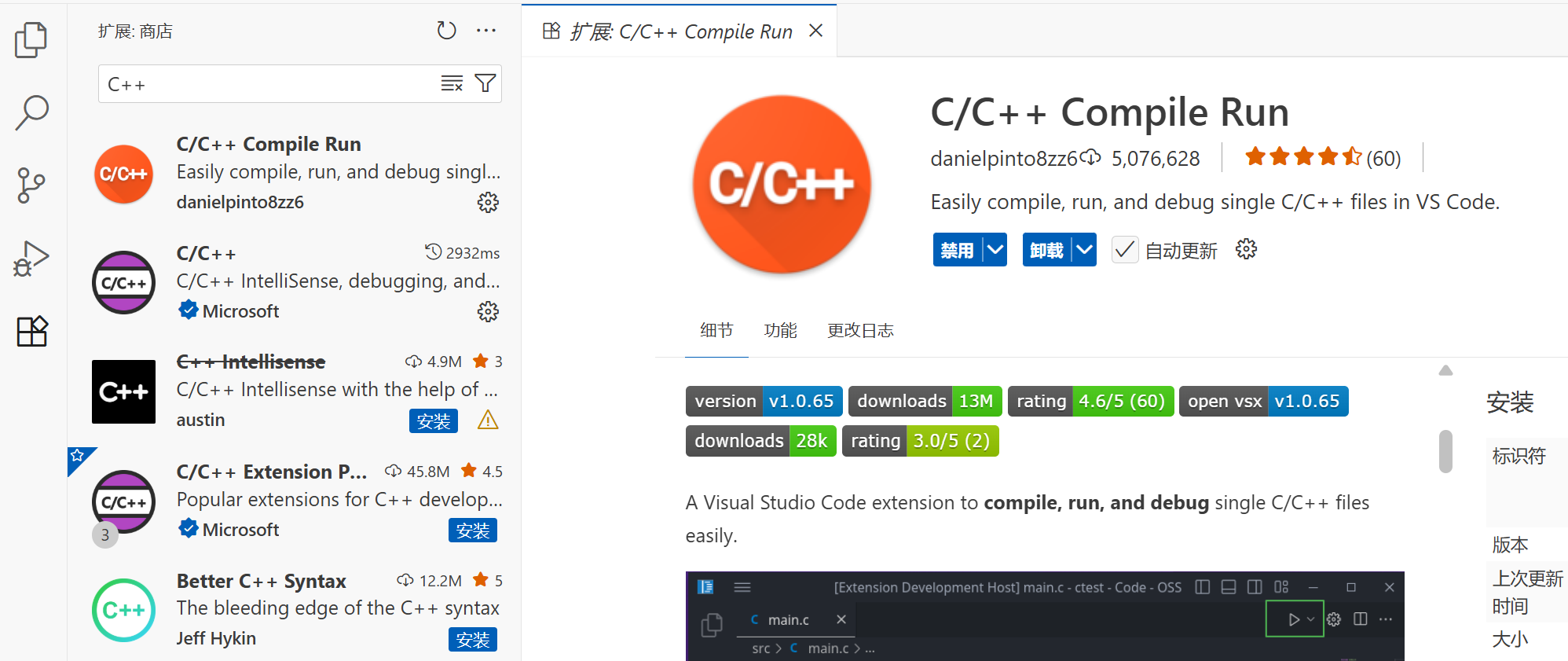
After installation, no additional configuration is required. The extension will automatically adapt to the configured MinGW compiler based on environment variables.
Open the file you want to run, and click the triangle icon in the top right corner to run the code.
Shortcuts:
- F6 - Compile and run in the VS Code integrated terminal
- F7 - Compile with custom parameters and run with custom parameters in the VS Code integrated terminal
- F8 - Compile and run in an external terminal
Running Code with the Code Runner Extension
VS Code can support C/C++ after installing and configuring extensions, but the configuration process is relatively complex. A simple solution for compiling and running C++ programs is to install the Code Runner extension.
Code Runner is an extension that can run code with one click. It is generally used in projects to verify code snippets and supports over 40 languages including Node.js, Python, C, C++, Java, PHP, Perl, Ruby, and Go.
To install, search for "Code Runner" in the extension marketplace and click Install; or go to the Marketplace and click Install, and the browser will automatically open VS Code and install it.
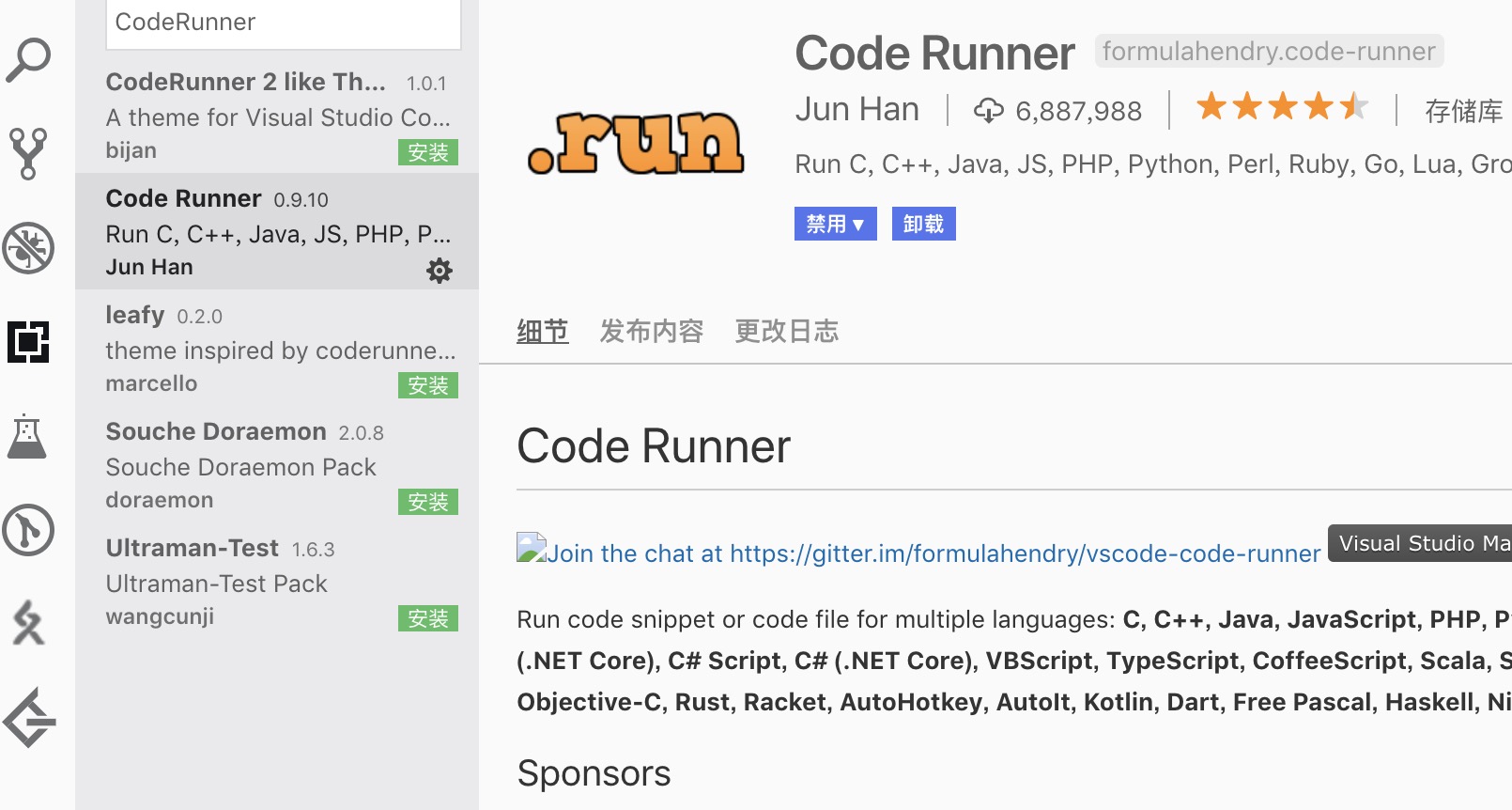
After installation, open the file you want to run and click the small triangle icon in the top right corner to run the code; pressing the shortcut Ctrl+Alt+N (on macOS, Control+Option+N) will have the same effect.
Warning
If after installing VS Code and Code Runner, the code still cannot run, it is likely because the system has not installed the C/C++ runtime environment. Refer to the Hello, World! page to install it.
Remember to check the "Run In Terminal" option in the settings, as shown: 
Compiling and Debugging/IntelliSense with the C/C++ Extension
Installing the Extension
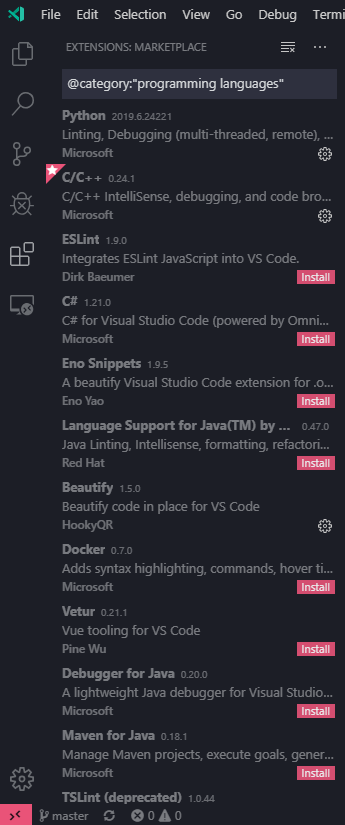
Open the extension marketplace in VS Code, type C++ or @category:"programming languages" in the search bar, then find C/C++, and click Install.
Warning
Before configuration, ensure that G++ or Clang is installed on the system and added to the PATH. Use CMD or PowerShell, not Git Bash, as the integrated terminal.
Configuring the GDB/LLDB Debugger
GDB
Create a new C++ code file in VS Code, write some content according to C++ syntax (e.g., int main(){}), save it, and press F5 to enter debug mode.
If a "Select Debugger" prompt appears, choose C++ (GDB/LLDB). In "Select Configuration", G++ users should select g++.exe - Build and debug active file; Clang users should select clang++ - Build and debug active file.
Warning
Configuration names are not fixed and can be customized. Different operating systems may have different configuration names.
After completion, VS Code will automatically complete the initialization and start debugging in the integrated terminal below. At this point, all configuration steps for GDB are finished.
LLDB
If you need to use LLDB, you need to install another extension1—CodeLLDB. Download the .vsix file from the project's Release page2, then install it from the VS Code extensions page.
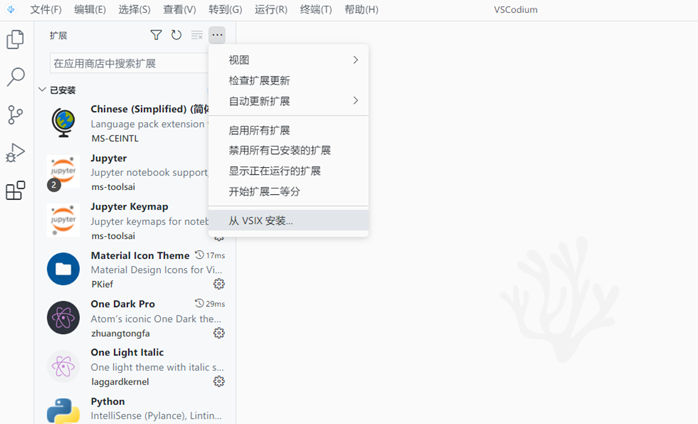
First, follow the GDB configuration steps above, then delete .vscode/launch.json, press F5, select LLDB, and change ${workspaceFolder}/<executable file> in launch.json to ${fileDirname}/${fileBasenameNoExtension}.
At this point, LLDB configuration is complete. Press F5 again to see the debugging information at the bottom of the software.
To compile and debug code with VS Code in the future, all source code must be saved in this folder. To compile and debug code stored in other folders, you need to repeat the above steps (or copy the .vscode subfolder from the old folder to the new folder).
Starting to Debug Code
Open a code file in VS Code, hover the mouse over the blank area to the left of the line number, and click the red dot that appears to set a breakpoint for that line. Click again to remove the breakpoint.

Press F5 to enter debug mode. A debug toolbar will appear at the top of the editor. The four blue buttons from left to right represent continue, next, step, and until in GDB:

If the editor does not automatically switch, click the "Debug" icon in the left toolbar to enter the debug window, where you can see variable values on the left.
In "Watch", you can input expressions, which will be re-evaluated and displayed each time you perform operations like next or step.
In "Call Stack", you can see the stack frames of the current function execution.
Tip
You can refer to the GDB official documentation to view the contents of a range within an array.
In debug mode, the editor will highlight the next line of code to be executed in yellow.
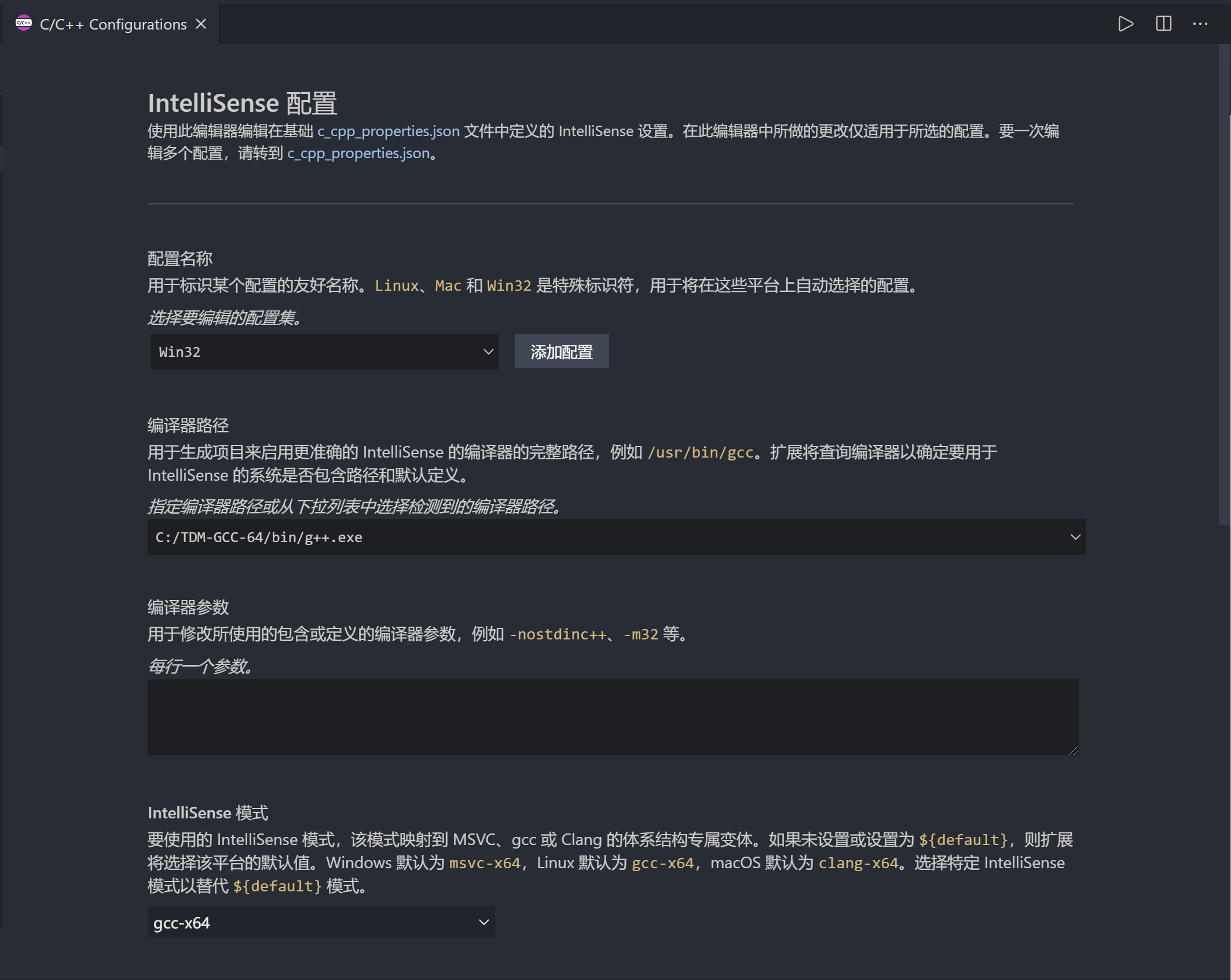
Configuring IntelliSense
Used to adjust VS Code's intelligent code completion.
If you use the Clang compiler, select clang-x64 instead of the default msvc-x64 in "IntelliSense Mode"; if you use the G++ compiler, select gcc-x64 to use features like auto-completion. Otherwise, you will get the error "IntelliSense mode msvc-x64 is incompatible with the compiler path."
Configuring clangd
Warning
Due to functional conflicts, after installing the clangd extension, the IntelliSense functionality of the C/C++ extension will be disabled (debugging and other features still use the C/C++ extension). If issues arise with the clangd extension's functionality, check if the C/C++ extension's IntelliSense is disabled.
Introduction to clangd
The LLVM official website describes clangd as follows:
Clangd is an implementation of the Language Server Protocol leveraging Clang. Clangd’s goal is to provide language "smartness" features like code completion, find references, etc. for clients such as C/C++ Editors.
In simple terms, clangd is Clang's implementation of the Language Server Protocol, providing intelligent features such as full-project indexing, code navigation, variable renaming, faster code completion, tooltips, code formatting, etc. It can collaborate with editors like Vim, Emacs, and VSCode using LSP. Although the official definition is an implementation of LSP, clangd's functionality is closer to a Language Server rather than just the protocol itself.
The C/C++ extension for VS Code also has features like auto-completion, but it is slightly inferior to clangd in terms of readability and accuracy of tooltips. Therefore, we sometimes use clangd instead of the C/C++ extension to implement code auto-completion and other features.
Installation
Refer to Getting started.
VS Code Extension
Open the VS Code extension marketplace, type clangd in the search bar, find the clangd extension, and install it.
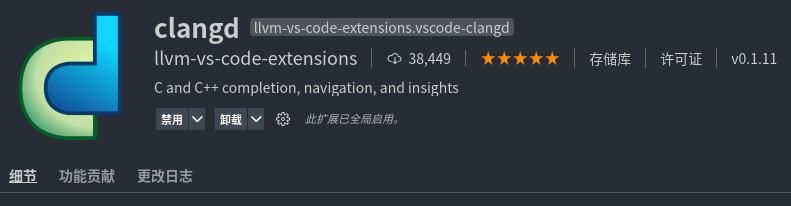
If a dialog pops up at the bottom asking clangd to disable Intellisense, click "Disable Intellisense", reload the workspace, and you can enjoy clangd's auto-completion and other features.
Editing

Syntax Settings
In a newly opened editor, click "Select Language" to enable syntax highlighting for the corresponding language, as shown:
Shortcuts
Some shortcuts:
| Key Combination | Action |
|---|---|
| Ctrl+C/X | Copy/Cut current line (when no text is selected) |
| Ctrl+Shift+K | Delete current line |
| Alt+Up/Down | Move line up/down |
| Alt+Shift+Up/Down | Copy line up/down |
| Ctrl+/ | Toggle line comment |
| Ctrl+[/] | Indent/outdent line |
| Ctrl+Shift+[/] | Fold/unfold line |
| Ctrl+P | Open recently opened files |
| Alt+Z | Toggle word wrap |
| Alt+F12 | Peek definition (e.g., function definition) |
| Ctrl+Shift+\ | Jump to matching bracket |
| Ctrl+T | Find symbol in workspace (find functions by name in folder, etc.) |
Multiple Cursors
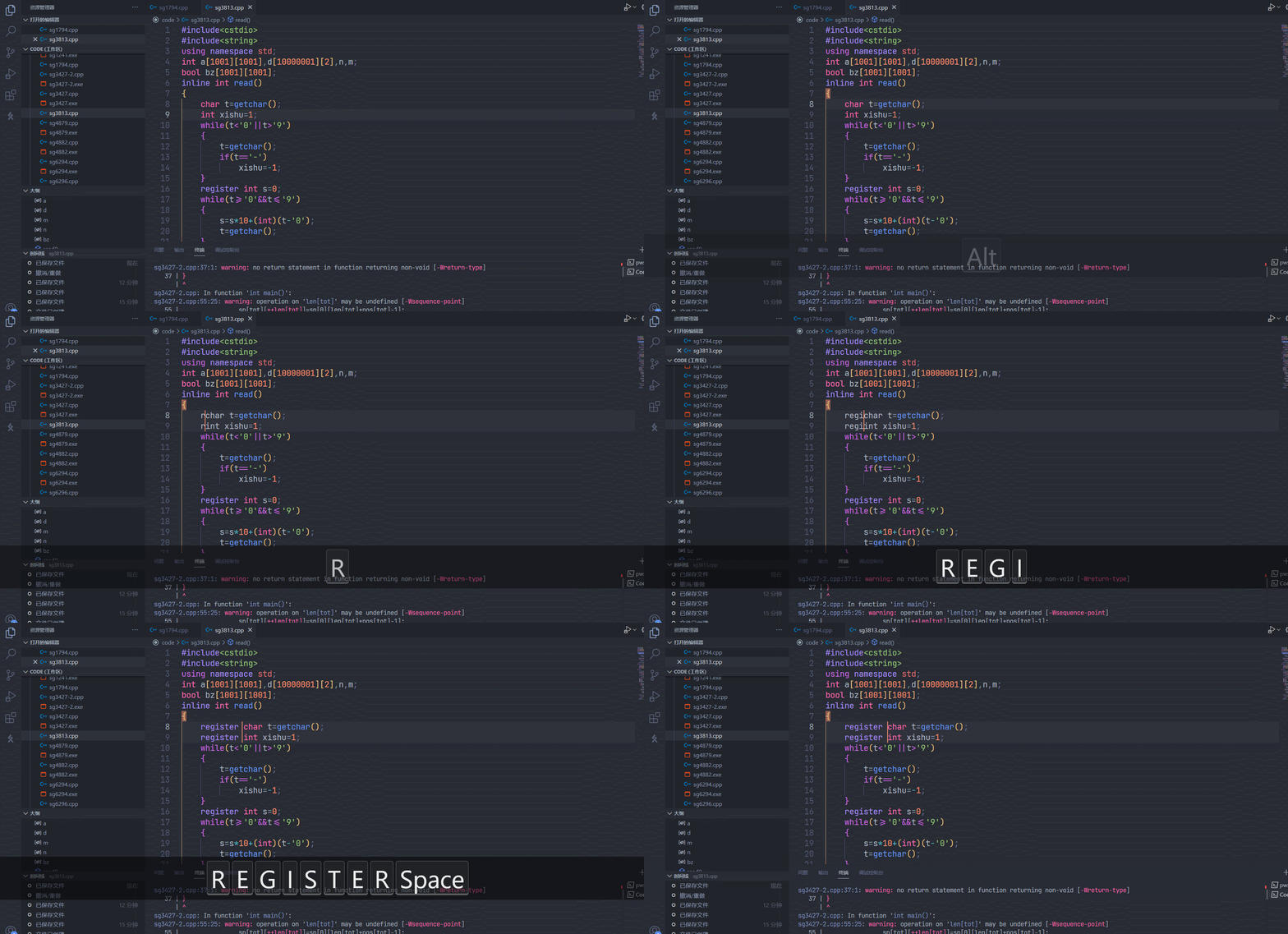
Hold Alt and click to add cursors in the editor; most editing operations can be performed simultaneously. Holding the middle mouse button and moving in the editor can also add multiple line cursors, as shown:
Press Ctrl+F2 to change all matching occurrences in the editor simultaneously, as shown:
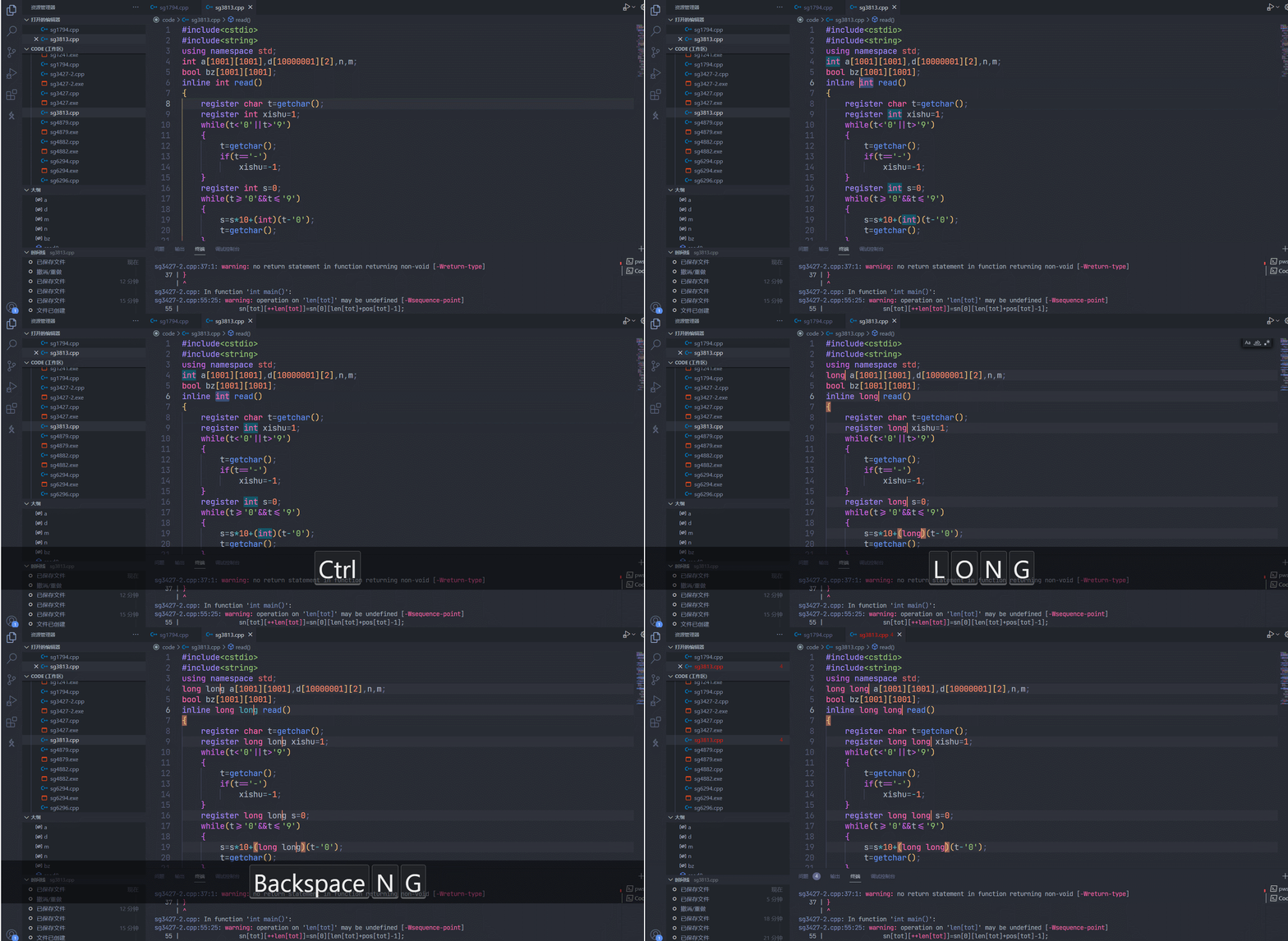
Note that a toolbar will appear in the top right corner, where you can enable options like case-sensitive matching or whole-word matching when finding matches.
References and Notes
-
If the C/C++ extension for VS Code selects lldb as the debugger, it will use the lldb-mi program by default, which has been separated from the LLVM project and needs to be compiled by oneself. It also has some bugs, making the user experience and convenience inferior to the CodeLLDB extension. ↩
-
After installing CodeLLDB from the extension marketplace, it downloads the main body from GitHub, which is extremely slow and sometimes fails. Therefore, it is better to download the main body directly and install it. Updates can also be performed by following the above steps to download and install. ↩
本页面最近更新:,更新历史
发现错误?想一起完善? 在 GitHub 上编辑此页!
本页面贡献者:OI-wiki
本页面的全部内容在 CC BY-SA 4.0 和 SATA 协议之条款下提供,附加条款亦可能应用