Git
Note
This page will focus on Git as a version control system. For content related to GitHub, please refer to GitHub Help and How to Contribute - OI Wiki.
Git is one of the most widely used version control systems. OI Wiki also uses Git as its version control system.
Installation
Refer to Git - Downloads.
Configuration
Git categorizes configuration files into different levels based on their scope of application. The more commonly used levels are1:
- Global configuration file for the current user, which applies to all repositories operated by this user on the system.
- Configuration file for the current repository.
When multiple configuration files set the same option, local settings automatically override global settings. Therefore, if you need to apply specific settings to a particular repository, you can simply change the specific settings in that repository without affecting the global settings.
To modify configuration files, use the git config command.
Setting User Information
After installing Git, the first thing to do is set your username and email. This information will be used in every commit.
1 2 | |
Note
The username and email provided here are for demonstration only. When configuring according to this page, remember to change the username and email to your own information.
Here, --global indicates that the global configuration is being modified, meaning this setting applies to all repositories under the current user. If you omit the --global option, the configuration file of the current repository will be modified by default.
To modify specific settings for a particular repository, simply execute the command without --global in that repository.
Configuring Editor
1 | |
Executing the above command changes the editor to Emacs.
On Windows, the default editor for Git can be selected during installation (as mentioned earlier). To change it later, enter the above command in Git Bash, replace the editor name with the absolute path of the editor, and run the command.
Displaying Configuration
You can list all currently set configuration parameters with git config -l. Use git config --global -l to list all global configurations.
Basic Repository Operations
Creating a New Git Repository
Creating a new Git repository is very simple. Just enter the following command in the folder where you want to create the repository:
1 | |
Git will create a .git folder in the current directory, and a repository is thus created.
If you want to clone a repository to your local machine (for example, to copy the OI Wiki code locally for editing), use the git clone command.
1 | |
Remote Repository Links
The repository link provided here is an HTTP(S) link, meaning we are using HTTP(S) to connect to the remote repository.
In fact, there are multiple ways to connect to a remote repository. Using ssh to connect to a remote repository is more convenient and secure. In the "Managing Remote Repositories" section, we will briefly introduce how to use ssh to connect to a remote repository.
This way, the content of the cloned repository will be stored in a new folder with the same name as the repository in the current directory. In this example, a new folder named OI-wiki will appear in the current directory.
Tracking Files
After making some changes to the files in the repository, these changes need to be incorporated into version management.
Use the git status command to view the status of the files in the current repository.
For example, after adding a new README.md file to an empty repository, executing git status yields the following:
1 2 3 4 5 6 7 8 9 10 11 | |
Here, "Untracked files" refers to files that Git has not previously tracked for version control. If a file is not tracked, changes to it will not be recorded by Git.
Execute git add <file> to start tracking the specified file.
1 2 3 4 5 6 7 8 9 10 | |
Now README.md is tracked and placed in the staging area. Next, simply execute git commit to commit this change.
But before doing that, let's make a small change to README.md.
1 2 3 4 5 6 7 8 9 10 11 12 13 14 15 16 | |
You'll notice that README.md is both in the staging area and not staged. Actually, being staged or not is about the changes, not the file itself. So the previous change to README.md has been staged, while the later change has not. If you execute git commit now, only the staged changes will be committed, and the unstaged changes will not.
Git gives a hint: execute git add README.md to stage the unstaged changes.
Stage All Changes at Once
The git add command stages changes to the specified files.
In most cases, users prefer to stage all changes at once. In this case, you can use the git add -A command. This command stages all changes (including untracked files, but excluding ignored files).
If you only want to update already tracked files without adding untracked files to the staging area, use git add -u.
Ignoring Files
Sometimes we don't want to track certain files (such as executables) in version control. In this case, you can create a .gitignore file in the repository root and list the files you want to ignore. Git will not track these files.
For example, *.exe will automatically ignore all files with the .exe extension in the repository.
Now, stage the unstaged changes and commit all changes together.
1 2 3 4 5 | |
Now focus on the information of this commit.
master indicates the current branch is master (more on branches later). f992763 is the first few characters of the SHA-1 checksum of this commit, followed by the commit message.
Pay special attention to the SHA-1 checksum. Each checksum corresponds to a snapshot of the repository at a certain point in time. Using this feature, we can access the repository snapshot at any point in history and make changes on that snapshot.
The next two lines detail the file changes involved in this update.
Additionally, you can use several parameters during commit to simplify the process:
-a: Before committing, stage all changes to tracked files. Note that untracked files (newly created files) are not automatically staged; you need to usegit addto add them manually.-m: This parameter is followed by the commit message, indicating that the commit should be made with that message. For example,git commit -m "fix: typo"creates a commit with the titlefix: typo.
Viewing Commit History
Use git log to view the repository's commit history.
You can see that the commit history records the SHA-1 checksum, author, commit time, and commit message for each commit.
1 2 3 4 5 6 7 8 9 10 11 12 | |
Branch Management
Why is branch management needed in version control? There are two main reasons:
- Directly changing the main branch can not only clutter the history but also lead to dangerous consequences.
- Through branches, we can focus on current work. If we need to complete two different tasks, we can simply create two branches, and the work on the two branches does not interfere with each other.
In Git, simply put, a branch is a pointer to a snapshot. Each time you commit, Git creates a snapshot for that commit and moves the pointer of the current branch to that snapshot.
There is also a HEAD pointer, which points to the current branch.
The process of switching branches is essentially changing the HEAD pointer from pointing to the current branch to pointing to another branch. During this process, Git automatically updates files so that the repository state after switching branches matches the snapshot pointed to by the target branch.
Creating Branches
Use git branch to create a branch, git switch to switch branches, and git switch -c to create a branch and switch to it.
1 2 3 4 5 | |
The asterisk in front of dev indicates that the current branch of the repository is dev. Subsequent changes to this repository will be recorded on this branch.
Try creating a new file aplusb.cpp.
1 2 3 4 5 6 | |
Now switch back to the master branch. At this point, the folder no longer contains aplusb.cpp, and everything returns to the state when the dev branch was created. You can continue other work on the master branch.
1 2 3 4 5 6 | |
The following diagram explains the operations just performed.
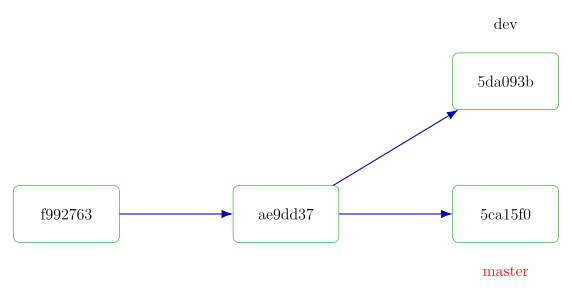
The master branch is marked in red, indicating that after these operations, it is the current branch (i.e., where HEAD points).
- Initially,
masterpoints to theae9dd37snapshot. - Next, a new dev branch is created at the same location as master, initially pointing to the same location.
- Some changes are made on the
devbranch (creatingaplusb.cpp), and a commit is made. After this commit, thedevbranch points to the5da093bsnapshot. - After switching back to the
masterbranch, sincemasterstill points toae9dd37andaplusb.cpphas not been created, the file does not exist in the repository. - Then, changes are made on the
masterbranch (updatingREADME.md), and a commit is made. Themasterbranch points to the5ca15f0snapshot.
Merging Branches
When work on a branch is complete, you can merge that work into another branch.
Continuing with the example above, the work on the dev branch is complete. Use the git merge command to merge this branch into the current branch (master):
1 2 3 4 5 | |
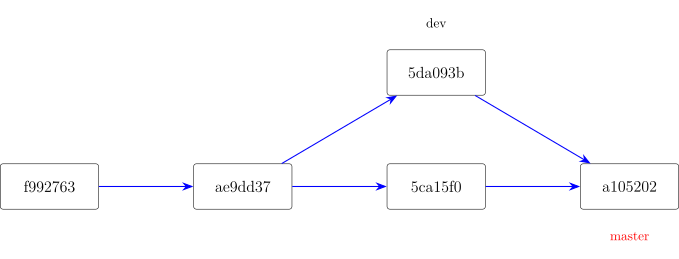
How exactly was this merge performed?
Before the merge, master points to 5ca15f0, and dev points to 5da093b. These two states are not on the same chain.
Git finds the nearest common ancestor of these two states (in the diagram above, it's ae9dd37) and performs a three-way merge on these three snapshots. The result of merging the three snapshots becomes a new snapshot, and the current branch points to this snapshot.
The merge process itself is also a commit, but unlike a regular commit, a merge commit has more than one parent commit; it is the result of merging multiple commit states.
After the merge, the dev branch has served its purpose. You can now delete the dev branch with the following command:
1 | |
However, the merge process is not always this smooth. In some cases, merge conflicts may occur, which we will discuss next.
Resolving Merge Conflicts
If the same part of the same file is changed differently in two branches, Git cannot automatically merge the two branches, resulting in a merge conflict.
Continuing with the example, suppose you create a new readme-refactor branch based on the merged master branch, intending to rewrite the README file. But due to some oversight, you change the README file in both the readme-refactor and master branches.
Initially, the README file looks like this:
1 2 3 | |
The README file in the readme-refactor branch looks like this:
1 2 3 | |
The README file in the master branch looks like this:
1 2 3 | |
Now, running the git merge readme-refactor command, Git indicates a merge conflict.
Execute git status to see which files caused the conflict.
1 2 3 4 5 6 7 8 9 10 11 | |
How to resolve the conflict? For each file with a merge conflict, Git adds standard conflict resolution markers to these files. For example, the README.md file in this example, when opened, looks like this:
1 2 3 4 5 6 7 | |
====== serves as a delimiter separating the content of the two branches. The part between <<<<<< HEAD and ====== is the content of the HEAD pointer (the master branch), and the part between ====== and >>>>>> readme-refactor is the content of the readme-refactor branch.
Resolve the conflict by editing the text, removing these conflict markers, saving the file, staging the file, and then committing to resolve the merge conflict.
1 2 3 | |
Other Merge Methods
By default, Git uses the Merge method to merge two branches. When merging branch B into branch A using this method, all commits from branch B are incorporated into the commit history of branch A.
In addition, Git provides two other ways to merge branches: Squash and Rebase.
Squash
When merging branch B into branch A using Squash, all changes on branch B are combined into a single commit and added to branch A.
Add the --squash parameter to git merge to use the Squash method.
1 | |
Note that after executing the above command, Git only stores all changes from branch B into the staging area of branch A. You still need to execute a git commit command to complete the merge.
Using Squash to merge simplifies the commit history but loses specific information about each commit (such as the committer and changes of each commit), leaving only the combined information (the committers of each commit will be listed as "Co-authored-by" in the commit message). However, if you perform Squash and Merge on GitHub, the original information can be viewed in the Pull Request.
Rebase
When merging branch B into branch A using Rebase, each commit on branch B is individually added to branch A, rather than creating a merge commit to combine the content of the two branches as in the Merge method2.
First, switch to branch B, then rebase branch B onto branch A:
1 2 | |
Now switch back to branch A and execute a git merge command to complete the merge of branch B's content into branch A.
1 2 | |
Using Rebase to complete a merge can linearize the commit history. Using Rebase correctly in appropriate scenarios can achieve better results than Merge. However, this changes the commit history and increases the likelihood of conflicts during and after the Rebase operation. If not done properly, it can clutter the commit history. Therefore, if you do not fully understand Rebase operations, it is not recommended to use them.
Managing Remote Repositories
After making changes locally, you may need to push these changes to Git repository hosting platforms like GitHub. Repositories hosted on these platforms fall into the category of remote repositories—you can fetch information from them and push your changes to them. Collaboration with others often relies on remote repositories, so learning to manage them is essential.
Viewing Remote Repositories
Use git remote to view the list of remote repositories for the current repository.
If the current repository was cloned, there should be a remote repository named origin, and its URL is the one used for cloning.
1 2 | |
To view detailed information about a remote repository, you can do:
1 2 3 4 5 6 7 8 9 | |
Configuring Remote Repositories
Execute git remote add <name> <url> to add a remote repository with the name name and URL url.
Execute git remote rename <oldname> <newname> to rename the remote repository from oldname to newname.
Execute git remote rm <name> to delete the remote repository named name.
Execute git remote get-url <name> to view the URL of the remote repository named name.
Execute git remote set-url <name> <newurl> to change the URL of the remote repository named name to newurl.
Fetching Changes from Remote Repositories
In a remote repository, others may push some changes. Execute git fetch to fetch these changes locally.
1 | |
Note that git fetch only fetches changes from the remote repository and does not merge them into the local repository. If you need to merge these changes, use the git pull command. By default, git pull is equivalent to git fetch followed by git merge FETCH_HEAD.
1 | |
Pushing Changes to Remote Repositories
After completing some changes, use git push to push these changes to a remote repository.
1 | |
Depending on the remote repository's requirements, you may be prompted to enter the username and password for the remote repository account.
Note that for your push to succeed, two conditions must be met: you have write permission to the repository (branch), and your branch is newer than the corresponding branch in the remote repository (meaning no one has pushed while you were making changes). When the remote branch has new changes that your current branch does not have, you can execute git pull to merge before pushing.
If you need to force push local branch changes to a remote repository, add the -f parameter. This will overwrite the commit history of the remote repository with the local commit history, so use this command with caution. A better option is to use the --force-with-lease parameter, which only overwrites if the remote repository has not been updated. Note that "updated" here is relative to the last fetch. If you use the Auto Fetch feature provided by VS Code, you might not notice updates, making --force-with-lease as dangerous as -f.
Tracking Remote Branches
By setting a local branch to track a remote branch, you can easily see the differences between the local and remote branches and simplify interactions with the remote branch.
Before starting to track, you need to execute git fetch <remote-name> to fetch remote repository information locally.
Then execute git switch <remote-branch>. This will automatically create a new branch named <remote-branch> locally and set it to track the corresponding remote branch.
Note
Note that Git will only automatically create the branch and set it to track the corresponding remote branch if the local branch does not exist and there is exactly one remote branch with a matching name.
Now, executing git status will show the differences between the current branch and the remote branch.
Because the local branch is set to track a remote branch, the command to push to the remote branch is simplified. Just execute git push, and changes on the local branch will be pushed to the tracked remote branch.
For existing local branches, setting their corresponding remote tracking branch is also easy. Simply execute git branch -u <remote-name>/<remote-branch> in the current branch to set the current local branch to track the <remote-name>/<remote-branch> remote branch.
Using ssh Connection
Compared to HTTP(S), using ssh to connect to remote repositories is more convenient and secure.
Before using ssh to connect to a remote repository, you need to add an ssh key locally. Then, you need to upload the public key of the locally added ssh key to your remote repository account.
Considering that this article is mainly a Git tutorial for OI Wiki contributors, here is a direct link to the GitHub Docs tutorial for reference.
After completing the above steps, you can connect to remote repositories via ssh. The following is a command to clone the OI Wiki repository via ssh:
1 | |
The process of pushing changes to a remote repository is similar to using HTTP(S). However, using ssh eliminates the need to verify the remote repository account password.
Git GUI Tools
For those unfamiliar with the command line, the learning curve for a command-line-only Git might be steep. GUI tools can lower the barrier to entry for Git to some extent. Additionally, compared to the command line, GUI tools offer a better experience when viewing diffs and logs.
Git itself comes with a GUI, and there are many excellent Git GUI tools available, such as TortoiseGit3 for Windows users and Sourcetree4 for Windows and Mac.
Here is a brief introduction to using TortoiseGit. After downloading and installing TortoiseGit, in the directory of a local repository, right-click the mouse, and you will see various Git functions in the context menu.
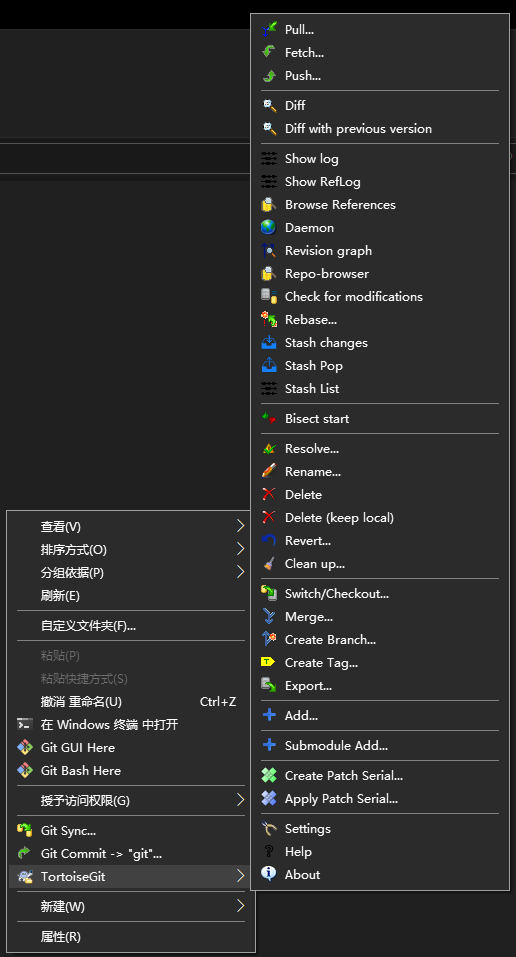
Detailed usage will not be covered here. You can refer to the official documentation or search online for tutorials, such as the TortoiseGit Manual.
Many GUI tools have official Chinese support, such as Git Desktop and TortoiseGit. However, some translations may seem awkward, so using the English version is recommended.
External Links
References and Notes
-
In fact, Git also has a universal configuration file for every user on the system and all repositories on the system. This configuration file has the widest scope and overrides user configuration files. Because this configuration is less commonly used in practice, it is not elaborated here. ↩
-
The Pro Git Book provides a visual diagram of the Rebase process, which can help readers better understand the mechanism of Rebase. ↩
本页面最近更新:,更新历史
发现错误?想一起完善? 在 GitHub 上编辑此页!
本页面贡献者:OI-wiki
本页面的全部内容在 CC BY-SA 4.0 和 SATA 协议之条款下提供,附加条款亦可能应用