Arbiter
Arbiter
Arbiter is a judging tool developed by Beihang University for NOI Linux, now used for judging in major NOI series programming competitions. According to Lü Kaifeng's lecture "Next Generation Judging System" at the 2016 Winter Camp, Arbiter was developed by the GAIT team at Beihang University under the guidance of Professor Yin Baolin.
After NOI Linux was updated to version 2.0, Arbiter was also recompiled with Qt 5.12.8 and released as Arbiter 2.0. Since subsequent judging environments all use NOI Linux 2.0, the Arbiter version introduced below is the Arbiter 2.0 included in NOI Linux 2.0.
This judging software can only be found in NOI Linux. The binary file is located at /usr/local/arbiter/local/arbiter_local.
Usage
Configuring the Program
Configure the contestant source code folder and contestant list. The contestant folder should be created in the NOIP format:
1 2 3 4 5 6 7 8 9 10 11 12 13 14 15 16 17 18 19 20 21 22 23 24 25 26 27 28 | |
Here, <x> in day<x> is the session number; <contestant_x's ID> refers to the contestant ID, in the format <province>-<number>, e.g., HL-001, JL-125, etc.; <problem_x> refers to the problem name. During self-testing, you can use combinations of letters, hyphens (i.e., -), and numbers as contestant IDs.
The contestant list format is as follows:
1 2 3 | |
Here, <contestant_x's name> represents the contestant's name. Save this file as a plain text file or CSV file, using UTF-8 encoding.
The contestant list can also be added manually after starting Arbiter.
Next, configure the test data. The naming format for each test case is as follows:
1 | |
Here, <y> is the test case number, starting from 1. The default test data suffix is .ans, and the contestant output suffix is .out; these should not be confused.
If you need to rename previously generated .out files to .ans format, you can use the rename command in NOI Linux 2.0 for batch renaming, while in Windows you can use the ren command. We will introduce the usage of these commands later.
There is no need to place the test data for each problem in separate folders; just put them all together.
Then proceed to configure the judging folder.
Click "Show Applications" - "All" - "Arbiter_local" in the bottom-left corner to start Arbiter.
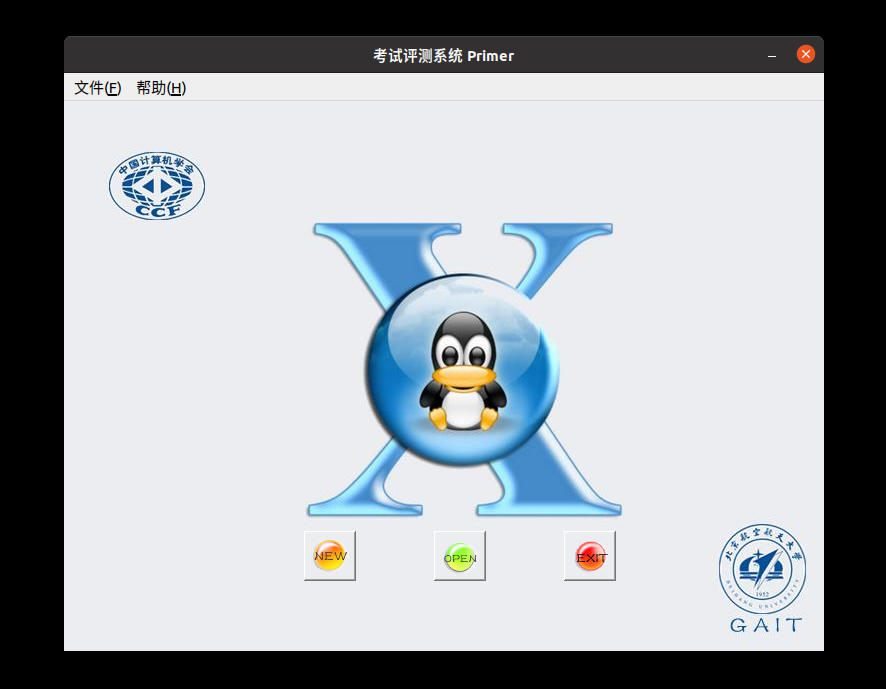
Click OPEN to open an already created contest, then select the setup.cfg file in the corresponding contest folder; click NEW to create a new contest, setting its name and contest directory. Note: you need to create a new folder under the user's home directory and select it as the contest directory. If you create the contest directory on the desktop, judging may fail. This issue is likely because the contest folder path should not contain Chinese characters.
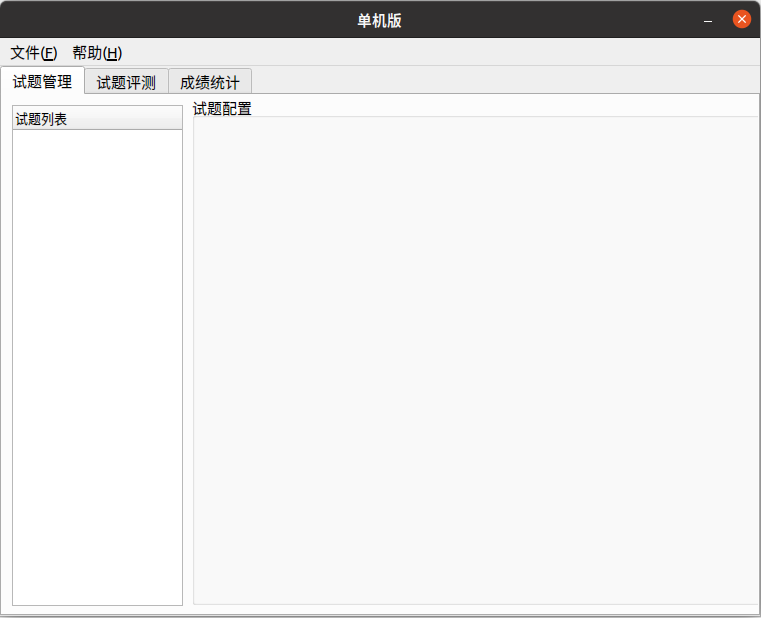
Right-click on the left "Exam Summary" - "Add Exam", then right-click on the exam tab - "Add Problem" to create a new problem.
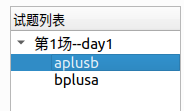
Click the downward arrow next to the exam to expand it, click the problem tab to modify the problem name to the English name of the problem, and adjust the time and memory limits and comparison method. It is highly discouraged to use "Full Text Exact Direct Comparison", as it is not friendly to data created under Windows. You can choose a comparator based on the problem, but note that you must select a comparator; otherwise, the judging result will be No Score..
Click "File" - "Save". This step cannot be omitted, otherwise the program will not generate the problem configuration files. Note that every modification to the problem configuration must be saved.
At this point, open the contest folder, and you will find the following contents.
1 2 3 4 5 6 7 8 9 10 11 12 13 14 | |
The filter folder contains some comparators; the result folder stores contestant judging results; the tmp folder is the cache folder during judging. Among them, day<x>.info is the session configuration file, where <x> is the session number; task<x>_<y>.info files are problem configuration files, where <x> is the session number and <y> is the problem number.
Place the already prepared contestant program folder in the players/ directory, ensuring the outermost layer has corresponding day<x> folders according to the exam day. Place all test data (not in folders) in evaldata. If using a custom validator, place it in filter.
Formal Judging
Click the "Problem Judging" tab, and the following page will appear:
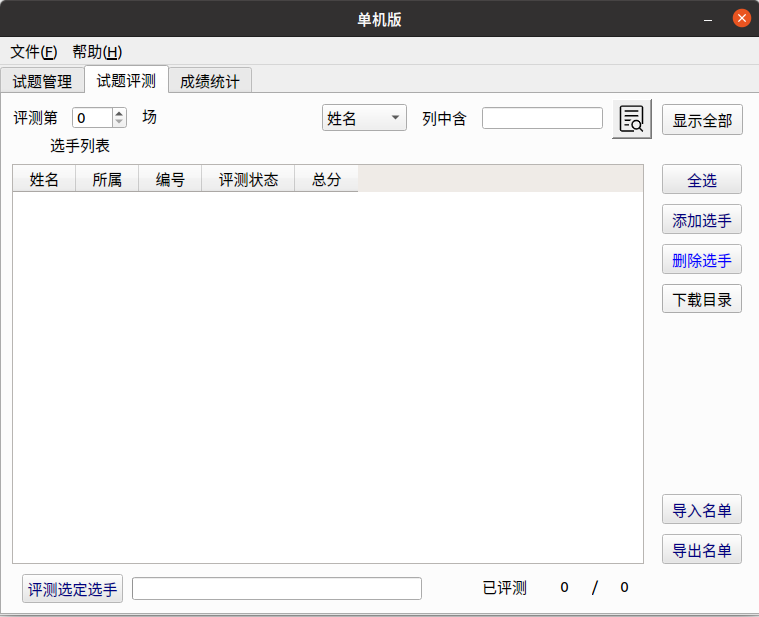
If the contestant list has already been created, directly select "Import List" on the right to import it. If there are few contestants, you can choose "Add Contestant" on the right to import.
The page after import is as shown.
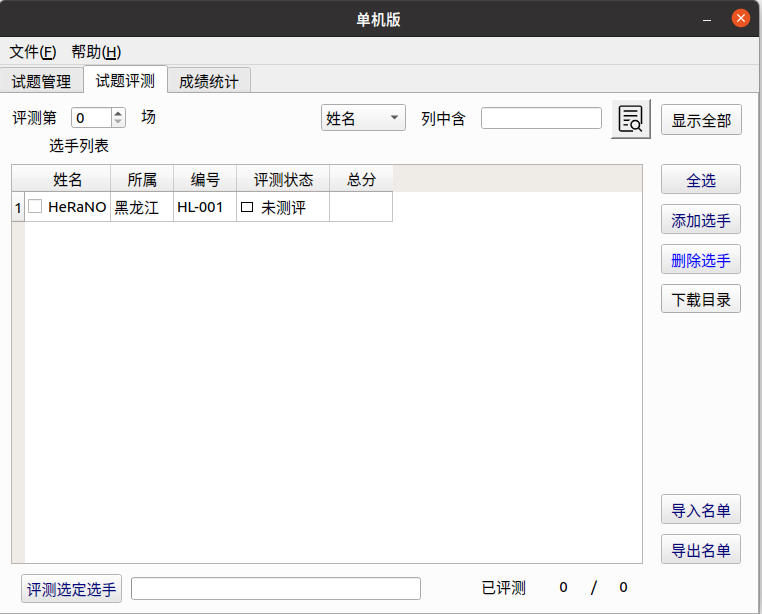
In the example, the ID is HL-001, and the program will automatically recognize the "Affiliation" column. If the ID does not follow NOIP standards, it will not be recognized.
Change "Judge Session 0" to "Judge Session 1" (or another session). Then select "Select All" on the right (or select specific contestants), then choose "Judge Selected Contestants" below, select the problems to judge (or all problems), and finally wait for the judging to complete.
Detailed test case information needs to be viewed in the result folder. There will be result folders for contestants, and the result files have the suffix .result, which can be viewed as plain text. If you encounter a No score file. error, check whether the /tmp/_eval.score file was generated during judging.
Writing Custom Validators
By decompiling other validators, you can learn that the command to run a custom validator is <problem>_e <in> <out> <ans>. The last three parameters represent the input, contestant output, and answer file, respectively. The final scoring result must be written to the /tmp/_eval.score file, with the first line being the judging information and the second line being the score, with 10 as the full score.
After compilation, the custom validator's name must be <problem>_e, where <problem> is the problem name. In the problem configuration, select the custom validator and then choose the required custom validator.
In the problem management section, change the submission method from source code to answer file, then select the custom validator to test output-only problems.
Notes
Confirmed points to note:
- Be careful to save the contest promptly; otherwise, the program may crash during operations. To ensure it doesn't crash, try saving the contest multiple times or save after each modification.
- Do not click on the score statistics above before any judging has been performed, as this will cause Arbiter to crash directly.
- Due to Linux runtime stack limits, if you need unlimited stack, first enter
ulimit -s unlimitedin the terminal, then executearbiter_localto open the judge. Otherwise, you may encounterExceeding memory limitissues. - For formal judging, when preparing problems, ensure all problems have the same memory limit. During judging, replace
unlimitedin the command with the memory limit in kilobytes (KiB). For example, if the memory limit is 512 MiB, the command isulimit -s $((512 * 1024)). The main reason for this issue is that starting Arbiter directly makes its parent process GNOME, and the child process inherits the parent's stack limit. - It is not recommended for the working directory to contain spaces. If it does, it may cause all default comparators to fail to copy into the filter directory when creating a contest (i.e., the filter directory remains empty). In this case, judging will result in all scores being 0, and the generated result files will show
Compile Failed.. - When viewing code, the prompt "Answer file not found" means the contestant's source code was not found.
Unconfirmed content:
- The system is prone to freezing, e.g., moving the mouse during large-scale judging may cause freezing.
- Random crashes (partly due to not saving the contest promptly).
- There is a chance that modifying the comparison method fails, i.e., the change is not applied.
- Pay attention to permission issues during configuration, but ensure there are no permission problems if the same user creates the contest, copies data, and performs judging.
Vulnerabilities
Due to long-term lack of maintenance, the system has some vulnerabilities, such as being able to use #pragma G++ optimize("O2") and __attribute__((__optimize__("-O2"))), etc. You can use gcc-plugins-for-oi to detect these commands during compilation.
Evaluation
Arbiter 1.0.2 has not received substantial updates since its development, resulting in a poor judging experience and UI that is outdated in terms of modern aesthetics. In NOI Linux 1.4.1, like the GUIDE included with NOI Linux, it became an object of intense criticism from contestants and coaches. In NOI Linux 2.0, aside from removing source code from comparators and recompiling the entire software with Qt 5, there have been no major changes, and some stability issues remain unresolved.
Appendix: Usage of ren and rename commands
The Windows operating system includes a built-in command for renaming files: ren.
The command syntax is as follows:
1 | |
If we need to modify all files in the current working directory, for example, changing all .out files to .ans files, we can execute the following command:
1 | |
If performing such modifications in the NOI Linux 2.0 environment, the rename command seems to be more useful currently, but it is not built into the NOI Linux 2.0 environment, so you need to install it first:
1 | |
Note: If the execution prompts E: Unable to locate package package_name, you need to first execute this command: sudo apt-get update
After installation, you can use the rename command normally. The rename command is similar to direct text replacement, and its command syntax in the NOI Linux 2.0 environment is as follows:
1 | |
Here, <filename> can use wildcards like *, or specify a type of file (e.g., *.out).
Please note there is an additional / at the end inside the quotes. If you miss one /, the rename command will report an error: Substitution replacement not terminated at (user-supplied code).
Now, if we need to modify all files in the current working directory, for example, changing all .out files to .ans files, we can write:
1 | |
Here, \. indicates escaping the . character.
(Tip: If you forget \., and you have a file named outtest.out, after executing this command, the file will be renamed to anstest.out)
Similarly, if you need to uniformly rename all files named atmost<x>.ans (where <x> is the test case number) to test<x>.ans, you can write:
1 | |
本页面最近更新:,更新历史
发现错误?想一起完善? 在 GitHub 上编辑此页!
本页面贡献者:OI-wiki
本页面的全部内容在 CC BY-SA 4.0 和 SATA 协议之条款下提供,附加条款亦可能应用