How to Contribute
Before you begin, the entire OI Wiki project team warmly welcomes you to contribute pages to this project. It is thanks to hundreds of people like you that OI Wiki is what it is today!
This article will mainly describe the writing process for participating in OI Wiki contributions. Please read the following content carefully before writing or revising Wiki pages to help you produce higher quality content.
Contribution Guidelines
Please review the OI Wiki Contribution Guidelines and Project Policies before editing to better collaborate and communicate with community contributors.
Participating in Collaboration
Warning
Before starting to write a piece of content, please check the Issues to confirm no one else is working on the same task. Then, open a new issue to record the content to be written.
Tip
There are also many tasks to be fixed/solved in the Issues, especially our Iteration Plan. Getting tasks from here is a great start!
To ensure the professionalism and accuracy of entry content, we recommend you consider the following points before editing:
- Choose areas you are familiar with: Please prioritize editing entries related to your professional knowledge, academic background, or personal interests. This helps you create high-quality content.
- Be cautious with new fields: If you are still a beginner or not very familiar with a topic, we suggest you first deepen your understanding through reading and learning, and start editing only after you have a certain grasp of it.
- Consult relevant materials: When adding content or revising an entry, it is recommended to consult authoritative literature and materials to ensure the information is accurate. You are also welcome to ask questions in the page comments or our community to discuss with other editors.
We cherish the enthusiasm and efforts of every contributor and understand that everyone's professional level varies. Let's work together to nurture this knowledge garden, using accurate and professional content to help more readers. We look forward to your contributions! Here's a quote from Wikipedia:
Don't be afraid to edit, be bold in updating pages! 1
Editing on GitHub
Participating in OI Wiki writing requires a GitHub account (you can go to the GitHub account registration page to register), but does not require advanced GitHub skills. Even if you are a beginner, as long as you follow the steps described below, you can excellently complete the editing.
Tip
Before your changes are merged into the OI Wiki main repository, the modifications you make to OI Wiki content will not appear on the OI Wiki main site, so there's no need to worry about your edits breaking the content currently displayed on OI Wiki.
If you're still not sure, you can check the official GitHub tutorial.
Editing Content Within a Single Page
- Find the corresponding page on OI Wiki;
- Click the "Edit this page" (edit) button in the upper right of the main text (left of the table of contents). After confirming you have read this page and the Formatting Guide, click the button and follow the prompts to jump to GitHub for editing;
- Write the content you want to modify in the edit box. Please note: turn off your automatic translation software during modification and the subsequent submission process, as it may cause unnecessary trouble (e.g., the file you modified might be incorrectly renamed, affecting the directory structure);
- After writing, scroll to the bottom of the page, fill in the commit message according to the Commit Message Format Specification in this article, then click the Propose changes button to submit the changes. After clicking, GitHub will automatically create a fork of the OI Wiki repository and add your submission to this forked repository.
- GitHub will automatically jump to your forked repository page. At this time, a green Create pull request button will appear at the top of the page. Click it, and GitHub will jump to a Create Pull Request page. Scroll down to check that your modifications are correct, then write the Pull Request information according to the specifications in the Pull Request Information Format Specification section of this article. Finally, click the green Create pull request button on the page to create the Pull Request.
- If all goes well, your Pull Request will be successfully submitted to the repository, waiting for administrator review and merging into the main repository.
During the waiting period, you can comment, like, or dislike others' Pull Requests. If there are new messages, a prompt will appear in the upper right corner of the webpage, accompanied by email notifications (depending on the notification method configured in personal settings).
Editing Content Across Multiple Pages
If you need to edit content across multiple unrelated pages simultaneously, please follow the Editing Content Within a Single Page section above to modify all pages one by one.
- Open the OI-Wiki/OI-Wiki repository, click the . button on your keyboard (or change
github.comin the URL togithub.dev)2 to enter GitHub's web-based VS Code editor; - Make changes to the page source files in the editor. You can use the preview button in the upper right of the page (or press the Ctrl+KV shortcut) to open the preview panel on the right;
- After modifications, use the Source Control tab on the left, fill in the commit message according to the Commit Message Format Specification in this article, and commit. When committing, you will be prompted whether to create a fork of this repository. Click the green Fork Repository button.
- After committing, a notification box will pop up in the center top of the webpage. In the first box, fill in the title; in the second box, fill in the branch name in the repository where this commit should be submitted. Then, a notification box will pop up in the lower right, with content similar to
Created Pull Request #1 for OI-Wiki/OI-Wiki.. Click the blue link to view the Pull Request.
Appending Changes to a Pull Request
- Open the OI-Wiki Pull Request list, find your submitted Pull Request, and click it.
- Below the title of the Pull Request page, there will be a line like
<YourID> wants to merge x commits into OI-wiki:master from <YourID>:patch-1. Click the<YourID>:patch-1part. - You should be redirected to your forked repository, and the branch name in the top left of the file list should be the branch you submitted the Pull Request from (in this example, it should be
patch-1). - Make the changes you need.
- If you need to edit a single file or multiple unrelated pages, directly find the file(s) and make changes. After completing the changes, scroll to the bottom of the page, fill in the commit message according to the Commit Message Format Specification in this article, then click the Commit changes button to submit the changes.
- If you need to edit multiple files, click the . button on your keyboard (or change
github.comin the URL togithub.dev)2 to enter GitHub's web-based VS Code editor and make the changes. Then use the Source Control tab on the left, fill in the commit message according to the Commit Message Format Specification in this article, and commit the changes.
- Your changes will now be automatically appended to your Pull Request.
Editing Locally Using Git
Warning
For general users, we recommend using the GitHub Web editor described above for editing.
Although in most cases you can edit directly on GitHub, for some special situations (such as needing to use GPG signatures), we recommend using Git for local editing.
The general process is as follows:
- Fork the main repository to your own repository;
- Clone the forked repository to your local machine;
- Make modifications locally and commit these changes;
- Push these changes to your cloned forked repository;
- Submit a Pull Request to the main repository.
For detailed operation methods, please refer to the Git page.
Appending Changes to a Pull Request
Continue making modifications in the locally cloned forked repository, and commit and push these changes. Your changes will be automatically appended to the Pull Request.
Previewing Changes in the Built Website
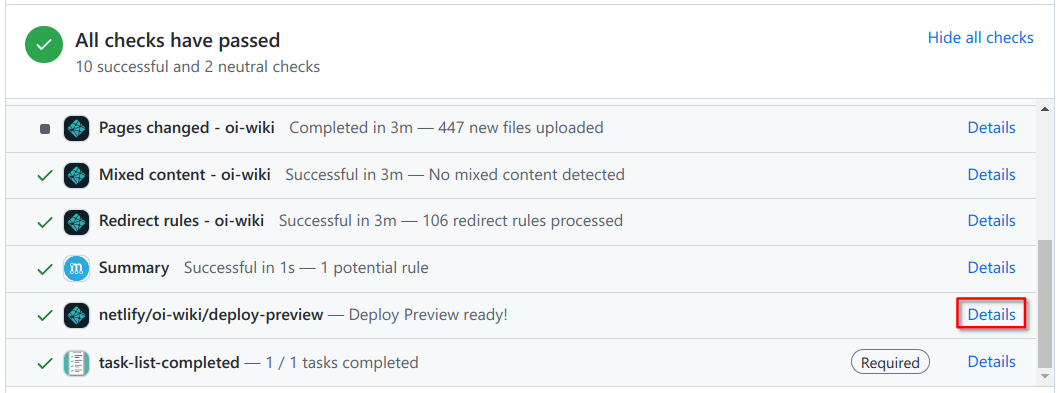
At the bottom of the Pull Request page, you can find the test pages. Click the Details link for the netlify/oi-wiki/deploy-preview item (as shown below) to enter the automatically built website with your changed pages for preview.
Changes to Directories and References
Typically, if you need to add a new page or modify the link of an existing page in the directory, you need to make changes to the mkdocs.yml file.
Adding a new page can refer to existing formats. However, unless it's for refactoring or correcting terminology, we do not recommend modifying reference links for existing pages. Unnecessary modifications in Pull Requests will also be rejected.
If you insist on modifying links, please note to update the author field and the redirect file.
Author Field
The GitHub API cannot track statistics after file directory changes, so we manually maintain an author list at the beginning of files to solve this problem. The author field is located at the very beginning of the Markdown file, in the form author: Ir1d, cjsoft, with adjacent IDs separated by a comma and a space. The ID here is the GitHub username, i.e., the address of the GitHub profile (e.g., Ir1d in https://github.com/Ir1d).
When modifying links, you need to fill the author field with all contributors from the current page.
Redirect File
When modifying links, to avoid dead links in external references, you need to modify the redirect file.
The _redirects file is used to generate netlify configuration and files for redirection.
Each line represents a redirect rule, writing the source and destination URLs (excluding the domain name) respectively:
1 | |
Note: All redirects are 301 redirects. Modifications are only needed when changing URLs in the directory causes dead links.
Commit Message Format Specification
For the commit message to be filled in when submitting, please adhere to the following basic requirements:
- The commit summary should briefly describe the changes made in this commit. Note that the commit summary length should not exceed 50 characters; any excess will automatically be placed in the body.
- If further description of this commit's content is needed, please provide details in the body.
For the commit summary, it is recommended to write in the following format:
1 | |
The modification types are divided into the following categories:
feat: Used when adding content.fix: Used when correcting errors in existing content.refactor: Used when refactoring a page (large-scale changes).revert: Used when reverting previous changes.
Pull Request Information Format Specification
For Pull Requests, please adhere to the following requirements:
- The title should state the purpose of this PR (what work was done, what problem was fixed).
- The content should briefly describe the modifications. If fixing an issue, please add the
fix #xxxxfield in the content, wherexxxxrepresents the issue number. - Please carefully read the Contribution Guidelines and Community Code of Conduct, and after agreeing, check the box in the PR template to indicate your agreement with the above guidelines and code.
For the Pull Request title, it is recommended to use the following format:
1 | |
The modification types are divided into the following categories:
feat: Used when adding content.fix: Used when correcting errors in existing content.refactor: Used when refactoring a page (large-scale changes).revert: Used when reverting previous changes.
Examples:
fix(ds/persistent-seg): modify code comments for clearer descriptionfix: tools/judger/index not in directory (#3709)feat(math/poly/fft): better proofrefactor(ds/stack): reorganize page content
Collaboration Process
- After receiving a new Pull Request, GitHub sends an email to reviewers;
- Meanwhile, two sets of tests run on GitHub Actions and Netlify, synchronizing progress at the bottom of the PR page. GitHub Actions mainly confirms that content modifications in the PR do not affect the website build process; Netlify builds the updates from the PR for reviewer inspection (click Details after the test completes to learn more);
- Reviewers may find issues and provide
revieworsuggested changes(suggested changes, displayed as a gray icon) /requested changes(required changes, displayed as a red icon, only appears when the reviewer has write access to the repo). Generally, reviewers will also include suggestions and required changes. At this point, you will need to continue appending other changes to the Pull Request. For methods to make changes, please refer to theAppending Changes to a Pull Requestsection underEditing on GitHuborEditing Locally Using Git. - After enough reviewers vote to approve a PR, it can be merged into the master branch;
- After merging into the master branch, GitHub Actions rebuilds the website content and updates the gh-pages branch;
- The server then pulls the updates from the gh-pages branch and redeploys the latest version of the content.
References and Notes
本页面最近更新:,更新历史
发现错误?想一起完善? 在 GitHub 上编辑此页!
本页面贡献者:OI-wiki
本页面的全部内容在 CC BY-SA 4.0 和 SATA 协议之条款下提供,附加条款亦可能应用