Compilers
This page mainly introduces the installation steps for various compilers/interpreters on different systems.
GCC
Windows
Manual Download and Installation
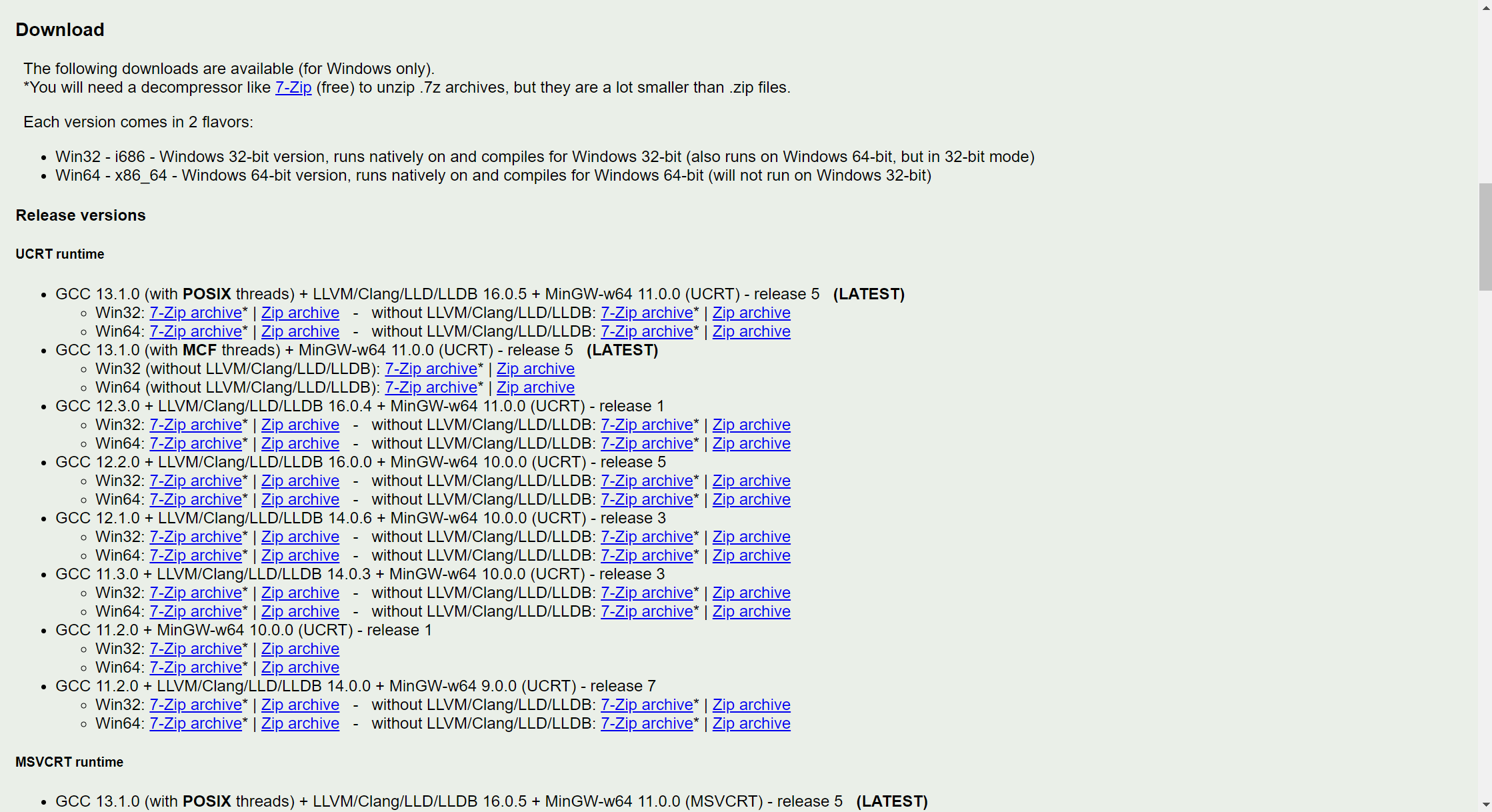
Visit the download page of MinGW-w64, which offers multiple build versions. For convenience, we use the build version provided by WinLibs.
First, go to WinLibs to download the latest installation package. Choose a suitable version; this tutorial selects GCC 12.3.0 + LLVM/Clang/LLD/LLDB 16.0.4 + MinGW-w64 11.0.0 (UCRT):
By default, LLVM Clang will be installed alongside. If you do not want to install it, you can choose the version on the right without LLVM/Clang/LLD/LLDB.
After downloading, extract it to a location on your computer. This tutorial extracts it to the root of the C drive. It is best to avoid non-English characters and spaces in the directory name, as they may cause issues later.
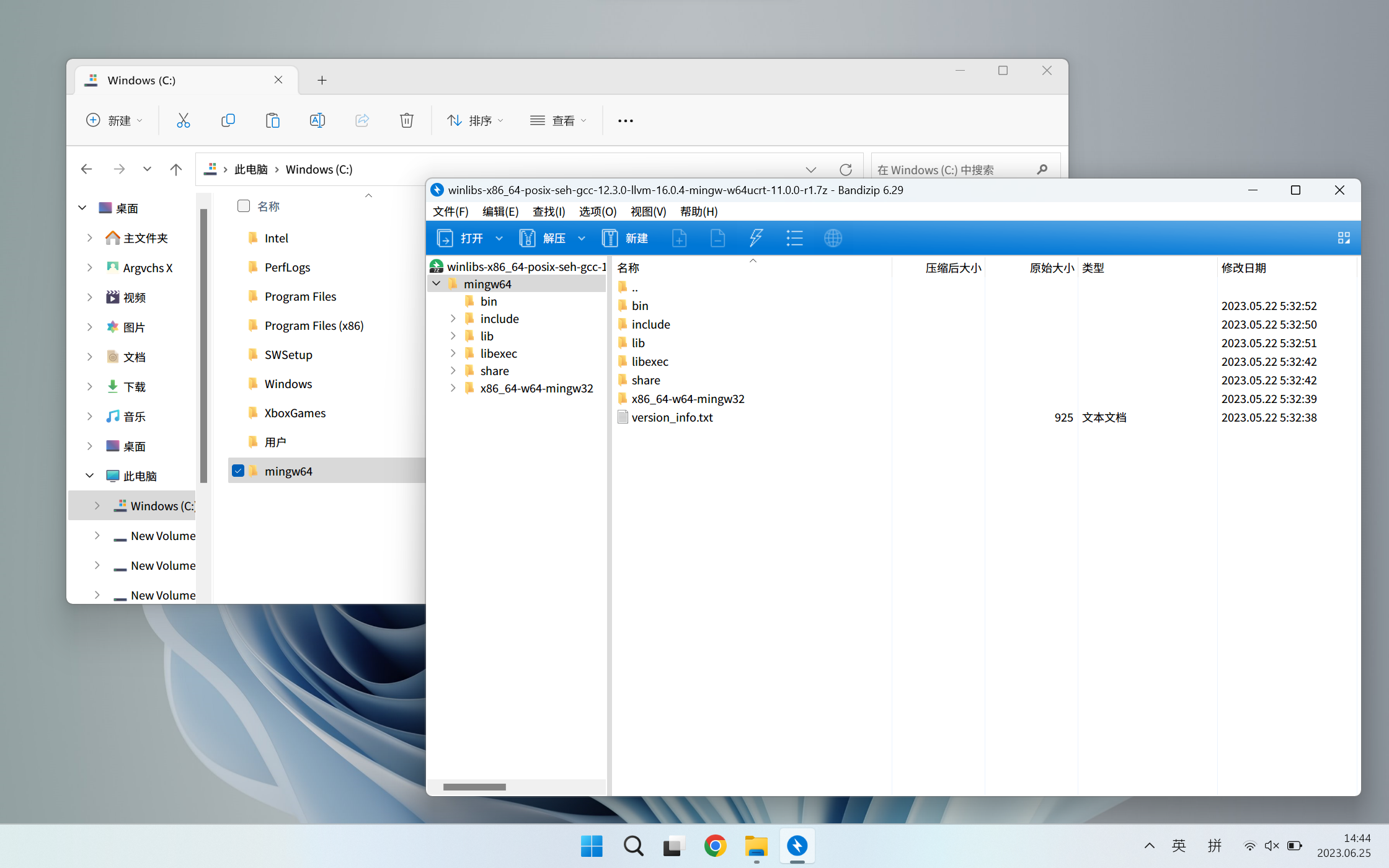
Next, we need to add the directory containing the compiler's executable files to the system environment variables, so that we don't need to specify the compiler path when compiling, making it more convenient to use. In the previous step, we extracted MinGW to the C:\mingw64 directory, so the directory containing the executable files is C:\mingw64\bin.
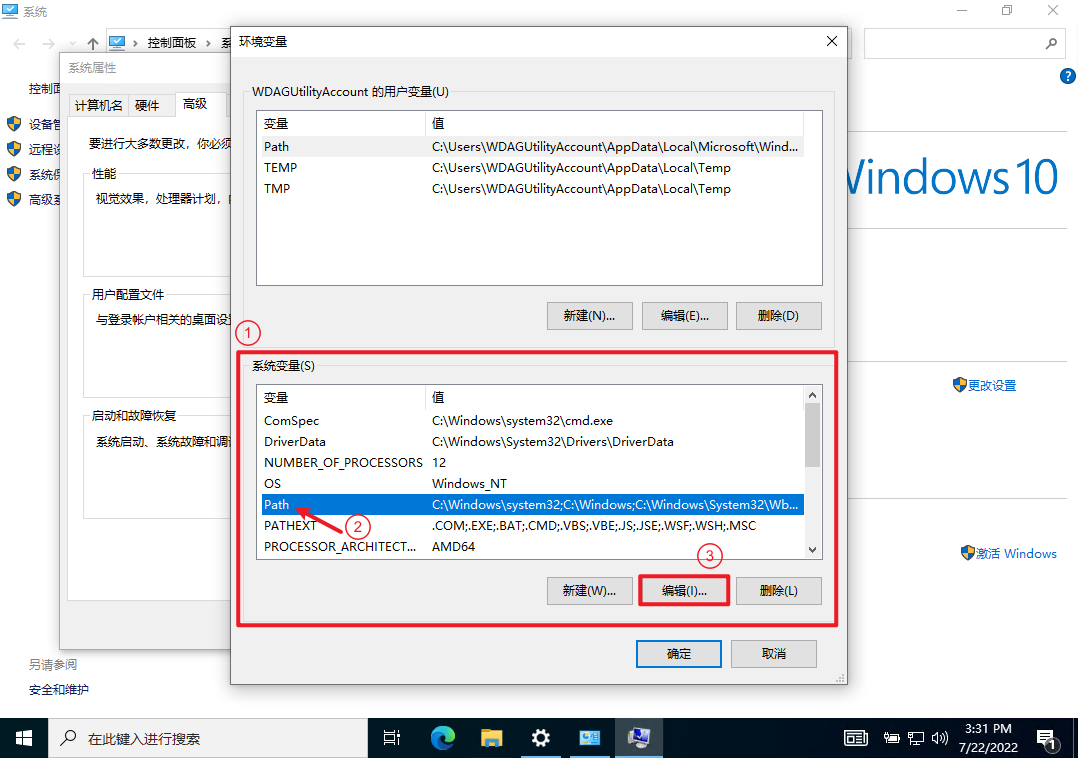
Press the Windows logo key + R, enter rundll32.exe sysdm.cpl,EditEnvironmentVariables to open the system environment variables settings window. In the "System Variables" section, select the variable named "Path", then click the "Edit" button:
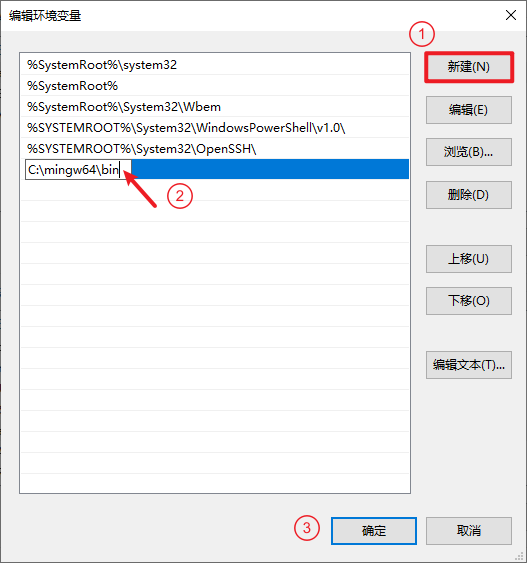
In the edit window, click the "New" button on the right to add a new entry for the "Path" variable, and enter the directory containing the executable files recorded earlier (in this tutorial, C:\mingw64\bin).
Note for some older systems
Some older systems can only modify the variable value manually as text. In that case, you need to insert a half-width semicolon at the end of the variable value, then paste the directory containing the executable files after this half-width semicolon, as shown:
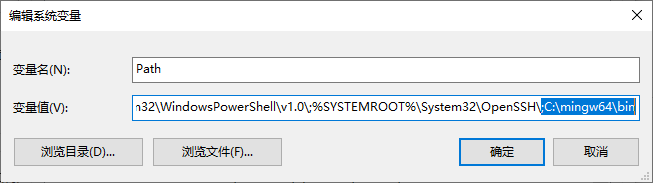
After completing, click the "OK" button all the way to exit.
Next, open a terminal, enter g++ --version and press Enter. If a prompt as shown appears, the installation is successful.
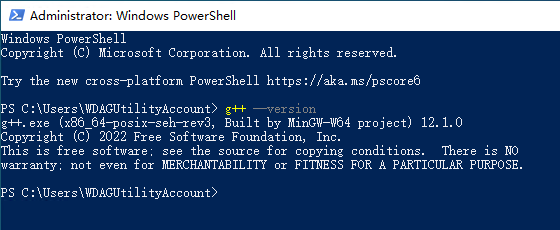
Scoop Installation
Open PowerShell and run the following script:
1 2 3 | |
Linux
Debian/Ubuntu
First, update the software package list:
1 | |
Then install directly using the command:
1 | |
Arch Linux
Install directly using the command:
1 | |
openSUSE
Install directly using the command:
1 | |
macOS
First, update the package manager:
1 2 | |
Then install directly using the command:
1 | |
JDK
There are many distributions of JDK. The following introduces two:
- OpenJDK's Eclipse Temurin2: Refer to Install Eclipse Temurin™ | Adoptium.
- Oracle JDK: Refer to JDK Installation Guide (JDK 17).
Python 3
There are many Python implementations1. Taking CPython 3 as an example, refer to Download Python | Python.org.
LLVM
Windows
Pitfalls of LLVM on Windows
Because LLVM lacks standard libraries on Windows, you still need to install MSVC or GCC.
Direct Installation
Visit the download page of LLVM and download LLVM-*-win64.exe.
If your network quality is poor, you can also visit 清华大学开源 software mirror site to download.
Open the .exe file, during installation check "Add LLVM to system PATH for current user", then keep clicking Next until installation completes.
Open a terminal, enter clang++ --version and press Enter. If something like
1 2 3 4 | |
appears, it indicates success.
Scoop Installation
Open PowerShell and run the following script:
1 2 3 | |
Linux
openSUSE
Install directly using the command:
1 | |
MSVC (Visual Studio)
Visit the Download Visual Studio page, find the "Download" section under "Community", and click "Free Download". After downloading, open the installer and select "Community 2022 Install". In the subsequently popped window, only select "Desktop development with C++", then click Install.
If you do not want to install the full Visual Studio, you can scroll down to the "All Downloads" section, find "Visual Studio Build Tools" under "Tools for Visual Studio", and click the "Download" behind it. After downloading, open the installer, follow the prompts to select "Desktop development with C++", then install. Alternatively, you can use the PortableBuildTools tool to install only the MSVC compiler.
-
Eclipse Temurin is the former AdoptOpenJDK, which was transferred to the Eclipse Foundation in July 2021. For details, see this announcement. ↩
本页面最近更新:,更新历史
发现错误?想一起完善? 在 GitHub 上编辑此页!
本页面贡献者:OI-wiki
本页面的全部内容在 CC BY-SA 4.0 和 SATA 协议之条款下提供,附加条款亦可能应用