Xcode
Introduction
Xcode is an Integrated Development Environment (IDE) that runs on macOS, developed by Apple Inc.
Installation
Method 1
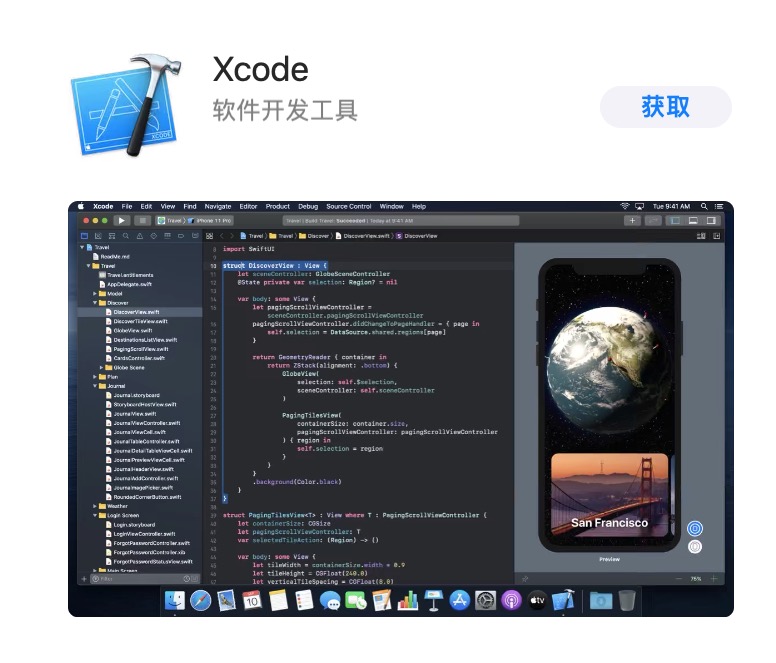
Open the App Store that comes with your Mac (or try the quick link) to download Xcode. Click "Get", then enter your Apple ID and password to start downloading and installing.
Method 2
Visit the Apple Developer Downloads page, log in with your Apple ID, then find the latest stable version of Xcode (i.e., the latest version without Beta, here it's 11.6):
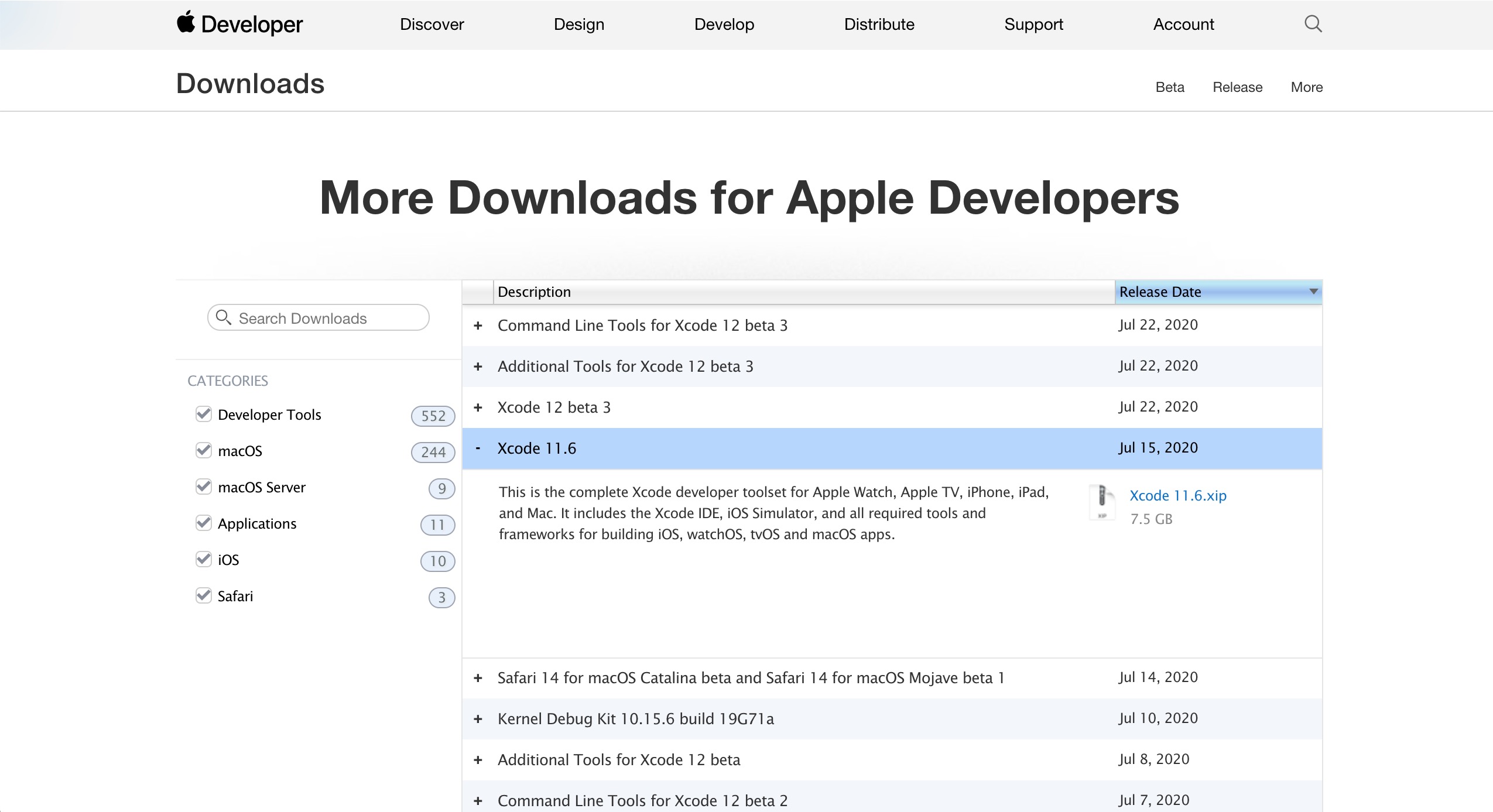
Click the blue filename in the pop-up window to download. After obtaining the compressed file, extract it using the system's built-in tool to get the file Xcode.app. Move this file to the "Applications" folder to use it.
Basic Configuration
When opening Xcode for the first time, you might encounter the following pop-up window:
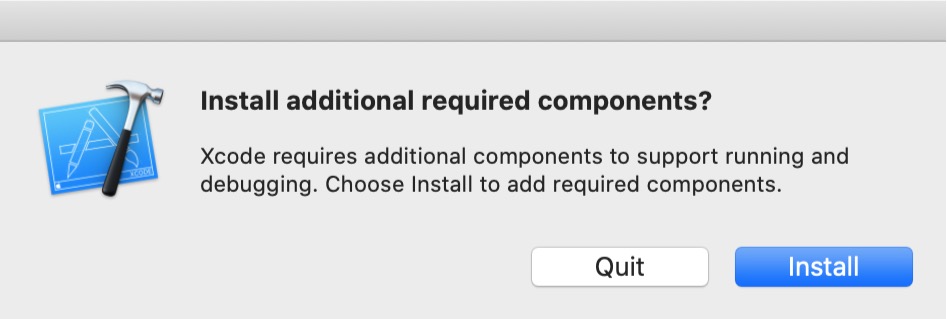
This window is the installation guide for Xcode components. Click Install and enter the current user's password.
After installation, the left side of the interface displays:
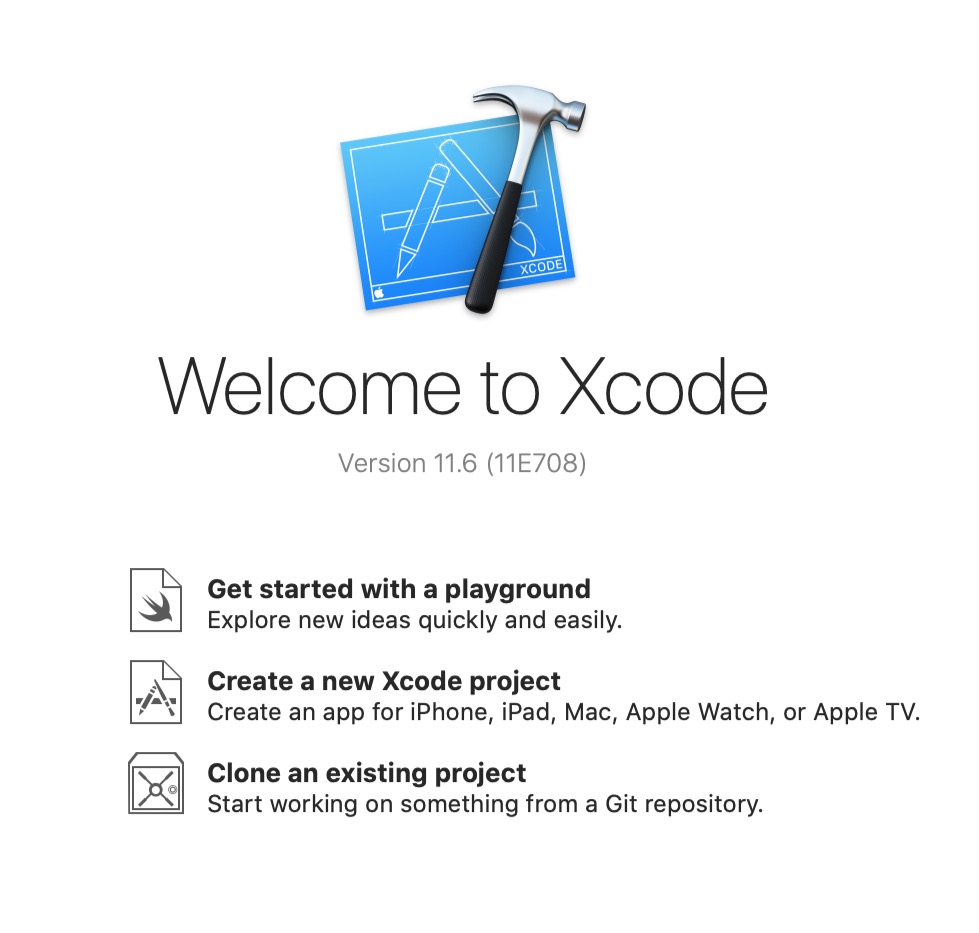
Click Create a new Xcode project, then select Command Line Tool under macOS at the top, and click Next in the bottom right corner.
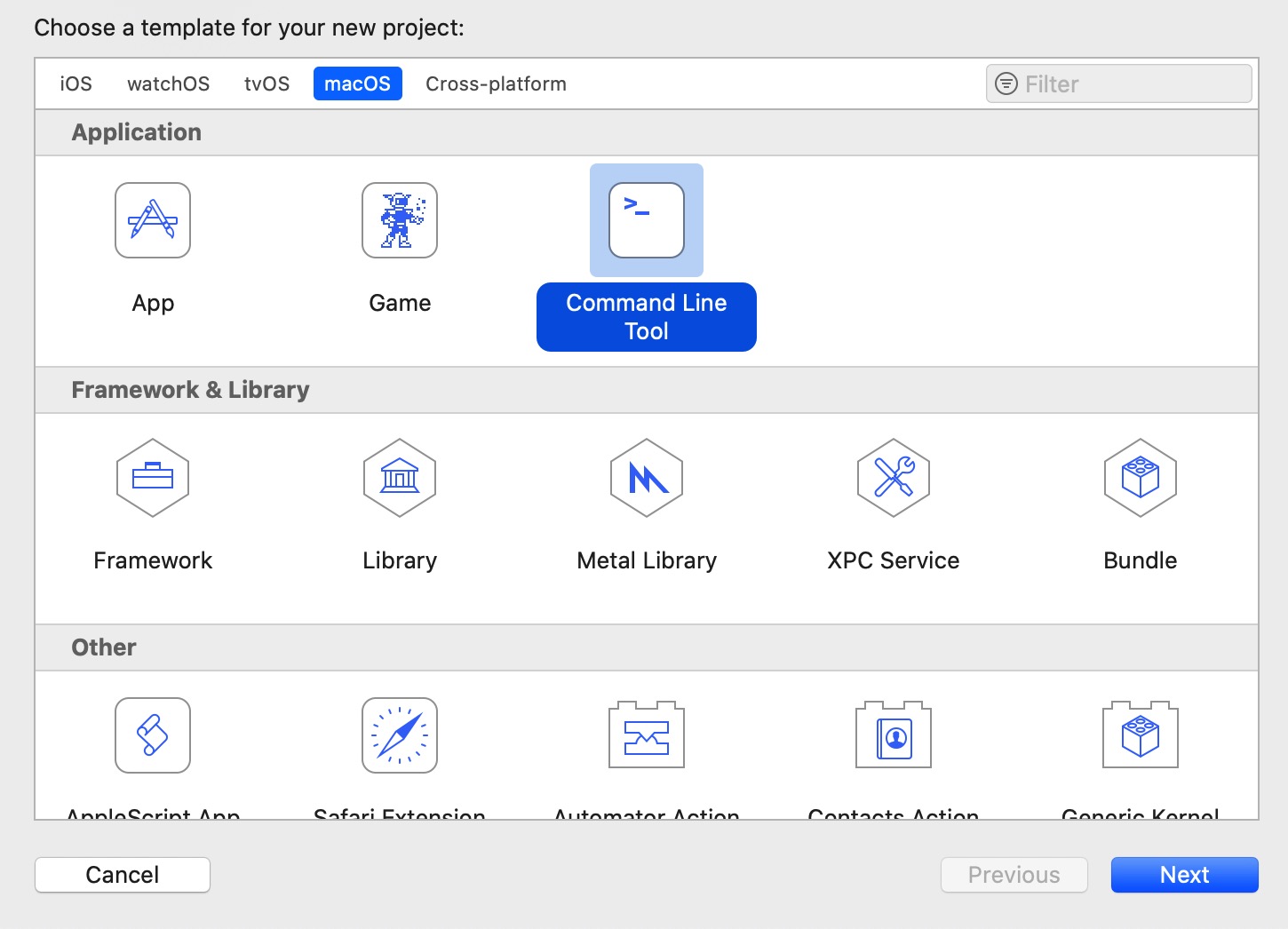
Next, you can name the project, but the most important part is selecting the project's language. You can choose C or C++ at the Language section at the bottom according to your needs:
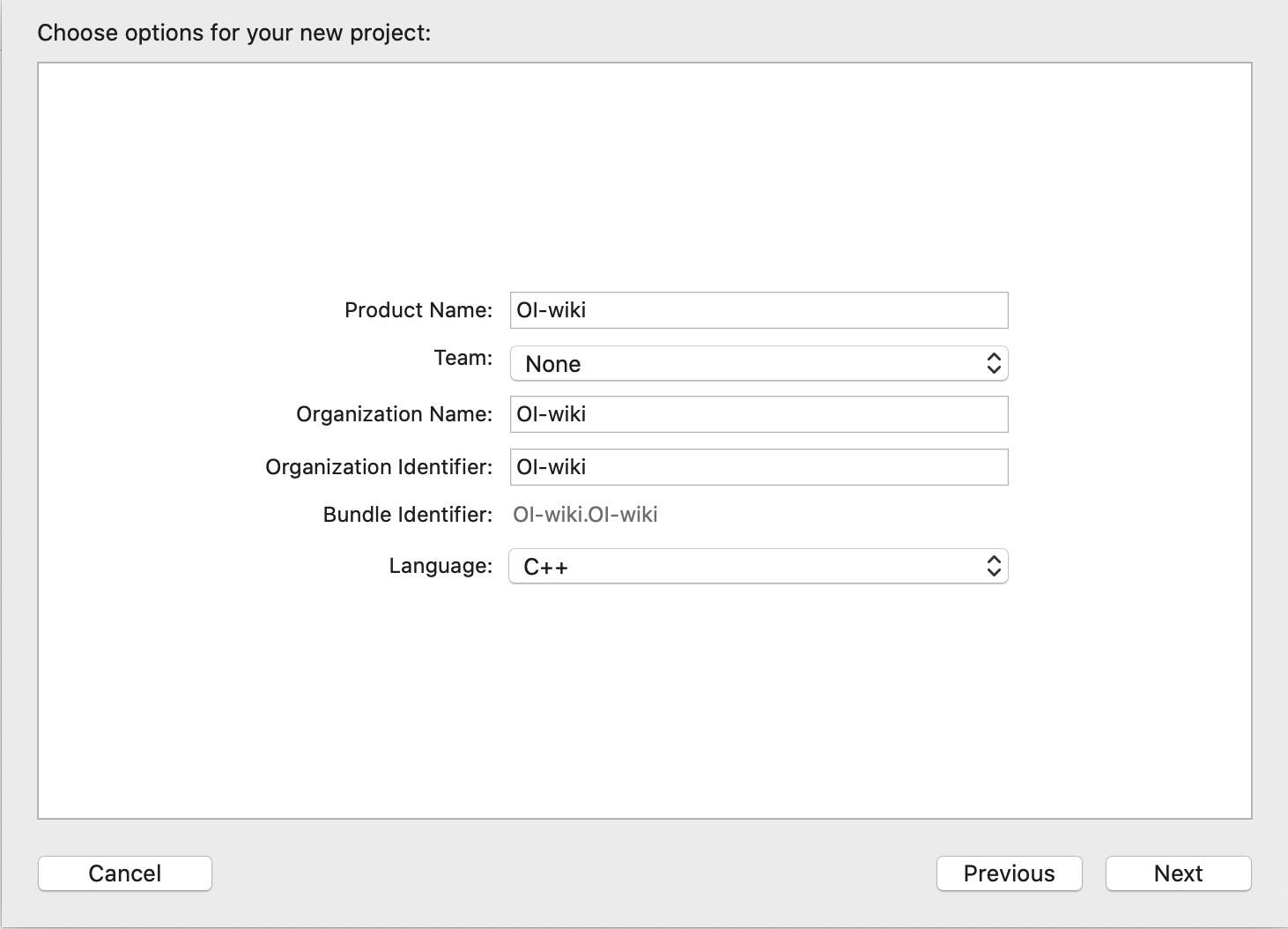
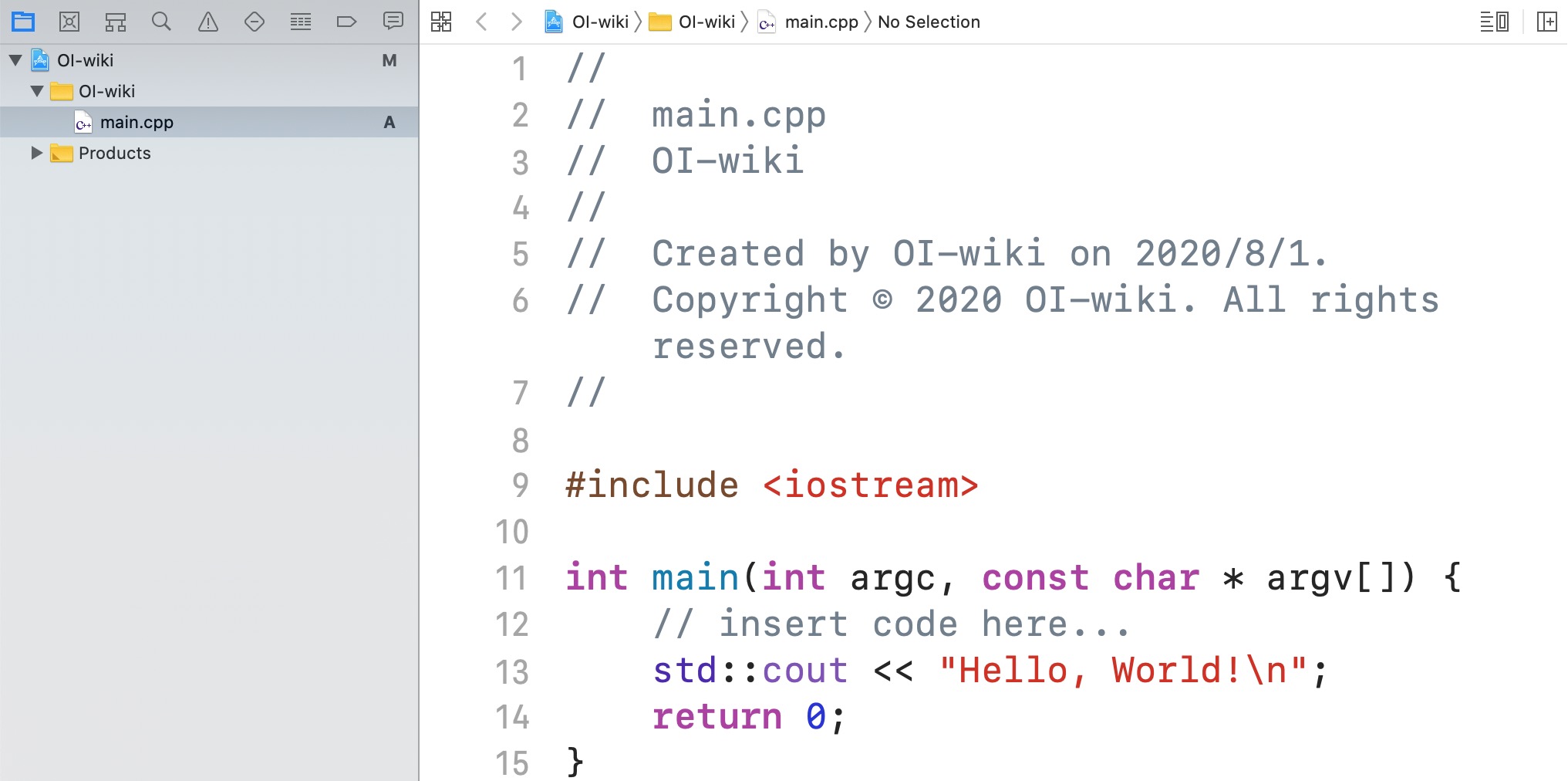
The project directory can be chosen as needed. After creation, Xcode will automatically open this project and create a main file (suffix .c for C, .cpp for C++).
Click this file to open the editing area:
After writing code, you can press ⌘B to Build and ⌘R to Run. After running, drag to get three parts:
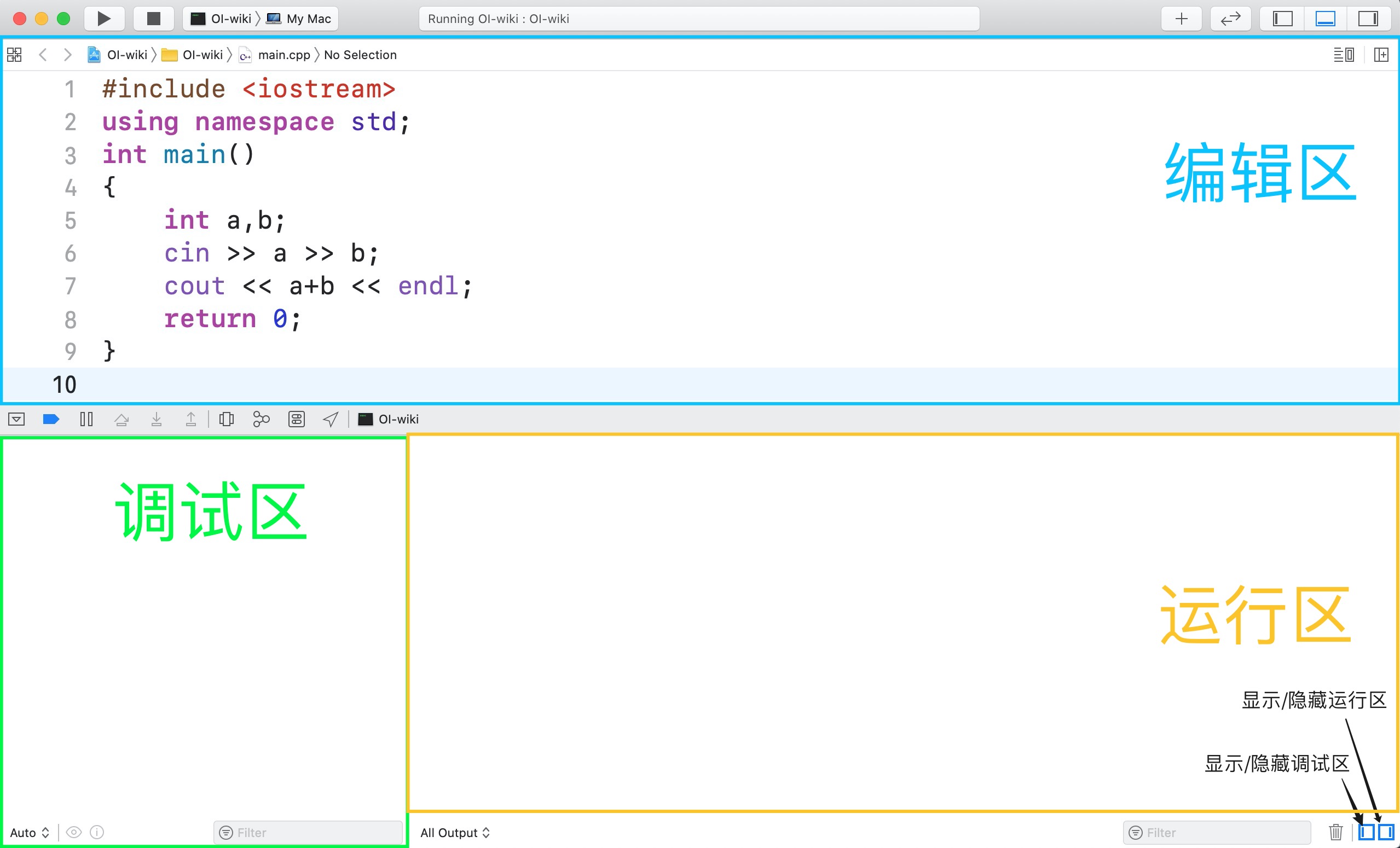
Generally, we only use the 【Editing Area】 and 【Running Area】. If the program requires input, you can input in the 【Running Area】 and then get the output. The interface looks like this:
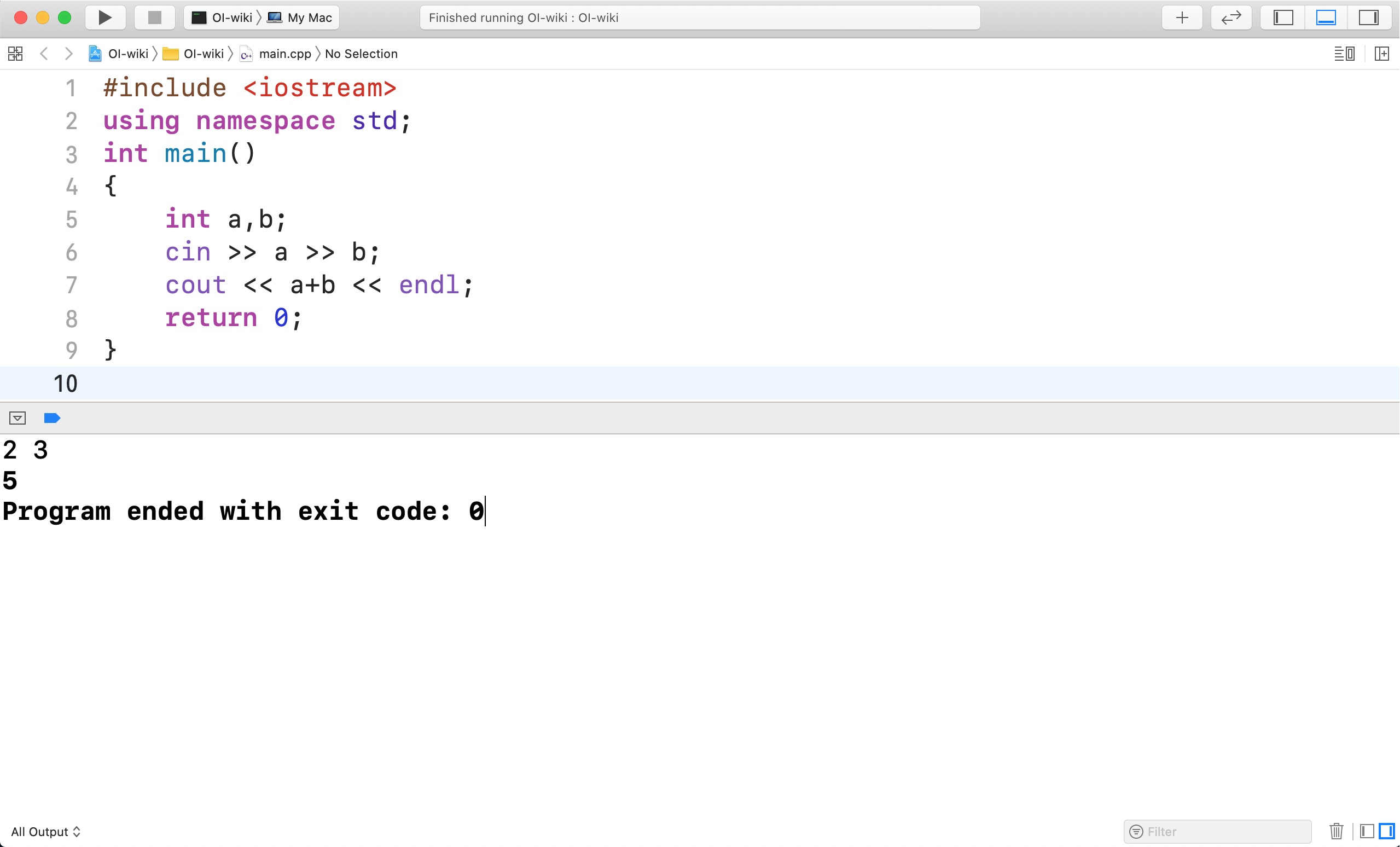
Following this method, you can run any single C/C++ program.
Using the Universal Header File
During code writing, you might use many header files. A common solution is to use the universal header file.
We include the universal header file in the first line of the source code, but during compilation, it prompts: 'bits/stdc++.h' file not found. This means the header file was not found.

This is because macOS uses libc++ as the default C++ standard library implementation, while the universal header bits/stdc++.h is unique to GNU libstdc++.
However, we can manually create a universal header file to use.
Step 1
Open Terminal (Terminal.app), navigate to the folder where Xcode stores header files, i.e.:
1 | |
If the Xcode version is greater than or equal to 12.5, then
1 | |
Step 2
Create a bits folder and enter it:
1 2 | |
Create the stdc++.h file using vim:
1 | |
The interface is as follows:
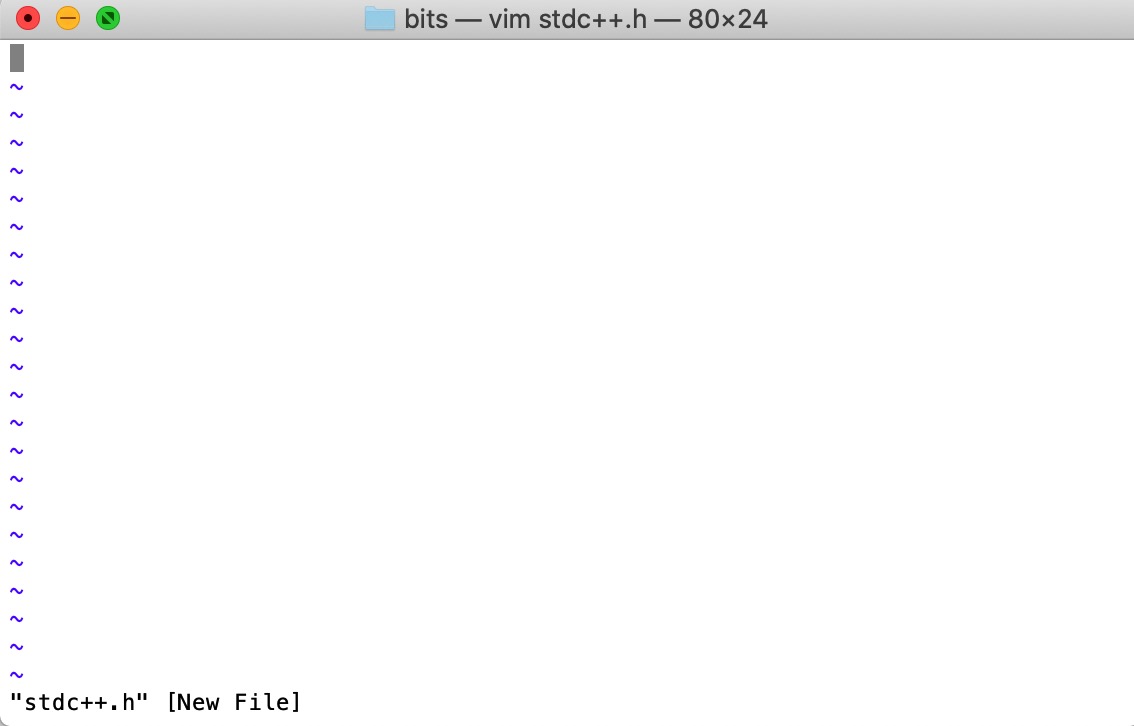
Next, we need to edit the file via vim. Press i (insert) on the keyboard to enter insert/edit mode (-- INSERT -- appears at the bottom):
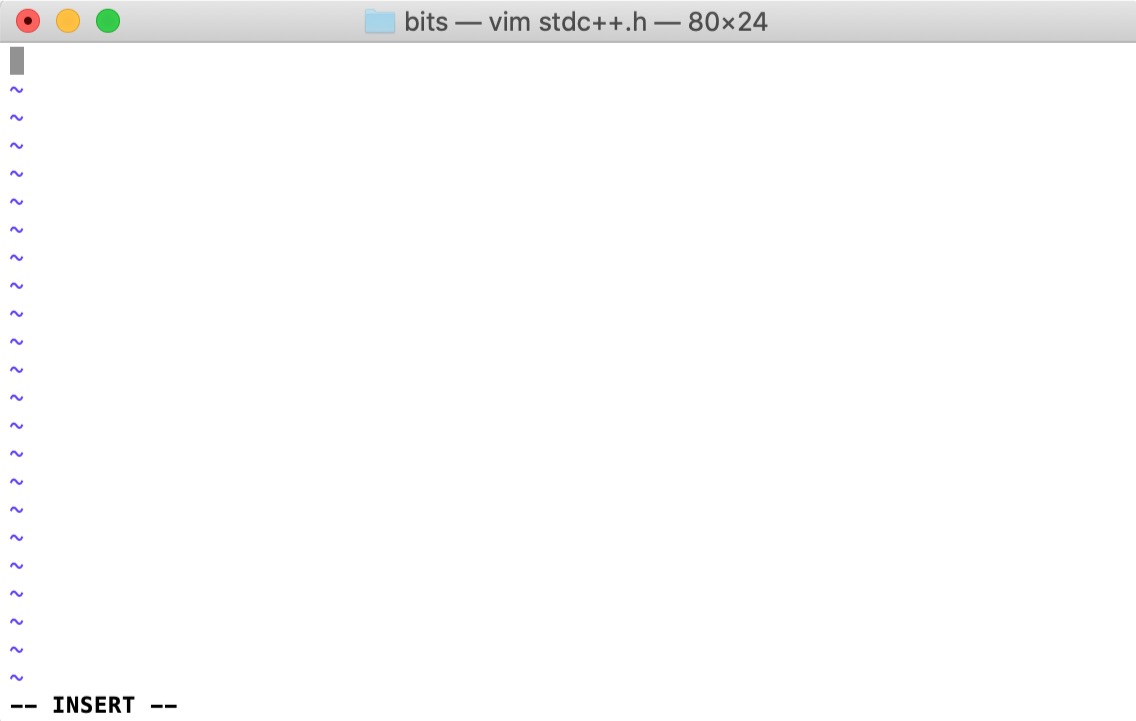
Copy and paste the following code block into the terminal:
Universal Header File Code Block
1 2 3 4 5 6 7 8 9 10 11 12 13 14 15 16 17 18 19 20 21 22 23 24 25 26 27 28 29 30 31 32 33 34 35 36 37 38 39 40 41 42 43 44 45 46 47 48 49 50 51 52 53 54 55 56 57 58 59 60 61 62 63 64 65 66 67 68 69 70 71 72 73 74 75 76 77 78 79 80 81 82 83 84 85 86 87 88 89 90 91 92 93 94 95 96 97 98 99 100 101 102 103 104 105 106 107 108 109 110 111 112 113 114 115 116 117 118 119 120 121 122 123 124 125 126 127 128 129 130 131 132 133 134 135 136 137 138 139 140 141 142 143 144 145 146 147 148 149 | |
This file originates from libstdc++ version 10.2.0 and has been slightly modified for compatibility with libc++.
Press the Esc key at the top left of the keyboard to exit edit mode, then directly type :wq and press Enter to save the file.
Step 3
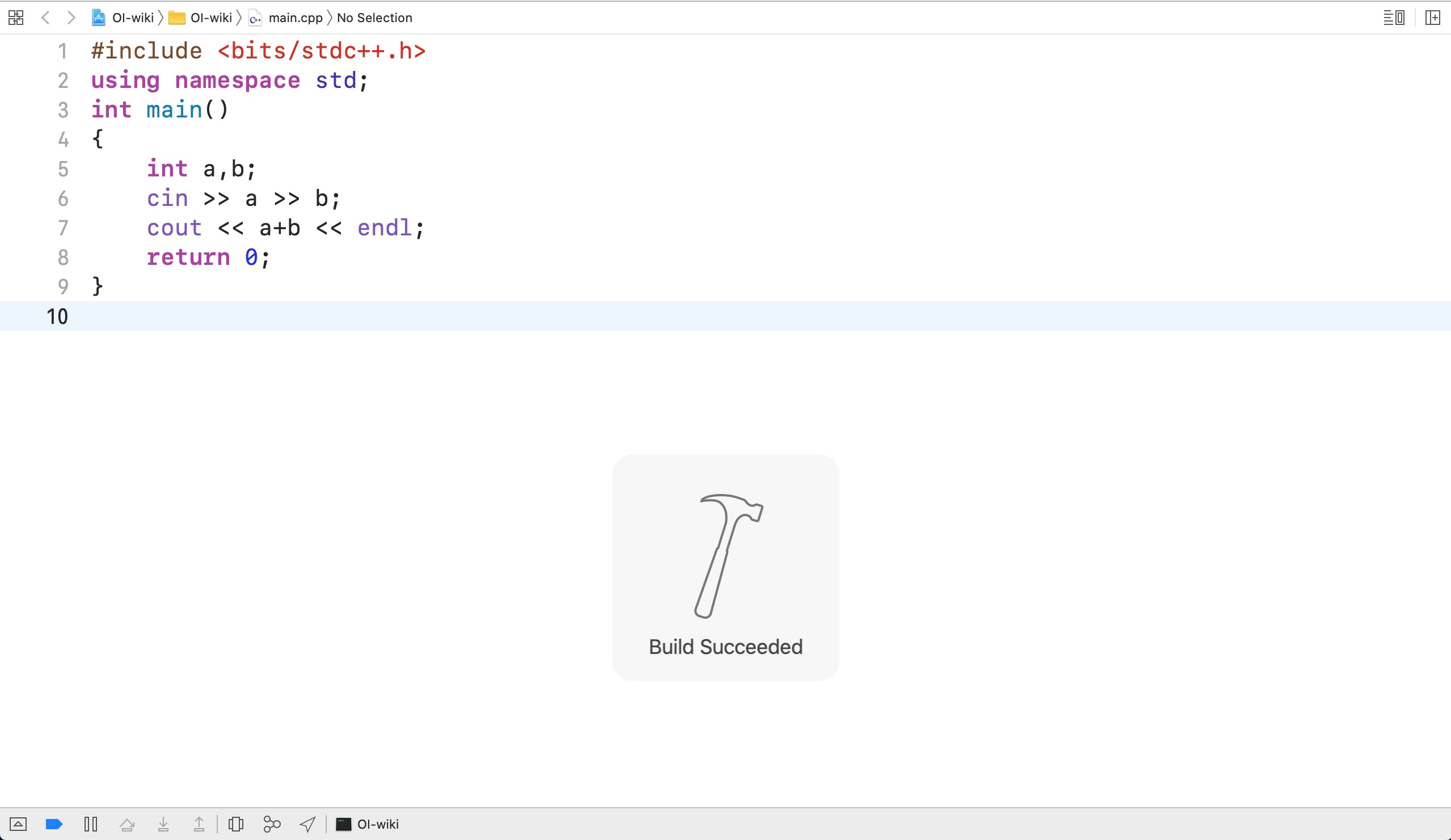
Close the terminal and return to Xcode. Press ⌘B/⌘R again to compile, and you will find the compilation is successful:
Pros and Cons
Pros: Developed by Apple, suitable for Mac users, with a complete and aesthetically pleasing interface.
Cons: Xcode is primarily used for Apple program development. For competitive programming, it is feature-redundant, has a large installation package size, and is only available on Mac.
本页面最近更新:,更新历史
发现错误?想一起完善? 在 GitHub 上编辑此页!
本页面贡献者:OI-wiki
本页面的全部内容在 CC BY-SA 4.0 和 SATA 协议之条款下提供,附加条款亦可能应用