Sublime Text
Introduction
Sublime Text (abbreviated as ST, with a number appended to indicate the version; if omitted, it applies to all versions) is a lightweight text editor that supports syntax highlighting and code completion for multiple languages. It features high extensibility, a Vim mode, and a special hot-start mode that significantly reduces the risk of file loss.
The latest version supported in the new NOI Linux is ST3, specifically version 3.2.21, so this guide focuses on ST3. Currently, ST4 has been officially released2, and if you are still using ST3, you will be prompted to update.
Important differences between ST4 and ST3 will be noted separately. In the introduction, if a feature already has a Chinese translation in ST3, the Chinese term is used; otherwise, the English term from ST4 is used.
Installation
For ST4 installation, refer to the Sublime Text 4 download page.
For ST3 installation, refer to the Sublime Text 3 download page.
Purchase Reminder
ST is paid software but offers an indefinite trial. The trial does not limit functionality but occasionally displays pop-ups prompting activation.
Plugins and Customization
Localization
ST does not natively support Chinese. To use Chinese, a localization plugin is required.
Installing the Plugin Manager
Open ST and press Ctrl+Shift+P to open the command palette. Type Install and press Enter (the full command is Install Package Control, case-insensitive). You should see a = moving left and right in the bottom-left corner. A pop-up will notify you when Package Control installation completes (or fails); loading time depends on your network.
If the pop-up indicates installation failure (often due to network issues), manually download Package Control and place the downloaded file in the \Installed Packages folder under ST's data directory. Wait a moment; ST will automatically recognize the plugin (sometimes a restart is required).
ST Data Directory Path
On Windows, if an \data folder exists in ST's installation directory, it will be used (or initialized) as the data directory.
For ST3, the path is typically C:\Users\Username\AppData\Roaming\Sublime Text 3; for ST4, it's C:\Users\Username\AppData\Roaming\Sublime Text. ST first searches for the version-specific path; if not found, it looks for lower-version paths; if none exist, it creates and initializes a new one.
In Ubuntu 20.04.1 (used by NOI Linux), the ST3 data directory is $HOME/.config/sublime-text-3, and the ST4 data directory is $HOME/.config/sublime-text. The same rules as on Windows apply.
You can use Preferences->Browse Packages... to quickly view the \Packages folder under the data directory path.
Installing the Localization Plugin
Press Ctrl+Shift+P again, type Install, and press Enter (full command: Package Control: Install Package). Wait for loading to complete. You should see this interface:
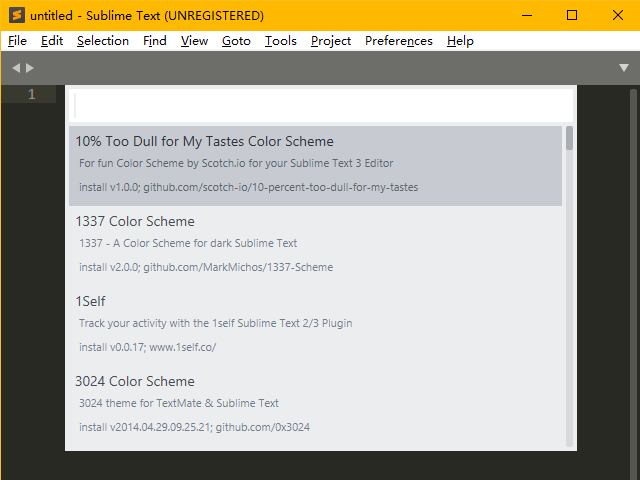
Type Chinese, select ChineseLocalizations, and press Enter. Wait for installation to finish. The interface will automatically switch to Chinese after completion (for ST4, since the localization plugin hasn't been updated, some new menu items may be missing, but this generally doesn't affect editing).
Adjusting Fonts
Go to Preferences->Settings. In the user settings on the right (inside the curly braces), add a line: "font_face": "Font Name",. ST settings are stored in JSON format. Save after modification; if the system has the corresponding font installed, it will switch automatically.
Generally, for Chinese display, Microsoft Yahei Consolas and Microsoft YaHei Mono are good choices.
Warning
Do not modify the default settings on the left (even if possible), as this is not recommended. If the software (or plugin) updates, default settings will be reset.
Installing Plugins and Themes
The method for installing plugins and themes is the same as for the localization plugin.
Press Ctrl+Shift+P, type Install, press Enter, then search for the plugin/theme/color scheme.
Recommended plugins:
- BracketHighlighter: Enhances bracket highlighting; essential.
- C++ Snippets: ST has built-in C++ code completion with braces on the same line. If you prefer braces on new lines, install this plugin. It also adds additional completions.
- C++ 11: Supports C++11 standard highlighting (not needed in ST4).
- SublimeAstyleFormatter: Astyle for code formatting.
- Diffy: Press Ctrl+K & Ctrl+D to quickly compare differences between files opened in the first and second views, line by line.
- ConvertToUTF8: Automatically detects file encoding and supports encoding conversion.
- SideBarEnhancements: Sidebar enhancements; highly recommended.
- Transparency: Makes the window transparent.
Search for other needs as required.
Some themes:3
1337 (single color scheme), 3024 (single color scheme), Grandson-of-Obsidian (single color scheme), Seti_UI (single theme, includes highlighting for git and other formats; recommended), Material Theme, Predawn, Agila, Materialize.
To edit your own color scheme, visit tmTheme Editor.
In ST4, you can adjust color schemes in Preferences->Customize Color Scheme or themes in Preferences->Customize Scheme.
Enabling Vi Mode
ST's developers provide an optional plugin called Vintage for Vi users, which simulates most Vi functionality.
Enabling Method
The Vintage plugin is disabled by default. Go to Preferences->Settings, and in the user settings, remove Vintage from the "ignored_packages" list and save (do not delete the entire list, only remove Vintage). INSERT MODE will appear on the left side of ST's status bar, indicating the Vintage plugin is enabled.
Alternatively, press Ctrl+Shift+P, type Enable, select Package Control: Enable Package, press Enter, and choose Vintage. This method requires Package Control.
Related Configuration
To disable arrow keys, add the following in Preferences->Key Bindings:
1 2 3 4 | |
To start ST in command mode, add the following in Preferences->Settings:
1 | |
You can also set any key to enter command mode via key bindings (see Setting Key Bindings for details).
Differences from Vi
ST's Vintage plugin differs from Vi in some ways; partial list:
- In insert mode, selecting text does not enter visual mode; input is not recognized as commands but directly replaces text. Visual mode can only be entered from command mode.
- Commands
r,R,zA,za,zi,z=,@, and commands using [, ], or " keys are not available. - Shortcuts using Ctrl, Shift, and Alt keys remain as ST's default shortcuts. For example, Ctrl+V pastes normally instead of entering visual mode.
- Command-line mode only retains
:e,:0,:$,:s. - Using
\and?commands automatically opens the search box instead of directly typing search terms in the command. Also, numbers will not take effect. - The
qmacro recording command starts ST's built-in macro recording. After pressing Q, you need to press another key to start recording, but the recorded macro is not bound to that key; you must press Ctrl+Shift+Q to execute it. To save, useTools->Save Macro; key bindings need to be set separately. - The combination
number+.cannot be used.
Settings
Configuring ST
Configure in Preferences->Settings. Some useful options are listed below:
1 2 3 4 5 6 7 8 9 10 11 12 13 14 15 16 17 18 19 20 21 22 23 24 25 26 27 28 29 30 31 32 33 34 35 36 | |
Setting Key Bindings
Configure in Preferences->Key Bindings. Find the function to modify on the left, copy it to the right, and change the key.
For example, to change the compile shortcut from Ctrl+B to F9 (this adds a new trigger without disabling the original), add the following in Preferences->Key Bindings:
1 2 3 4 5 | |
Configuring Plugins
Plugin settings can be found in Preferences->Package Settings->Plugin Name. When making changes, avoid modifying default settings.
For example, here are some settings for BracketHighlighter, modified in Preferences->Package Settings->BracketHighlighter->Bracket Settings:
1 2 3 4 5 6 7 8 9 10 11 12 13 14 15 16 17 18 19 20 21 22 23 24 25 26 27 | |
Modifying and Adding
Sometimes, certain aspects of a plugin may not be satisfactory, or you may want to localize a plugin. In such cases, modifications are needed.
Plugins are stored in the \Installed Packages folder under the data directory.
Files have the suffix .sublime-package, which is actually a .zip format and can be opened with archive software.
For example, to modify auto-completion, open the \Snippets\*.sublime-snippet files in the \Packages\C++ plugin in ST's installation directory. To add auto-completion, install C++ Snippets and modify or add files within it (or create a new plugin; you cannot directly add to the built-in C++ plugin, as it won't be recognized). Always close ST before saving any modifications, and back up files in advance to avoid data loss.
Alternatively, any additions can be placed in \Packages\User\ under the data directory path, which is always supported.
For example, a file template snippet can be written as:
1 2 3 4 5 6 7 8 9 10 11 12 13 14 15 16 | |
Below are some file suffixes and their purposes. For detailed plugin development tutorials, refer to the Community Documentation and Official Documentation:
| Suffix | Purpose |
|---|---|
| .sublime-build | Build system file |
| .sublime-completions | Filename completion list (usually for headers) |
| .sublime-syntax | Syntax highlighting file |
| .sublime-settings | Settings file |
| .tmPreferences | Preference list file |
| .sublime-keymap | Key binding file |
| .sublime-snippet | Code snippet file |
| .sublime-commands | Command definition file |
| .sublime-menu | ST UI file, including sidebar and top menu bar (main target for localization) |
Since plugin updates directly overwrite original files, it is recommended to back up modified files.
Editing
Setting Syntax
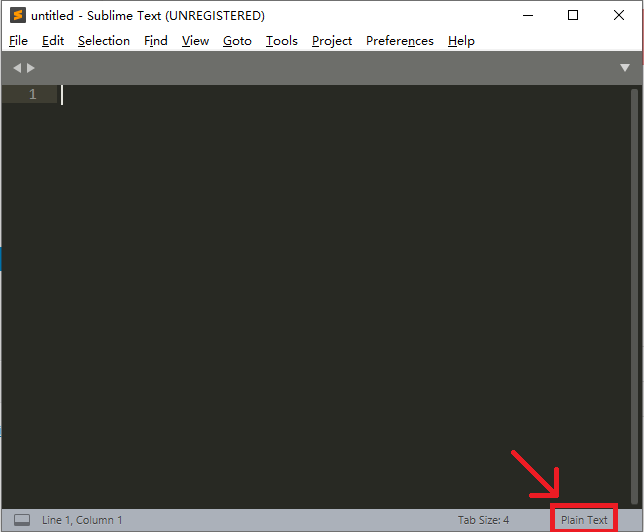
Press Ctrl+Shift+P and type the syntax name, or click Plain Text at the bottom-right and select the desired language. You can also set it in View->Syntax.
Key Bindings
ST has compound key bindings, e.g., Ctrl+K & Ctrl+Backspace means press Ctrl+K first, then Ctrl+Backspace.
Partial key bindings:
| Key Combination | Command |
|---|---|
| Ctrl+X | Cut current line |
| Ctrl+Shift+K | Delete line |
| Ctrl+Enter | Insert line below |
| Ctrl+Shift+Enter | Insert line above |
| Ctrl+Shift+Up | Move line up |
| Ctrl+Shift+Down | Move line down |
| Ctrl+L | Select line; repeat to select multiple lines downward |
| Ctrl+D | Select word; repeat to select multiple identical words and enter multi-select mode (for quick batch changes) |
| Ctrl+M | Jump to matching bracket |
| Ctrl+Shift+M | Select content inside brackets (excluding brackets); repeat to include brackets |
| Ctrl+K & Ctrl+K | Delete to end of line (compound binding; recommended to use Vim mode instead) |
| Ctrl+K & Ctrl+Backspace | Delete to beginning of line (compound binding; recommended to use Vim mode instead) |
| Ctrl+] | Indent current (selected) line(s) |
| Ctrl+[ | Unindent current (selected) line(s) |
| Ctrl+Shift+D | Duplicate current line and insert below |
| Ctrl+J | Join next line with current line |
| Ctrl+Shift+V | Paste and indent (useful for pasting entire code blocks) |
| Ctrl+K & Ctrl+Shift+V | Paste from history (compound binding; recommended to change to Ctrl+Alt+V) |
| Ctrl+Alt+Down | Move cursor down, keeping current line cursor (enter multi-select mode) |
| Ctrl+Alt+Up | Move cursor up, keeping current line cursor (enter multi-select mode) |
| Ctrl+R | Jump to any symbol (function or type definition) in the file |
| Ctrl+Shift+R | Jump to any symbol (function or type definition) in the project |
| Ctrl+P | Jump to any file (previously opened or existing in the project) |
| ~ | Toggle case of selected text |
Auto-Completion
ST has rich auto-completion features. Possible completions appear below the cursor; press Tab or Enter to complete (in ST4, after a non-Snippet completion, pressing Tab again allows selecting completions that contain the current completion as a substring).
Snippet-type completions usually have editable blocks. After completion, the first block is automatically selected for replacement. For complex completions like for with multiple blocks, press Tab again to move to the next block. To trigger completion within a block, use Enter (in ST4, Tab can still be used).
If auto-completion is not working, fix as follows:
- Check if the language is set; ST defaults new files to Plain Text.
- Go to
Preferences->Settingsand add these two lines:
1 2 | |
Multi-Selection
Hold Ctrl and click with the mouse to add cursors on the screen. Ctrl+Alt+Up or Ctrl+Alt+Down adds cursors to adjacent lines. Any editing operation applies to all cursors simultaneously.
Find and Replace
Ctrl+F for find, F3 for find next, Shift+F3 for find previous, Ctrl+H for replace.
The five find options are: regex matching, case-sensitive, whole word, wrap around, and find in selection.
It is recommended to set "auto_find_in_selection" to true in preferences. This automatically restricts searches to the selected text when more than one word is selected.
Demonstrations
Hot Start
Try typing some content in ST and close the entire ST directly. ST will close without any prompts. When reopened, no data will be lost unless system data restoration is performed.
Multi-Selection
To change all bok to book in the following code, place the cursor on any bok and hold Ctrl+D to quickly select them.
1 2 3 4 | |
To change all values after the equals sign to "good" in the following file, place the cursor before aaa on the first line, press Ctrl+Alt+Down five times, then press Ctrl+D and type good.
Alternatively, select "a, hold Ctrl+D, press Right, then Ctrl+D, and type.
1 2 3 4 5 6 | |
To add parentheses around all a + b below, select one a + b, hold Ctrl+D, and type ( (if a region is selected, typing any left parenthesis adds matching parentheses around the region).
1 | |
Find and Replace
To change all values after the equals sign to "good" in the following file, you can also use Ctrl+H for replace. Enable regex, enter ".*", and replace with "good".
1 2 3 4 5 6 | |
To add semicolons to the following code, use find in selection with regex, enter \n, and replace with ;\n.
1 | |
Macro Recording
To add semicolons to the following code, press Ctrl+q to start macro recording, then press End, ;, Down, and finally Ctrl+q to stop (the bottom-left may not show recording throughout, but it is recording). Then repeat Ctrl+Shift+q.
1 2 3 4 5 6 | |
If Vintage Plugin is Enabled
After executing Ctrl+Shift+q once, press Esc to enter command mode and type .. (the . command repeats the last ST3 command).
For saving macros and binding keys, refer to the Community Documentation.
Compilation and Execution
ST's compilation environment is pre-configured and ready to use.
On Windows, add the directory containing g++ to the system PATH and restart ST.
Compilation
Press Ctrl+B to compile. The first time, you'll be prompted to choose a build system. Select C++ Single File (compile only) or C++ Single File - Run (compile and run).
Modifying Compilation Options
ST's default compilation command is g++ "${file}" -o "${file_path}/${file_base_name}". To modify compilation options, create a new build system.
Go to Tools->Build System->New Build System... and enter the following between the curly braces:
1 2 3 4 5 6 | |
Save and press Ctrl+Shift+B to switch build systems. This configuration compiles and runs in an external CMD.
The saved file is Build System Name.sublime-build under \Packages\User\ in the data directory path and can be modified repeatedly.
Execution
If you selected C++ Single File - Run (compile and run) or configured auto-run, the compilation output panel at the bottom should show nothing (unless there's a compilation error) because ST's compilation output panel is actually a terminal where you can input data directly.
After execution, the program's run time is displayed. This timing includes compilation time, input time, and, if running in an external CMD, CMD startup and shutdown time.
Warning
This panel cannot input F6 or Ctrl+Z. For programs that read until EOF, use file input or configure external CMD execution.
Debugging
Plugins can be installed to support graphical gdb debugging in ST, but relying on plugins for gdb debugging is not recommended.
A better approach is to add relevant commands to the build system configuration to launch gdb and perform command-line debugging externally.
Miscellaneous
- Drag a folder into ST and press Ctrl+K & Ctrl+B to open the sidebar for quick file switching.
- Make good use of jump functions, especially Ctrl+P for file jumps and Ctrl+R for function jumps.
- ST supports git4.
- All ST configurations are stored in the data directory and can be easily packaged, but registration information cannot be used across multiple computers.
External Links
- Using Command Line Debugging
- Sublime Text 3 Official Documentation
- Sublime Text Community Documentation
References and Notes
本页面最近更新:,更新历史
发现错误?想一起完善? 在 GitHub 上编辑此页!
本页面贡献者:OI-wiki
本页面的全部内容在 CC BY-SA 4.0 和 SATA 协议之条款下提供,附加条款亦可能应用