CLion
Introduction
CLion is a feature-rich and powerful cross-platform C/C++ Integrated Development Environment (IDE) developed by JetBrains.
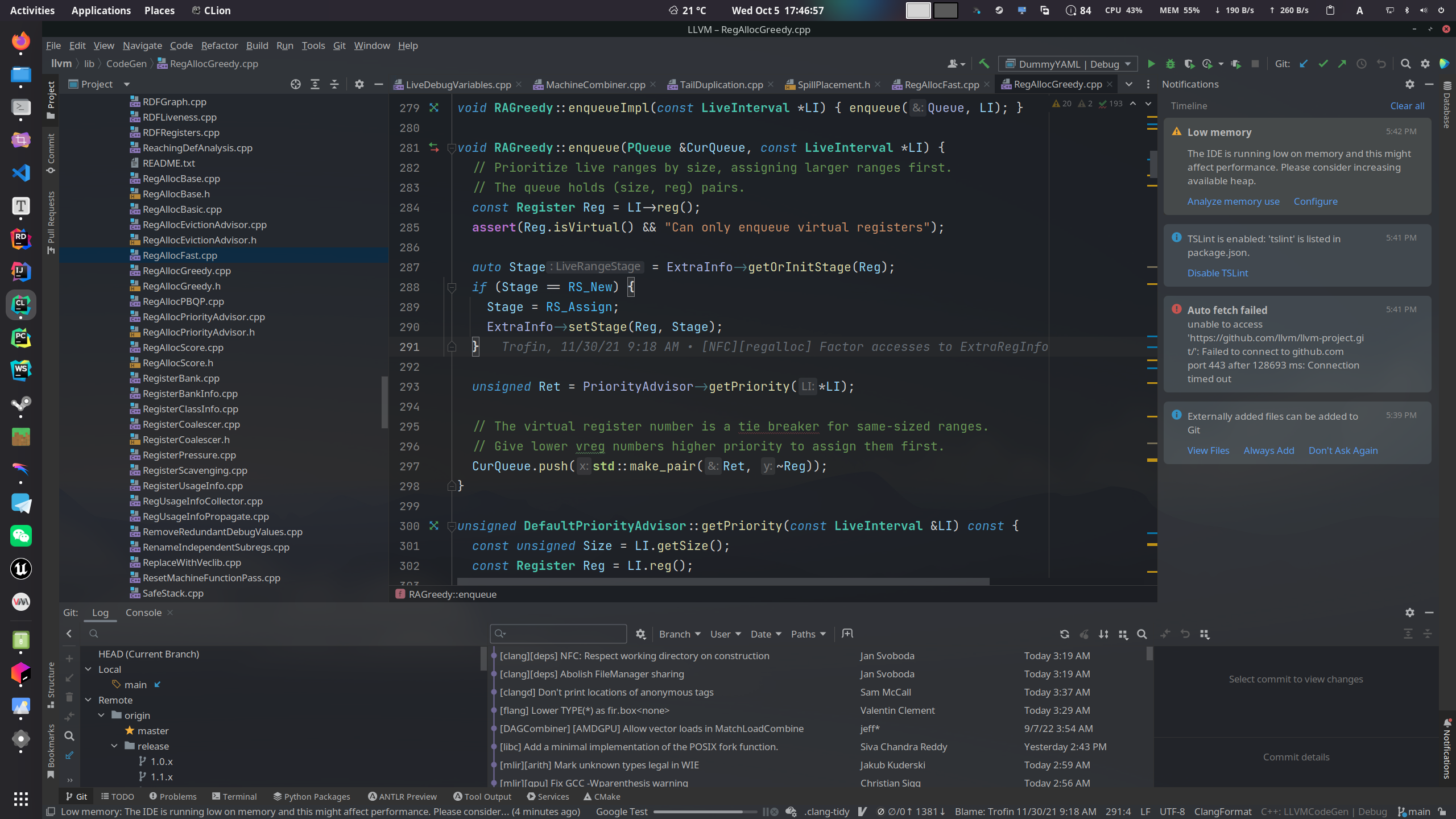
Official Tutorials
The official website provides tutorials for Learning CLion.
Installation
Refer to Download CLion.
Configuration
Toolchain Installation
CLion does not come with a compiler, build tools, or debugger by default; they need to be installed manually.
Windows
Refer to Tutorial: Configure CLion on Windows | CLion Documentation
It's worth mentioning that the Windows version of CLion comes with MinGW bundled, so you may not need to install the MinGW toolchain separately.
Linux
Debian/Ubuntu and Derivatives
1 2 3 | |
Arch Linux and Derivatives
1 2 3 | |
Fedora/RHEL/CentOS/Rocky Linux
1 2 3 | |
macOS
Refer to Tutorial: Configure CLion on macOS | CLion Documentation
Toolchain Settings
Manual Toolchain Setup
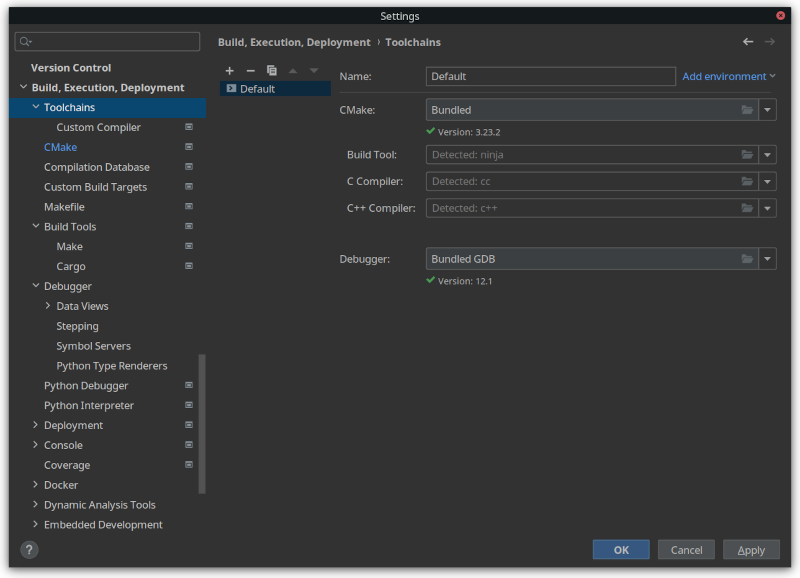
A newly installed CLion will automatically detect the C/C++ development toolchain in your system. If an installed toolchain cannot be auto-detected, you can manually configure it in Settings under Build, Execution, Deployment > Toolchains.
Compiling, Running, and Debugging
Although CLion was originally designed for complex multi-file C/C++ projects, and earlier versions defaulted to using CMake as the build tool, starting from CLion 2022.3, CLion now supports Running Single C, C++ Files.
There are multiple ways to run a C++ program. A simple workflow is as follows:
- Create a C/C++ project:
New -> Project -> C++ Executable, choose an appropriate location and language standard version, then clickCreate. - Open the project. The project directory should now contain a
cmake-build-debugfolder, aCMakeLists.txtfile, and amain.cppfile. Since we don't need CMake to manage the project, we can delete theCMakeLists.txtfile and thecmake-build-debugdirectory along with all its contents. - Open the
main.cppfile, right-click in the editor area, and you will see theRun 'main.cpp'option. Selecting this option will allow CLion to automatically create a run configuration and execute the program.
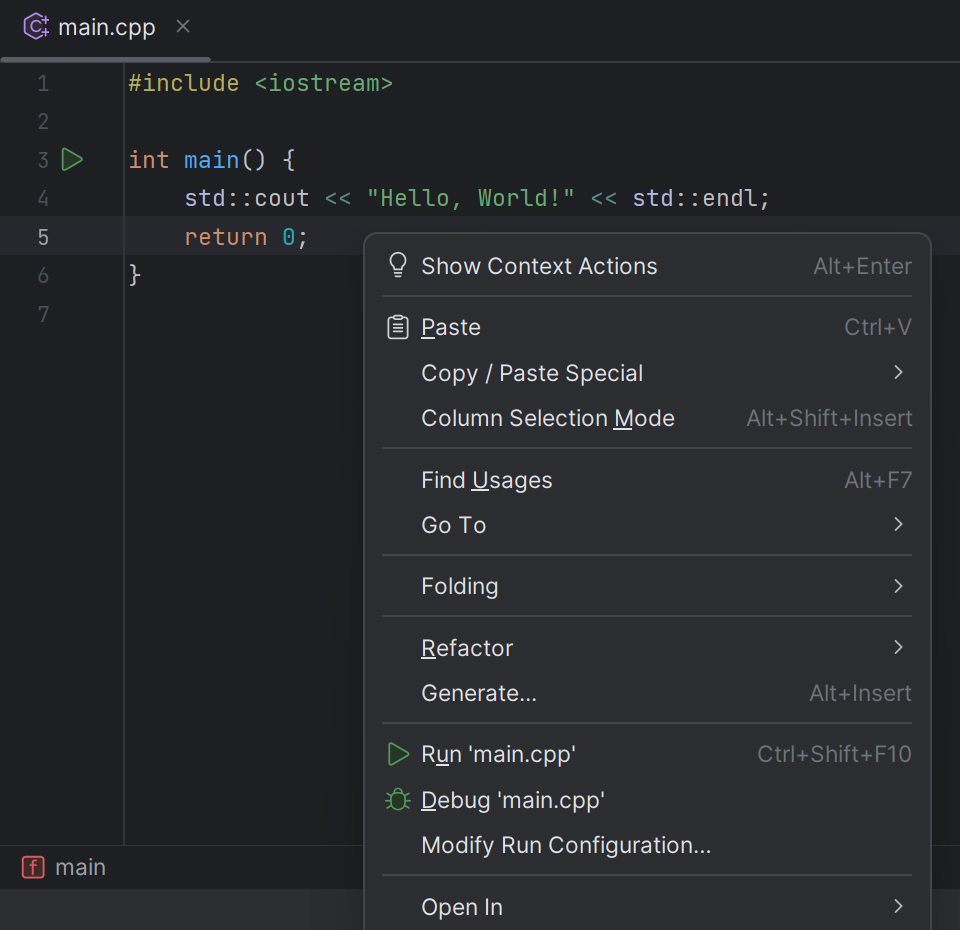
To debug the program, set breakpoints in the editor, right-click in the editor area, and select the Debug 'main.cpp' option.
Compiling, Running, and Debugging via CMake
Settings
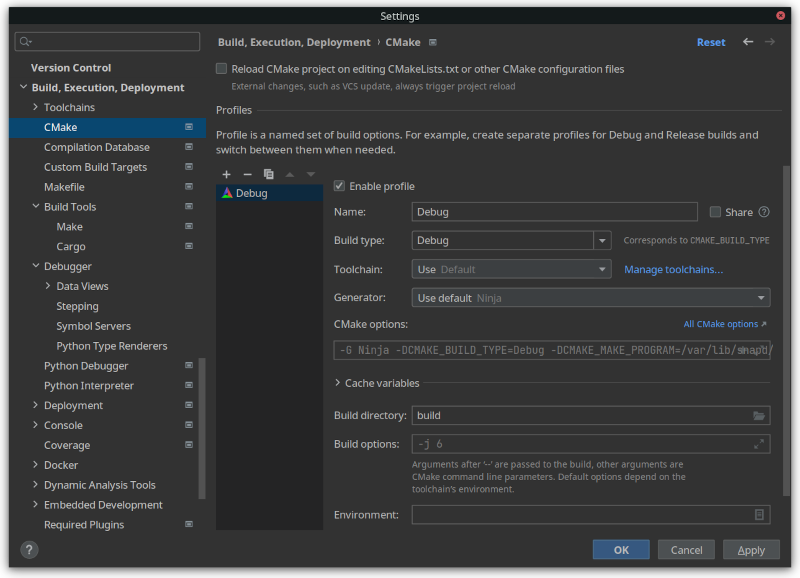
CLion can also use CMake as the build tool. CMake settings can be modified under Build, Execution, Deployment -> Toolchains -> CMake.
Compilation Options
CMake uses the CMakeLists.txt file in the project root directory as the configuration file for building the project by default. You can use the add_compile_options command to add compilation options, for example:
1 | |
For other CMake features, please refer to the CMake Official Documentation
Obtaining a Free CLion IDE License
CLion is a paid product, but you can apply for special licenses through an educational email or an open-source project. After approval, you can not only use the official CLion IDE for free but also other paid products developed by JetBrains.
Using an Educational Email
Go to the official Free Educational Licenses page, click the Apply button, and fill in the relevant information to apply.
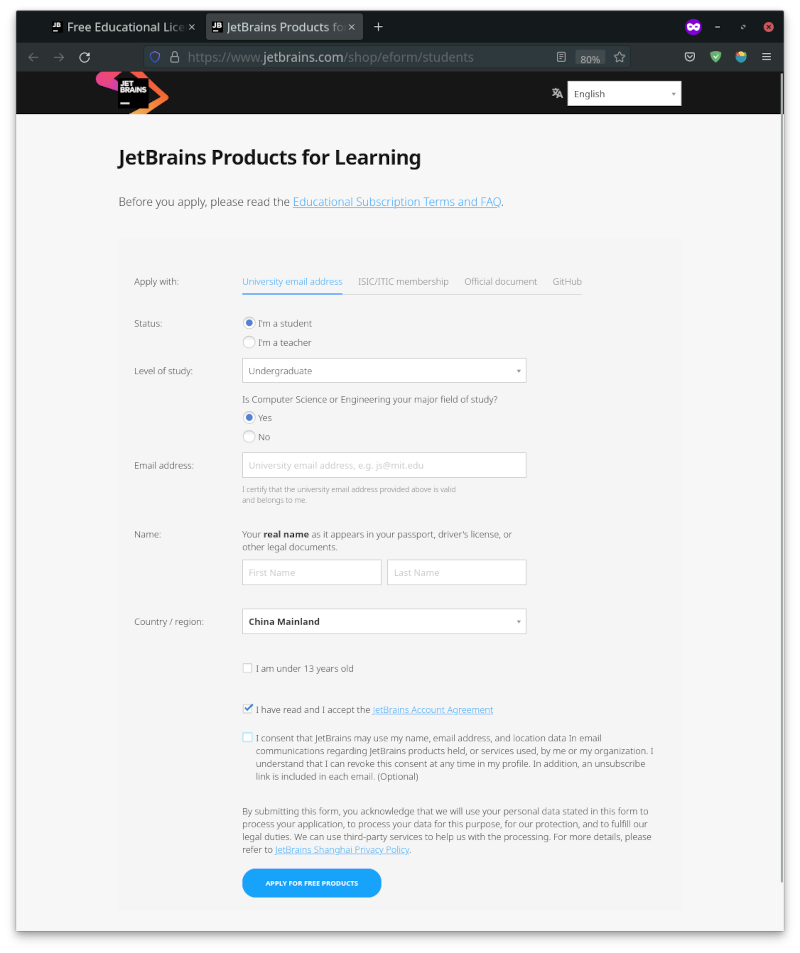
Note: When registering, please use an educational email with an @edu.cn suffix for the email option. The special license requires email verification before it can be obtained.
You can apply for an educational email through your university's academic affairs center website. If you cannot apply for one, you may need to use 学信网 for verification (Mainland China only).
Using an Open-Source Project
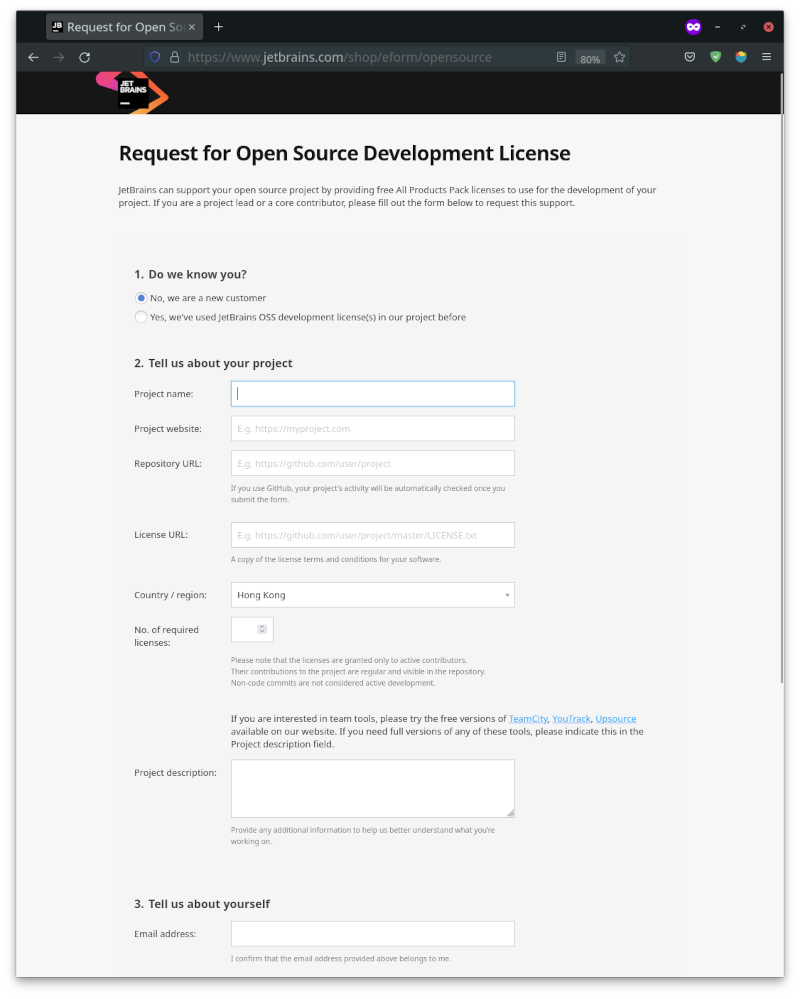
If you are a core developer or maintainer of an open-source project, you can try applying for an Open Source Development License. The application process is similar to the educational license but requires filling in the repository address of the open-source project.
本页面最近更新:,更新历史
发现错误?想一起完善? 在 GitHub 上编辑此页!
本页面贡献者:OI-wiki
本页面的全部内容在 CC BY-SA 4.0 和 SATA 协议之条款下提供,附加条款亦可能应用