Emacs
This page is a beginner's tutorial for Emacs.
15-minute introduction to Emacs.
Introduction
Emacs is an editor that is very easy to get started with; it can be used with just a few lines of configuration. However, becoming proficient in using Emacs for various tasks requires some time.
As an introductory tutorial, this page only covers the basic functionalities of Emacs and convenient methods for writing and debugging code with Emacs.
Getting Started
Commands
Commands play a significant role in Emacs.
Press the Application key1 (on Windows systems, Emacs does not assign this key by default; it needs to be set manually) or use the shortcut M-x (Alt+x) to open the command input. After typing the command, press Enter to execute it.
Typically, the es or eshell command is used to open Eshell (similar to a terminal).
Inputting commands can often be replaced by shortcuts.
Buffers
A buffer refers to an opened file or process. Modifications made in the buffer do not affect the file until saved.
Click the buffer name at the bottom of the buffer area or use shortcuts to switch between buffers.
Compiling, Debugging, and Running
The entries for compiling and debugging functions are in the Tools dropdown menu in the top menu bar. Users can also use commands or customize shortcuts for compiling and debugging.
Programs can be run using a terminal or Eshell.
After selecting Debug (gud-gdb) in Tools, enter the program name (usually filled in automatically, but if the program was saved under a different name during the process or if two programs need debugging, the automatically filled filename may be incorrect) to start debugging.
Splitting Windows
This feature allows users to view the contents of multiple buffers simultaneously without switching back and forth, making it convenient for testing and debugging code.
The split-window feature can display multiple windows at once. Dragging the edges of a window with the mouse can resize the window.
Several shortcuts:
- Delete split window "C-x 0": Remove this split window.
- Split window horizontally "C-x 3": Split this window horizontally into two halves.
- Split window vertically "C-x 2": Split this window vertically into two halves.
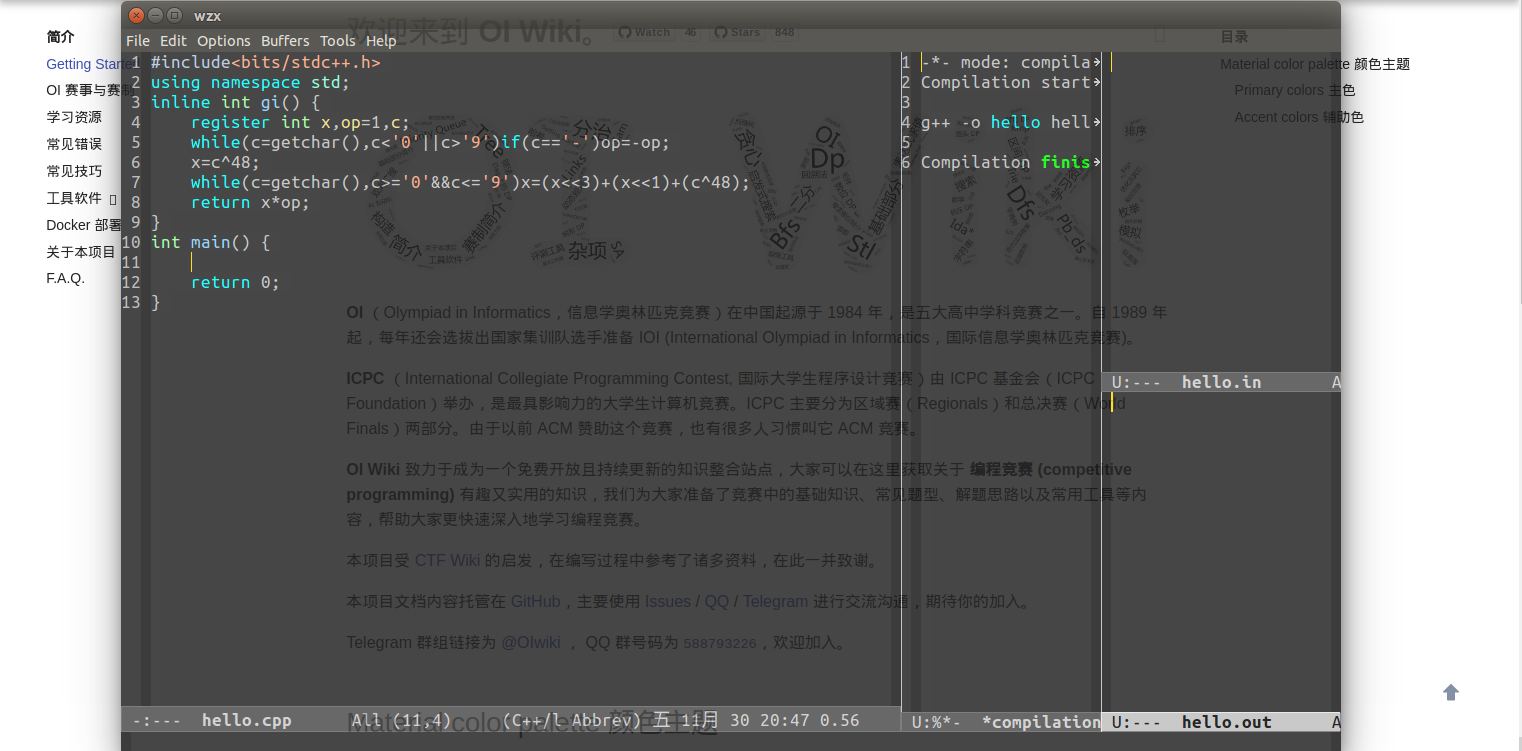
A recommended window layout is to divide the window into four parts: first, split horizontally, adjusting one part to about ¾ of the screen width as the editing window. Then, split the other part horizontally; one part serves as the window for displaying debugging and compilation information, and the other part is split vertically, with one side opening the input file and the other opening the output file.
Shortcuts
Emacs has an extremely rich set of shortcuts, which can greatly improve work efficiency. Users can customize shortcuts or set shortcut mappings in the configuration.
Due to the large number of shortcuts, using Emacs shortcuts differs from using operating system shortcuts.
For convenience, the following conventions are made:
| Character | Key |
|---|---|
| C | Ctrl |
| M | Alt |
| ? | Any key |
Generally, there are three types:
F?,ESC: Press the corresponding function key directly.M-?,C-?,C-M-?: Press Alt or Ctrl while pressing?.? ?: Press the key represented by the first?, release it, then press the key represented by the second?.
Here are some commonly used shortcuts:
C-x h: Select allC-x left,C-x right: Switch to the previous/next bufferC-x d: Open a directoryC-x C-f: Open a file (if the file does not exist, create a new file)
Personalization
The default installation of Emacs has an unattractive appearance and is not very user-friendly, so personalization settings are needed.
Since configurations are hard to remember, it is recommended not to memorize configurations for parts that can be set directly.
Direct Settings
- Options:
Highlight Matching ParenthesesHighlight matching parentheses - Options:
Blink CursorSet cursor blinking - Options Show/Hide:
Tool BarShow/hide toolbar (default is show, recommended to hide) - Options:
Use CUA KeysAfter checking, you can use Ctrl + C, Ctrl + V, etc., for copy-paste shortcuts - Options Customize-Emacs:
Custom ThemeChoose a color scheme, then click Save after selection - Options:
Save OptionsSave configuration
Configuration
Show hidden files in the home directory (on Windows systems, in the AppData\Roaming directory under the user directory). ".emacs" is the configuration file (if it doesn't exist, it means it hasn't been saved before). Open and modify it. If Emacs is already open, you need to restart Emacs for the configuration to take effect.
The following configuration is recommended for exam environments.
1 2 3 4 5 6 7 8 9 10 11 12 13 14 15 16 17 18 19 | |
Full Configuration
1 2 3 4 5 6 7 8 9 10 11 12 13 14 15 16 17 18 19 20 21 22 23 24 25 26 27 28 29 30 31 32 33 34 35 36 37 38 39 40 41 42 43 44 45 46 47 48 49 50 51 52 53 54 55 56 57 58 59 60 61 62 63 64 65 66 67 68 69 70 71 72 73 74 75 76 77 78 79 80 81 82 83 84 85 86 87 88 89 90 91 92 93 94 95 96 97 98 99 100 101 102 103 104 | |
Further Reading
To start Emacs in terminal mode, add the -nw parameter at startup. Emacs has various variants, such as GCC Emacs which uses native-comp to reduce latency and its pure GTK version variant, and Emacs Macport optimized for macOS.
Emacs has a centralized software repository. After configuration, plugins can be installed via M-x package-install. Using a mirror site can speed up downloads.
Emacs can use a Language Server Protocol (LSP) to improve the editing experience. Currently, the recommended C++ backend is Clangd. The frontend can use Eglot or Emacs LSP. Refer to this entry for help in choosing a frontend.
Org Mode documents with the extension .org can be converted to Markdown documents using Pandoc.
References and Notes
-
This key is used to bring up the right-click menu, usually the first key to the left of the right Ctrl. ↩
本页面最近更新:,更新历史
发现错误?想一起完善? 在 GitHub 上编辑此页!
本页面贡献者:OI-wiki
本页面的全部内容在 CC BY-SA 4.0 和 SATA 协议之条款下提供,附加条款亦可能应用