Notepad++
Software Introduction
Notepad++ is a text editor for the Windows operating system, supporting multiple languages, various encodings, and syntax highlighting and auto-completion for many programming languages. Its logo is also quite cute—a chameleon ( ).
).
It is much more powerful than many other editing software, more stable when opening large files, and won't crash from continuous undo operations. It also doesn't require saving when closing; it automatically saves to the buffer for you (may require configuration). Moreover, it is very lightweight, only 10MB+, and can even be carried on a USB drive.
Download and Installation
Refer to Getting started | Notepad++ User Manual.
Changing the Interface Language
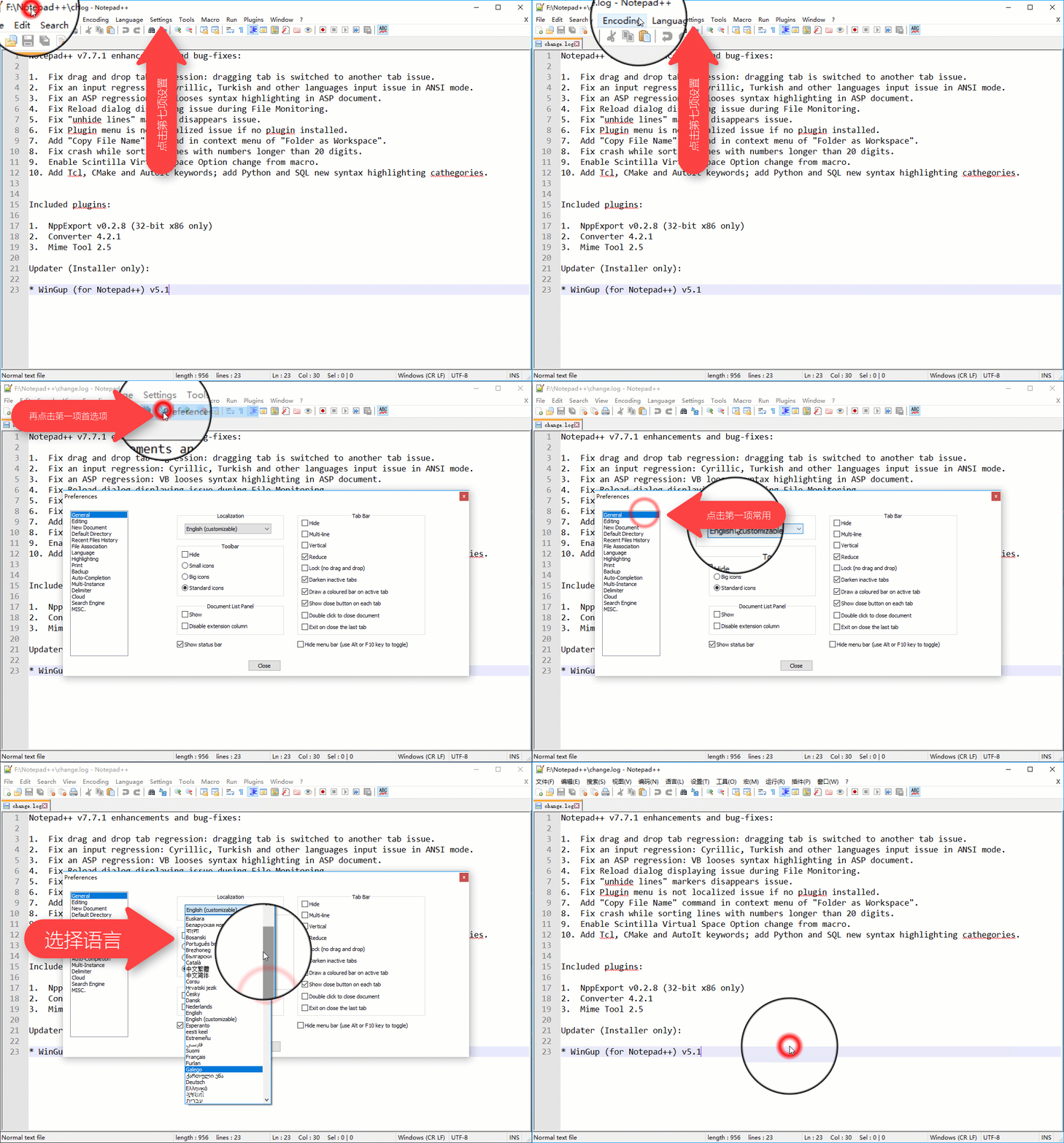
Once the language is changed, you can freely customize the editor!
Basic Usage
This section mainly covers some basic and distinctive features.
Find and Replace
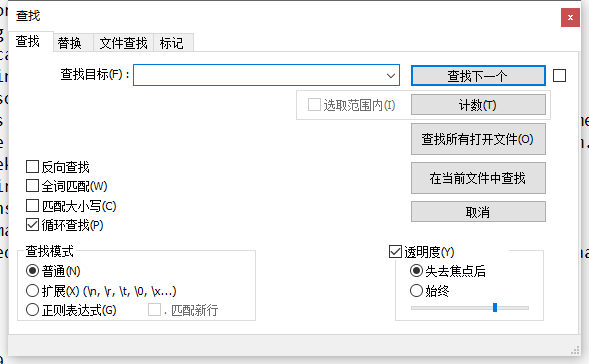
Click "Search" -> "Find" in the menu bar (shortcut CTRL+F) to open the "Find" page (as shown below).
Click "Search" -> "Replace" in the menu bar (shortcut CTRL+H) to open the "Replace" page (as shown below).
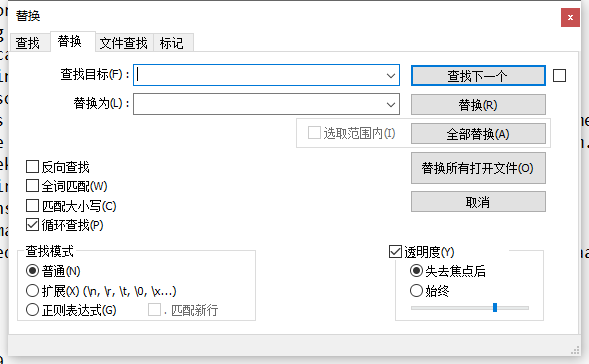
Find and Replace are actually in the same window; you can switch between them by clicking the tabs above.
Its functionality is similar to ordinary editors but supports more features, such as:
- Exact match or case-sensitive match, etc.
- Cross-document matching.
- Escape characters, such as '\r', '\n'.
- Regular expressions.
- Counting.
Periodic Backup
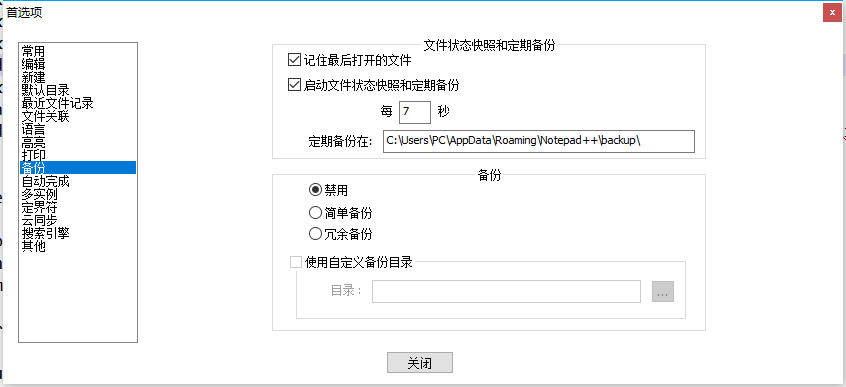
With this feature, you don't have to worry about losing code due to unexpected situations!
However, this feature only takes a snapshot of your file and doesn't actually save it, so it's still recommended to develop good saving habits. Alternatively, you can install the "Auto Save" plugin from the built-in plugin store (see Advanced Usage -> Plugins, same below).
Bookmark Function
Press Ctrl+F2 on the desired line to set or remove a bookmark. A blue dot will appear at the beginning of a bookmarked line.
Press F2 to jump to the next bookmark.
If you find it inconvenient, you can install the "Bookmarks" plugin from the built-in plugin store.
Syntax Highlighting
Right-click "XXX file" in the bottom-left corner to choose syntax highlighting for many languages, such as C, C++, PASCAL, Markdown, etc. You can even define your own highlighting!
If you find it troublesome to change the highlighting every time you open a file, you can modify the default highlighting in "Settings -> Preferences -> New -> Default Language".
To render Markdown, you can install the "Markdown Viewer" plugin from the plugin store, and there are many more similar plugins waiting for you!
Show All Characters

Click the button circled in red to clearly (or messily) display originally invisible characters such as "spaces," "TABs," and "line breaks."
Automatic Detection of File Encoding and Line Endings
Notepad++ can automatically detect whether the current file encoding is UTF-8, GB2312, or even others. No more worrying about being overwhelmed by 锟斤拷 or burned by 烫烫烫.
To view the file in a different encoding, click "Encoding" -> "Encode in XXX" in the menu bar. To convert the file to a different character encoding, click "Encoding" -> "Convert to XXX Encoding" in the menu bar.
It can also automatically detect whether line endings are CR, LF, or CRLF. No need to worry about downloaded data losing line breaks.
In the bottom information bar, you can see text like "Windows(CR LF)," which indicates the current file's line endings. Right-click it to change the line endings for the current file. This operation is more intuitive when combined with "Show All Characters"!
Advanced Usage
This section is suitable for users with higher demands.
Macros
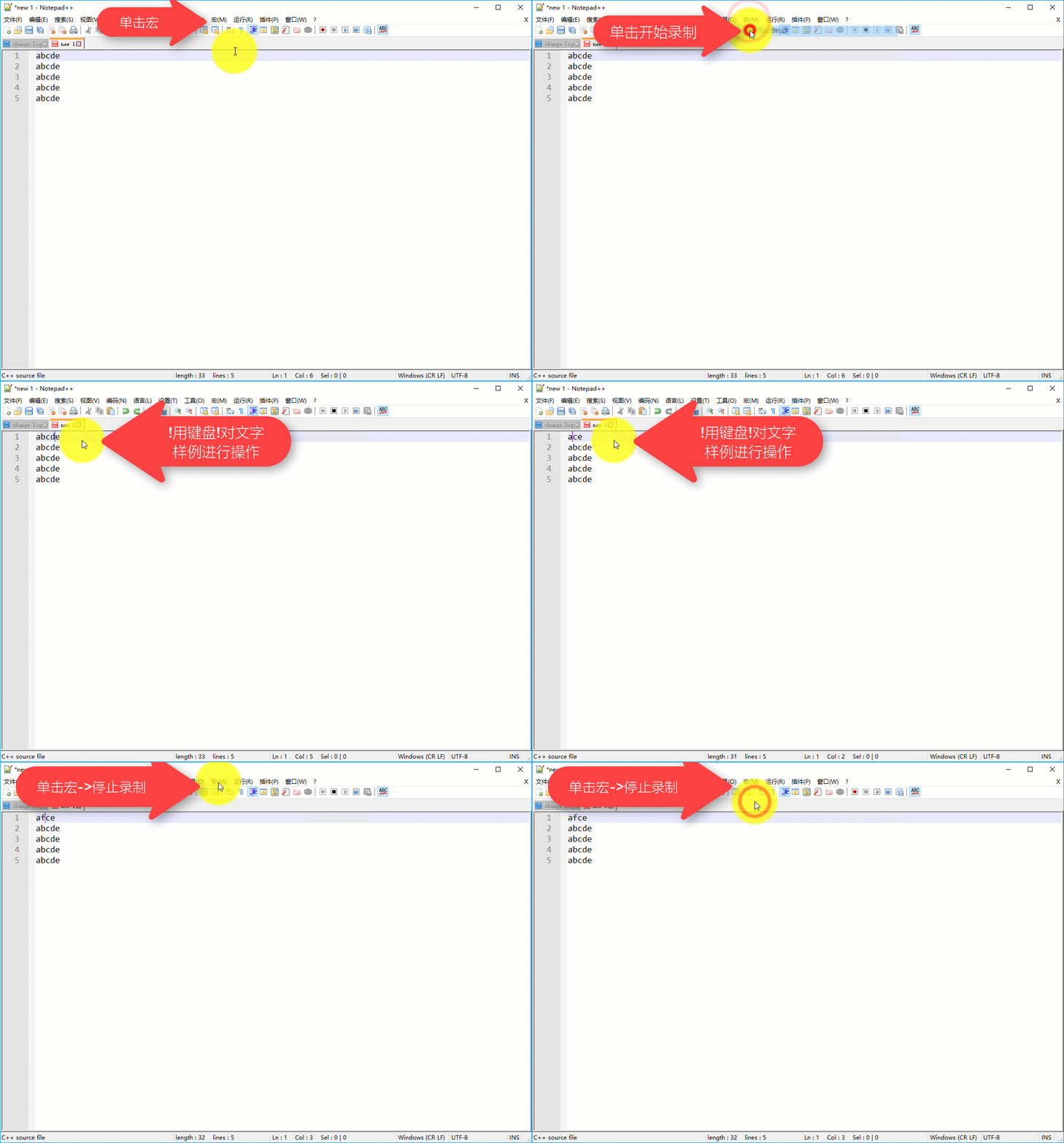
Macros can help you complete many repetitive tasks. For example, changing "abcde" to "afce" on odd-numbered lines requires two steps.
Recording a Macro
Using a Macro
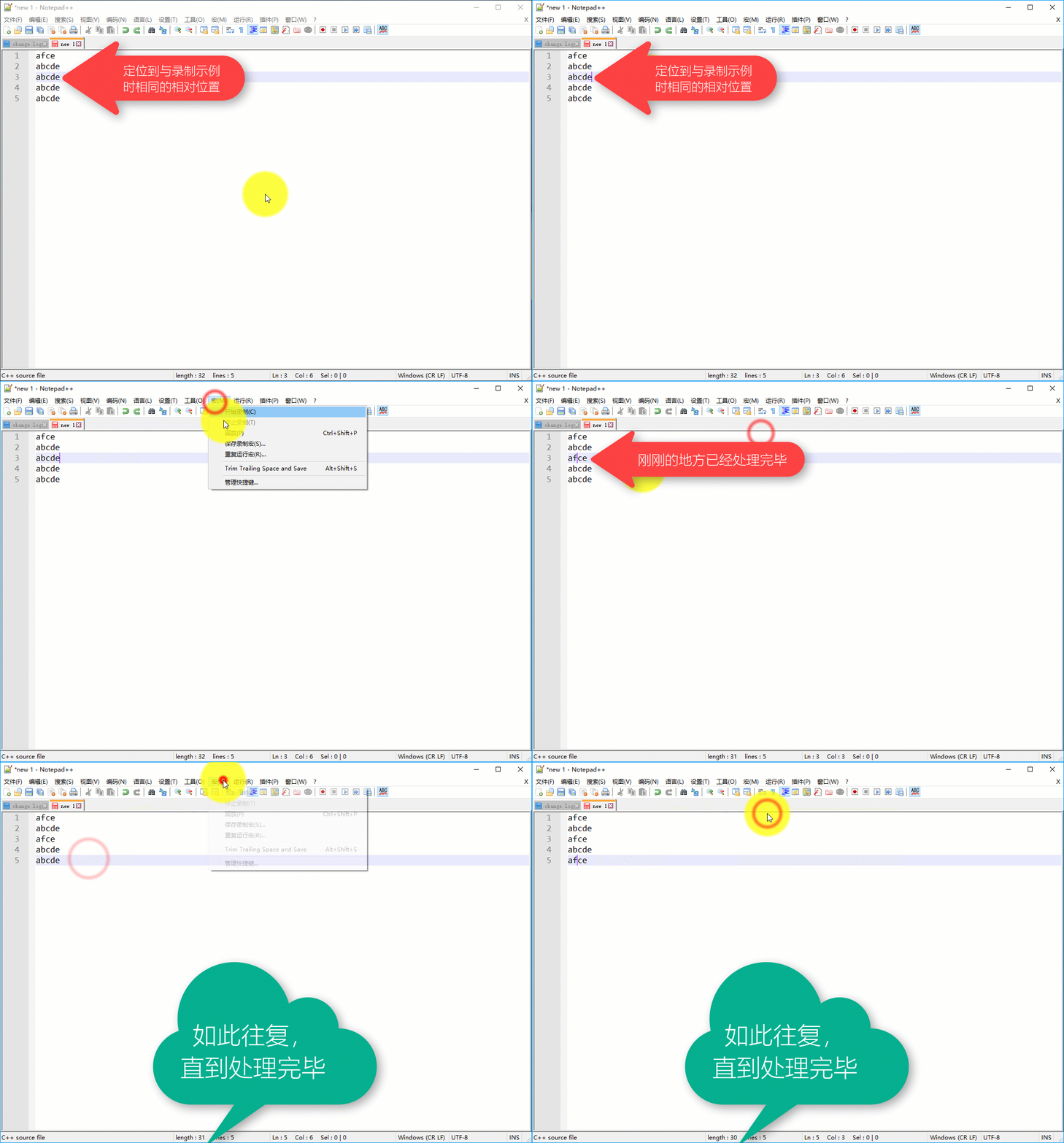
Batch Processing and Reuse
What about more lines? The operation needs a slight change.
First, when recording, always press the HOME or END key to move the cursor to the beginning or end of the line, then adjust the horizontal position with the arrow keys, make the changes, and finally use the arrow keys to move the cursor to the next line to be processed.
For example, in the previous example, you could press END, then press ←, Backspace, ←, Backspace, F, and finally press ↓ twice before stopping the recording.
For playback, first position the cursor on the first line to be processed (line 3), then click "Macro" -> "Run a Macro Multiple Times." In the pop-up window, set the macro to run (usually the first one you just recorded), set the number of runs (or run until the end of the file), and click OK.
Saving a Macro
Click "Macro" -> "Save Recorded Macro," set a name and shortcut key, and save it for future use.
Plugins
Plugin Management
Open the "Plugins" button in the function bar, and the list will display all the plugins you have installed.
Select the "Plugin Manager" option to manage your plugins.
Installing Plugins (Store)
- Open the "Available" tab, check the plugins you want in the list.
- Click the "Install" button in the top-right corner and follow the prompts to restart the software.
Installing Plugins (Manual)
- Download the plugin (official third-party hosting address: https://sourceforge.net/projects/npp-plugins/). Make sure to choose a plugin with the same processor architecture as your Notepad++ installation.
- Find a file named "XXX.dll" (usually named after the plugin).
- In Notepad++, click "Plugins" in the function bar, then click "Open Plugins Folder" in the list.
- Copy the DLL file you found into the folder and restart Notepad++.
- [Optional] Delete the copied file, but do not delete the generated folder!
Tips: If it doesn't work after multiple attempts, try creating a folder with the same name as the plugin and placing the ".dll" file inside the created folder.
Updating Plugins
In the Plugin Manager, select the "Updates" tab, check the plugins to update, and click the "Update" button in the top-right corner.
Removing Plugins
Similarly, in the Plugin Manager, select the "Installed" tab, check the plugins to remove, and click the "Remove" button in the top-right corner.
Setting Up a Development Environment
Not just an editor! "Notepad++" is like a god; it can compile code in a foolproof way and even replace an IDE! Here, we use C++ as an example.
-
Install the compiler and add its necessary file directories to the PATH environment variable (for C++, add %APPPATH%\bin). When you type
g++in cmd and it no longer says "'g++' is not recognized as an internal or external command..." (you may need to restart your computer in between). It is recommended to download ConsolePauser, place it anywhere, and add its directory to the environment variable (this is a plugin for Dev-C++ and is also available in the Dev-C++ software root directory). -
In the menu bar, select "Run" -> "Run..." to open the "Run" window.
-
Enter the following commands respectively:
 1
 2
 3
 4
 5
 6
 7
 8
 9
10
11
12
13
14
15
# Compile command: cmd /c g++.exe -o $(CURRENT_DIRECTORY)\$(NAME_PART).exe $(FULL_CURRENT_PATH) # Run command: cmd /c $(CURRENT_DIRECTORY)\$(NAME_PART).exe $(FULL_CURRENT_PATH) & pause # Debug command: cmd /c gdb $(CURRENT_DIRECTORY)\$(NAME_PART).exe # If you downloaded ConsolePauser, you can use the following code for a better program running experience! (Remember to add it to the environment variable!) # Compile command: cmd /c (start ConsolePauser "g++.exe -o $(CURRENT_DIRECTORY)\$(NAME_PART).exe $(FULL_CURRENT_PATH)") # Run command: cmd /c (start ConsolePauser "$(CURRENT_DIRECTORY)\$(NAME_PART).exe") # Debug command: cmd /c (start ConsolePauser "gdb $(CURRENT_DIRECTORY)\$(NAME_PART).exe") -
Click "Save," name it as you like, such as "Compile," "Run," etc., and set the desired shortcut keys (choose memorable ones, like
F9andF10for Dev-C++). -
Enjoy it!
Easter Eggs
-
When running the installer, you will see this sentence at the bottom:
"The best things in life are free. Notepad++ is free. So Notepad++ is the best(.)"
(The best things in life are free. Notepad++ is free. So Notepad++ is the best.)
This boast is quite bold, to say the least.
-
In a new page, type "random," select it, and press
F1to get an interesting phrase.
本页面最近更新:,更新历史
发现错误?想一起完善? 在 GitHub 上编辑此页!
本页面贡献者:OI-wiki
本页面的全部内容在 CC BY-SA 4.0 和 SATA 协议之条款下提供,附加条款亦可能应用