Code::Blocks
Introduction
Code::Blocks is an open-source Integrated Development Environment (IDE) developed in C++, using wxWidgets as its graphical interface library. The project began in 2001 and is currently maintained by the official community. It is primarily used for developing in programming languages such as C, C++, and Fortran.1
Advantages:
-
Lightweight and Efficient: Code::Blocks has low resource consumption and fast startup, making it suitable for environments with limited resources, developers who prefer lightweight IDEs, and beginners learning to code.
-
Cross-Platform Compatibility: Supports various operating systems including Windows, Linux, and macOS, providing a consistent user experience that allows developers to work seamlessly across different platforms.
-
Extensive Compiler Support: Supports multiple compilers including GCC, MSVC (Microsoft Visual C++), Digital Mars, and Borland C++ 5.5, allowing developers to choose the most suitable compilation tools based on project requirements.
Disadvantages:
-
Limited Feature Set: Compared to IDEs like CLion or Eclipse, its built-in features and tools are relatively basic and may be insufficient for complex project needs.
-
Weak Plugin Ecosystem: Although it supports plugin extensions, the number and quality of third-party plugins are limited, resulting in a relatively weak plugin ecosystem.
Installation
Refer to the Code::Blocks official website, choose to download the binary installer (Binary Release) or download the source code to compile and install (Source Code). Then, select the appropriate installer based on your needs and operating system, and follow the installation wizard to complete the setup.
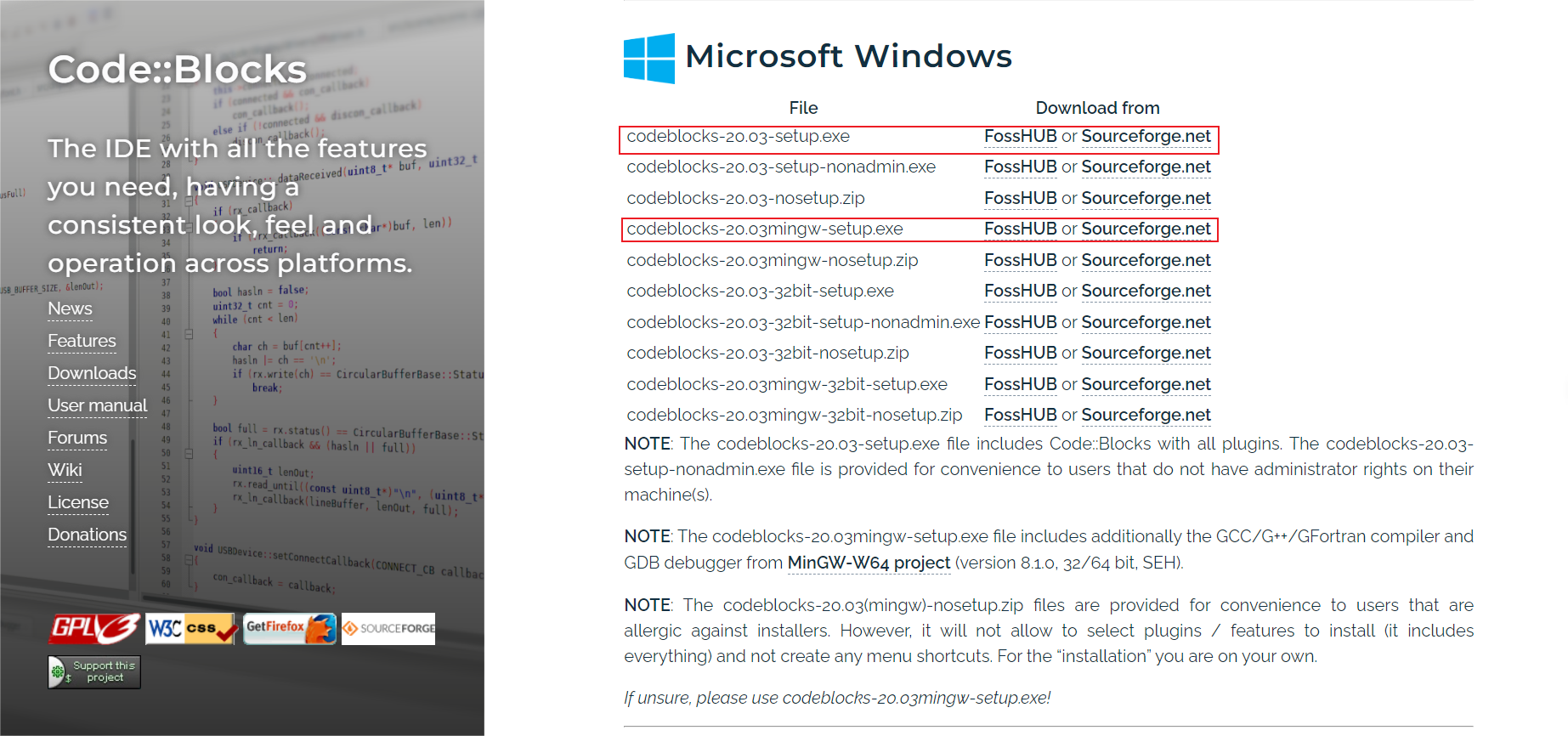
Download the installer including MinGW
For Windows users, if you do not wish to manually configure a compiler, it is recommended to download the installer that includes MinGW, such as codeblocks-xxxxmingw-setup.exe. This version already includes the GCC compiler, allowing you to start developing C and C++ projects without additional installation and configuration.
Configuration
If you chose an installer that does not include MinGW during installation, or if you need to use another compiler, you must manually install and configure the compiler, then set up Code::Blocks to use it.
Toolchain Installation
Refer to this site's Compiler installation guide to download and install the compiler you need.
Toolchain Setup
When Code::Blocks is started for the first time, it automatically scans for installed compilers on the system. If no compiler is found, you can manually add one by following these steps:
- Open Code::Blocks, click on the menu bar
Settings -> Compilerto open the compiler settings dialog (as shown below).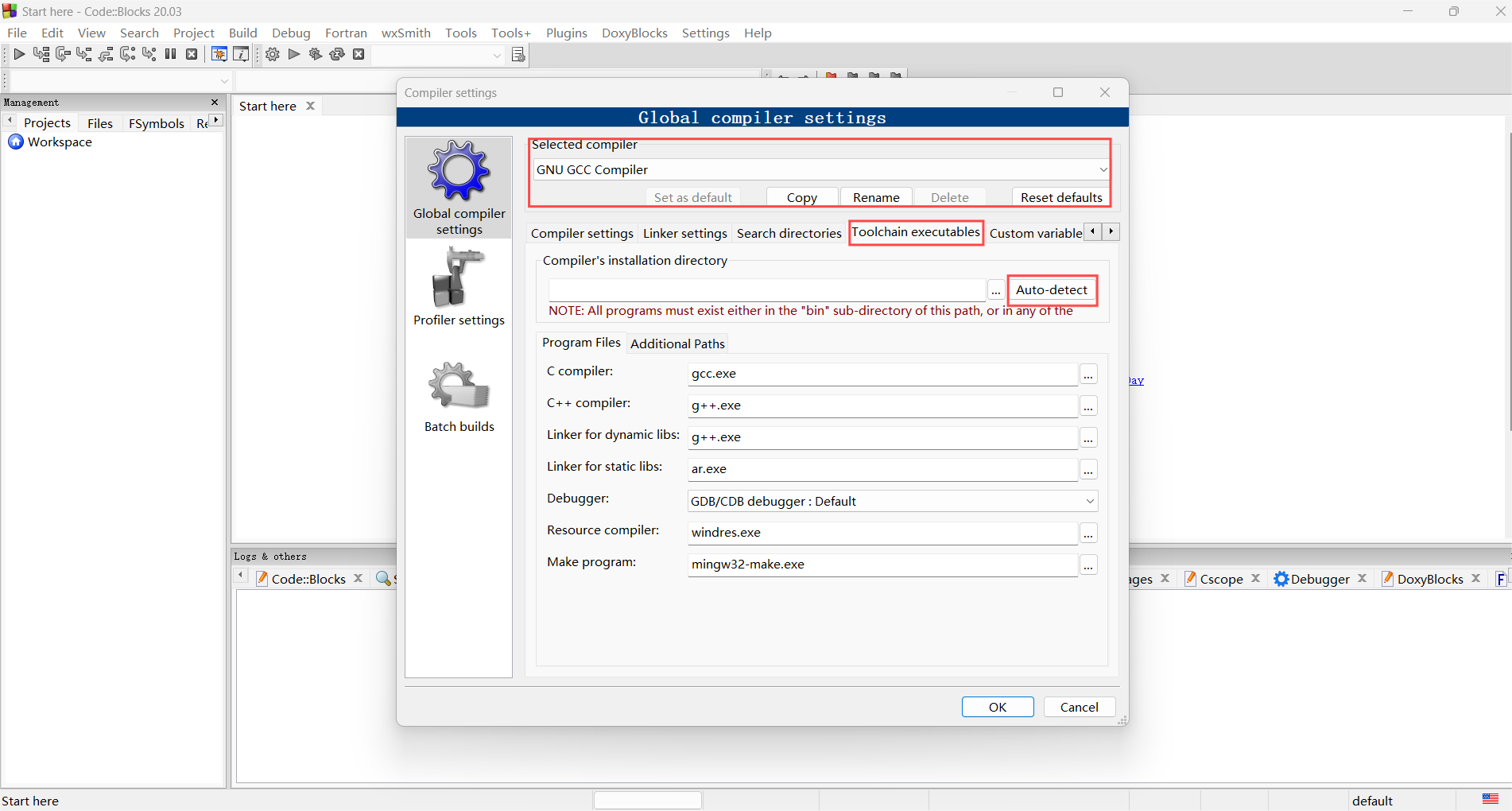
- In the
Selected compilerdropdown, select the compiler you need to configure, e.g.,GNU GCC Compiler. - In the
Toolchain executablestab, click theAuto-detectbutton. Code::Blocks will automatically scan for installed compilers on the system. - If the automatic scan fails, you can manually set the compiler path. Enter the compiler's installation directory in
Compiler's installation directory, e.g.,C:\MinGW\bin. - After setup, click
OKto save the settings. You can now use this compiler to compile and run projects.
Usage
Code::Blocks has a built-in project manager that supports user-defined project builds. You can set compilation options in Project -> Build options, choosing the compiler, compilation options, linking options, etc. You can also set project properties in Project -> Properties, such as project name, path, file list, etc.
Configuring Makefile
Code::Blocks does not require writing a Makefile by default. If you need to use a custom Makefile, you can check the This is a custom Makefile option in Project -> Properties, then set the path to the Makefile in Project -> Build options.
Creating a Project
Programming languages supported by Code::Blocks include C, C++, and Fortran. After starting Code::Blocks, you can create a new project via File -> New -> Project. Select the project type and template, then follow the wizard's instructions to set the project name, path, compiler, etc. Finally, click Finish to complete project creation.
Code::Blocks also supports compiling and running single files. You can create a new file via File -> New -> File. After writing and saving the code, click the Build and run button on the toolbar, or press the F9 key, to automatically compile and run the current file.
Building and Running
Taking a simple Console Application project as an example, here's how to build and run a project:
- After the project is created, you will see a default
main.cppfile. You can write your code in this file and then save it. - After writing the code, click the
Build and runbutton on the toolbar, or press theF9key. Code::Blocks will automatically compile and run the project. - After compilation and running, the program's output will be displayed in the output window. You can view the program's output in the output window and adjust the code as needed.
- If you only need to compile the project without running it, you can click the
Buildbutton on the toolbar, or pressCtrl + F9. Code::Blocks will only compile the project without running the program.
Debugging
Code::Blocks has a built-in debugger. You can set up and start the debugger from the Debug menu to help locate and fix errors in your program.
Similarly, taking a simple Console Application project as an example, here's how to debug a project:
- Set Breakpoints: Click the left mouse button on the left side of the code line where you want to debug to set a breakpoint. The program will stop execution at the breakpoint.
- Start the Debugger: Click the
Debugbutton on the toolbar, or press theF8key. Code::Blocks will automatically compile and start the debugger. - Debug the Program: In the debugger, you can step through the program, view variable values, call stacks, etc., to help locate and fix errors.
- Stop Debugging: After debugging is complete, you can click the
Stopbutton on the toolbar, or pressShift + F8, to stop the debugger.
Customization
Code::Blocks provides rich settings options to help adjust the editor's behavior. Here are some commonly used settings:
Interface Settings
- In
Settings -> Editor, you can set options for the editor's font, color, indentation, auto-completion, etc. - In
Settings -> Environment, you can set global behaviors for Code::Blocks, such as auto-save, auto-backup, auto-suggestions, etc. - In the
Viewmenu, you can adjust the editor's layout, such as opening/closing the file browser, toolbar, status bar, output window, etc.
Plugin Settings
Code::Blocks supports plugins to extend functionality. You can view and install available plugins via Settings -> Plugins, such as DoxyBlocks, wxSmith, etc. Here are some commonly used plugins:
- DoxyBlocks: An integration plugin for the well-known documentation generation tool Doxygen, allowing you to generate project documentation directly within Code::Blocks.
- wxSmith: A plugin for developing wxWidgets applications, providing a visual interface design tool that allows for quick creation and layout of GUI interfaces, simplifying the development process.
- Thread Search: A plugin supporting multi-threaded search, enabling quick searching and replacing of symbols and text within projects, suitable for large-scale project development.
For plugin installation and usage methods, please refer to the Code::Blocks Plugin Documentation. Choose and install suitable plugins based on their requirements and functionality.
Note
Code::Blocks plugins are relatively simple and basic, and most plugins are already integrated into the software. The number and quality of third-party plugins are limited. It is recommended to choose plugins based on actual needs.
Shortcut Key Settings
You can view and modify shortcut key settings via Settings -> Editor -> Keyboard shortcuts, adjusting shortcuts according to your habits.
Here are some commonly used shortcuts:
| Function | Shortcut Key |
|---|---|
| New File | Ctrl + Shift + N |
| Open File | Ctrl + O |
| Save Current File | Ctrl + S |
| Save All Files | Ctrl + Shift + S |
| Close Current File | Ctrl + W |
| Close All Files | Ctrl + Shift + W |
| Build and Run Current Project | F9 |
| Build Current Project Only | Ctrl + F9 |
| Compile Current Project Only | Ctrl + Shift + F9 |
| Run Current Project | Ctrl + F10 |
| Debug: Start/Continue | F8 |
| Debug: Stop | Shift + F8 |
| Debug: Next Step | F7 |
| Debug: Step Into | Shift + F7 |
| Debug: Step Out | Ctrl + F7 |
| Debug: Toggle Breakpoint | F5 |
| Find | Ctrl + F |
| Find and Replace | Ctrl + R |
| Go to Line | Ctrl + G |
| Go to Matching Brace | Ctrl + B |
| Toggle Fullscreen | F11 |
| Toggle All Folds | Ctrl + Shift + - |
| Expand All Folds | Ctrl + Shift + + |
| Select Next Occurrence | Ctrl + E |
| Select and Jump to Next Occurrence | Ctrl + Shift + E |
References and Notes
本页面最近更新:,更新历史
发现错误?想一起完善? 在 GitHub 上编辑此页!
本页面贡献者:OI-wiki
本页面的全部内容在 CC BY-SA 4.0 和 SATA 协议之条款下提供,附加条款亦可能应用